
Too many ways to install shit in world’s #1 desktop OS
I thought Linux package management was broken, but then a small annoyance I experienced in Windows 11 IoT Enterprise LTSC made me reconsider.
To put this in context, it happened to me after having read Dedoimedo’s Fedora 44 Gnome review – We’re not in Kansas anymore and Windows 11 25H2 – I’m so happy to not be using this.
I’m not sure why Dedoimedo didn’t also try Fedora 44 KDE; maybe KDE’s Discover is slightly smarter than GNOME Software (although I wouldn’t bet on it). Either way, each time I might be tempted to give Fedora another try, I should revisit this post.
In the second case, the first relevant question that I had was this one:
Ludditus: Will Windows 11 IoT Enterprise LTSC 24H2 receive 25H2?
Gemini: No, Windows 11 IoT Enterprise LTSC 24H2 (officially named LTSC 2024) will not receive the 25H2 update.
Now, to the facts.
💩❶💩
When I installed Win11 IoT, first I used an old laptop from 2016, but meanwhile I transferred the exact same installation on a laptop from 2023 (old and new, both Acer).
I used Hasleo’s WinToUSB, then Disk Clone, in this order, and then I updated the drivers. I was too lazy to perform a new install, followed by customizations and whatnot.
Win11 IoT comes without Microsoft Store, so I installed it. What I didn’t notice until recently is that Win11 IoT is so stripped down that it even lacks the Windows Terminal!
winget install Microsoft.WindowsTerminalThen, I believe Win11 IoT came with Windows PowerShell, and I don’t remember how I installed the “modern” PowerShell 7 (without “Windows” in the name), but I thought I used the WinGet method.
Or maybe not, because it failed to upgrade it, even if both the installed version and the new version came from the same source:
winget install --id Microsoft.PowerShell --source wingetTo upgrade from 7.5.5 to 7.6.2, I switched in Windows Terminal the shell from PowerShell to Windows PowerShell, then I ran this:
winget install --id Microsoft.PowerShell --source winget --uninstall-previous --forceThen I closed the terminal and reopened it. It started PowerShell 7.6.2.
💩❷💩
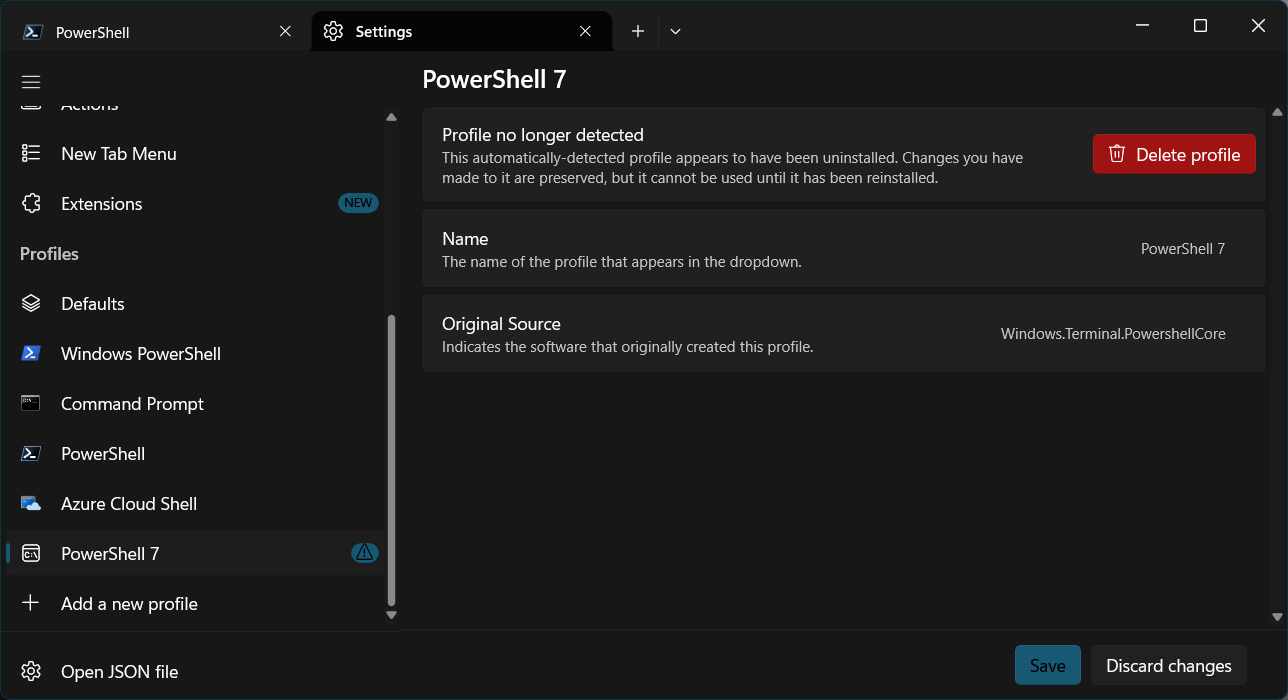
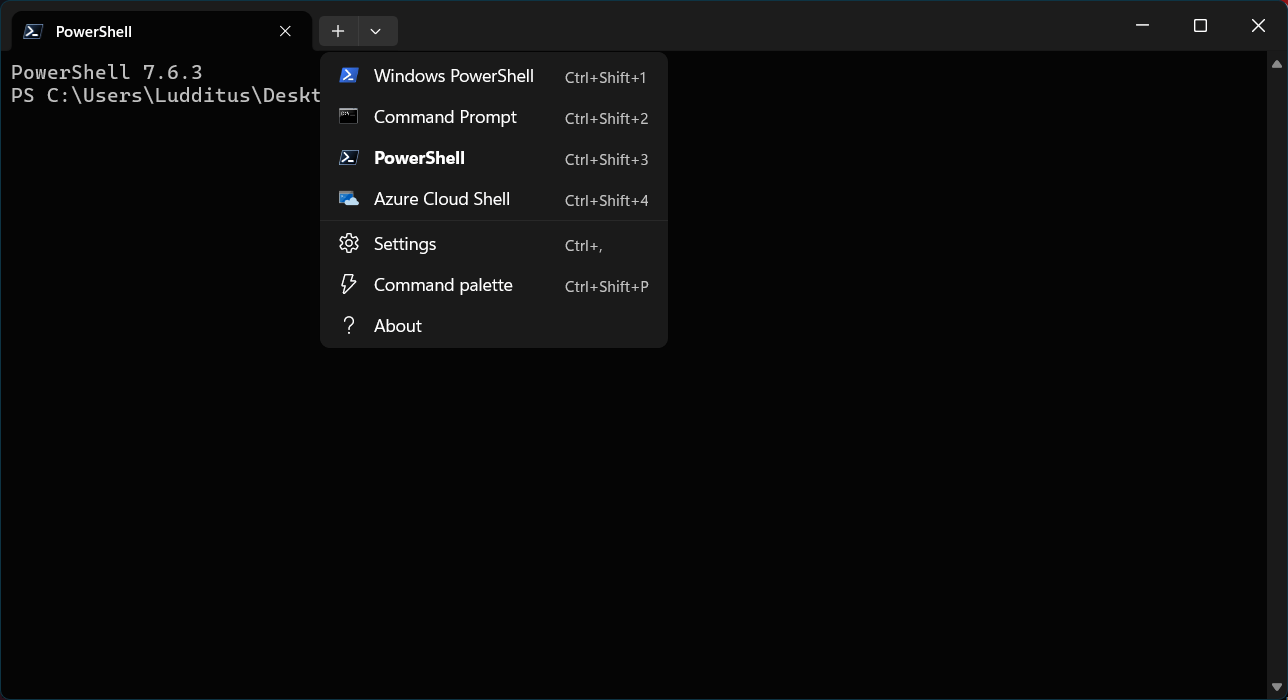
But now I ran into another problem. Windows Terminal offered me this choice of shells:
- Windows PowerShell
- Command Prompt
- PowerShell
- Azure Cloud Shell
- PowerShell 7
This is completely crazy!
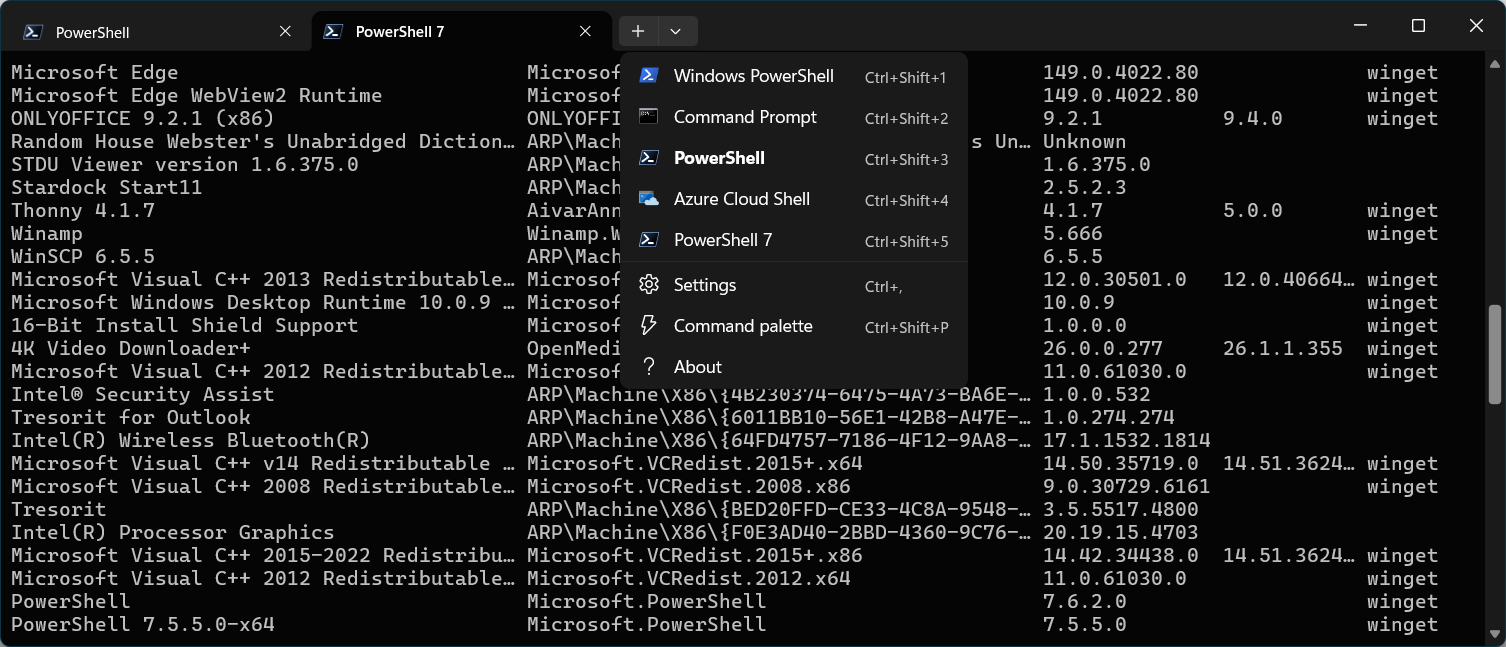
- PowerShell opens PowerShell 7.6.2, and it believes it to be the latest version.
- PowerShell 7 opens PowerShell 7.5.5 (which I thought I just uninstalled!), and it says that 7.6.3 is the latest stable version.
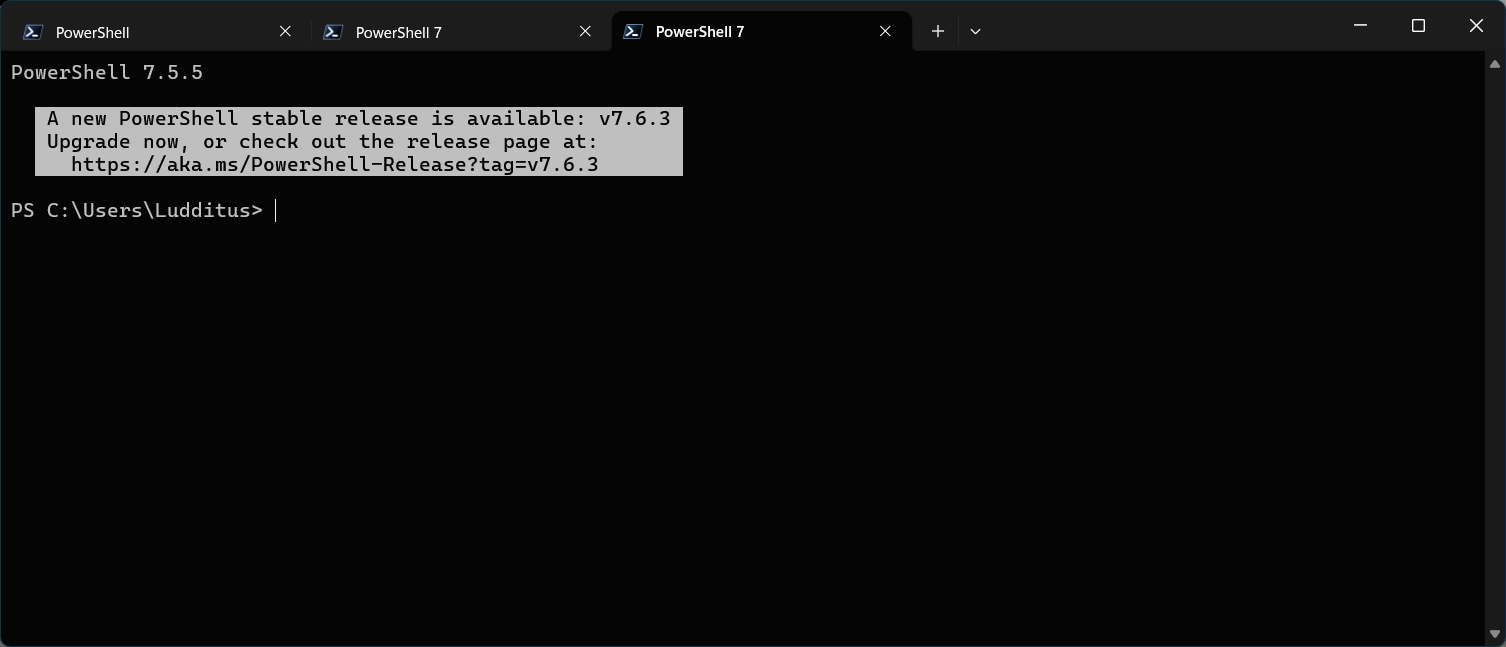
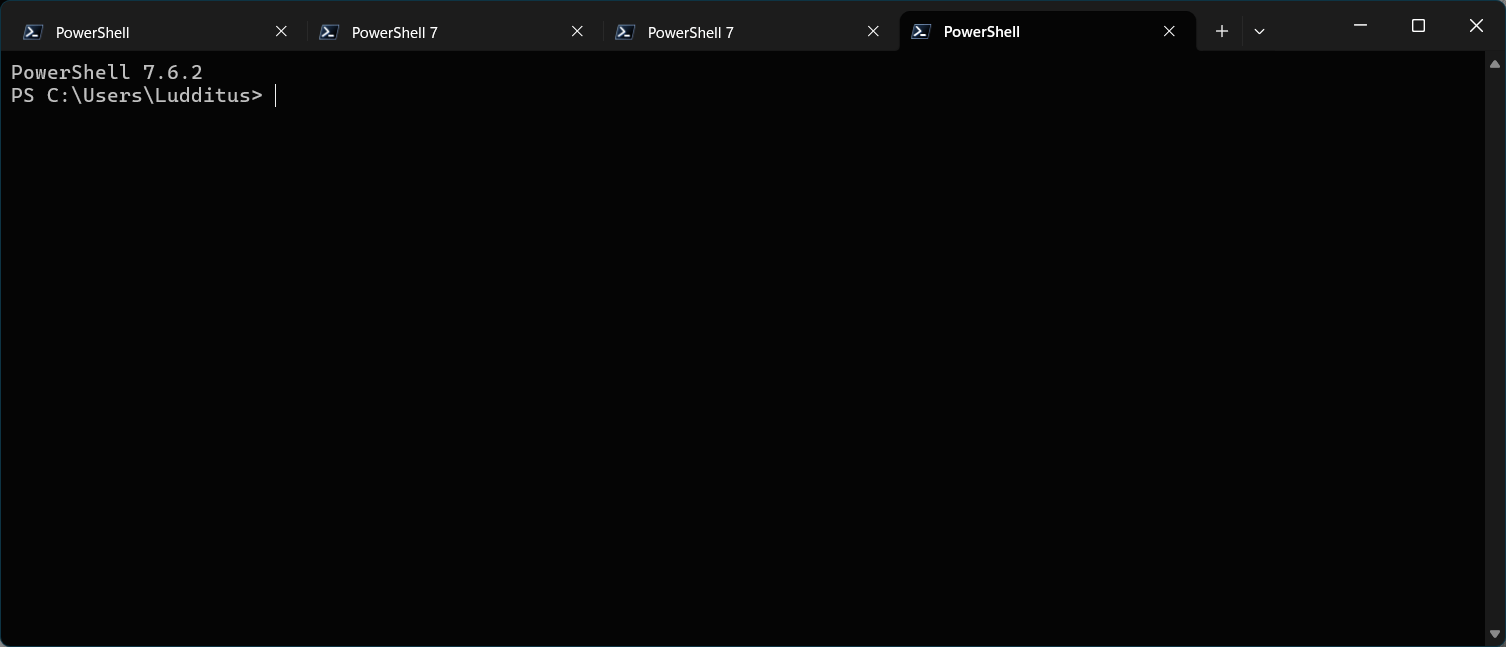
What the fucking fuck? It claimed to have uninstalled 7.5.5 when I ran “--uninstall-previous --force” and $PSHOME in the surviving 7.5.5 is C:\Program Files\PowerShell\7.
💩❸💩
From “winget list” (see also the first screenshot):
PowerShell                                 Microsoft.PowerShell                       7.6.2.0                    winget
PowerShell 7.5.5.0-x64 Microsoft.PowerShell 7.5.5.0 wingetAnd no, there isn’t anything in HKEY_CURRENT_USER\Software\Microsoft\Windows\CurrentVersion\Uninstall, so it’s not a mix-up between HKEY_LOCAL_MACHINE and HKEY_CURRENT_USER installs.
HKEY_LOCAL_MACHINE\SOFTWARE\Microsoft\Windows\CurrentVersion\Uninstall{634F4903-28DC-4BA6-A39F-4B3E394D4E36} has these values:
DisplayName=PowerShell 7-x64DisplayVersion=7.5.5.0
So PowerShell 7.6.2 is… God knows where!
OK, so 7.5.5 must have been installed via the traditional, machine-wide MSI installer. But still:
- There is no
WinGetin%LOCALAPPDATA%\Microsoft. - There is a (hidden)
WindowsAppsinC:\Program Files\but it can only be read by TrustedInstaller.
I still want to know where that bloody 7.6.2 is!
Also, the 7.5.5 installation is the only one that sees the stable 7.6.3 version, so I’d rather not uninstall it!
💩❹💩
Bingo!
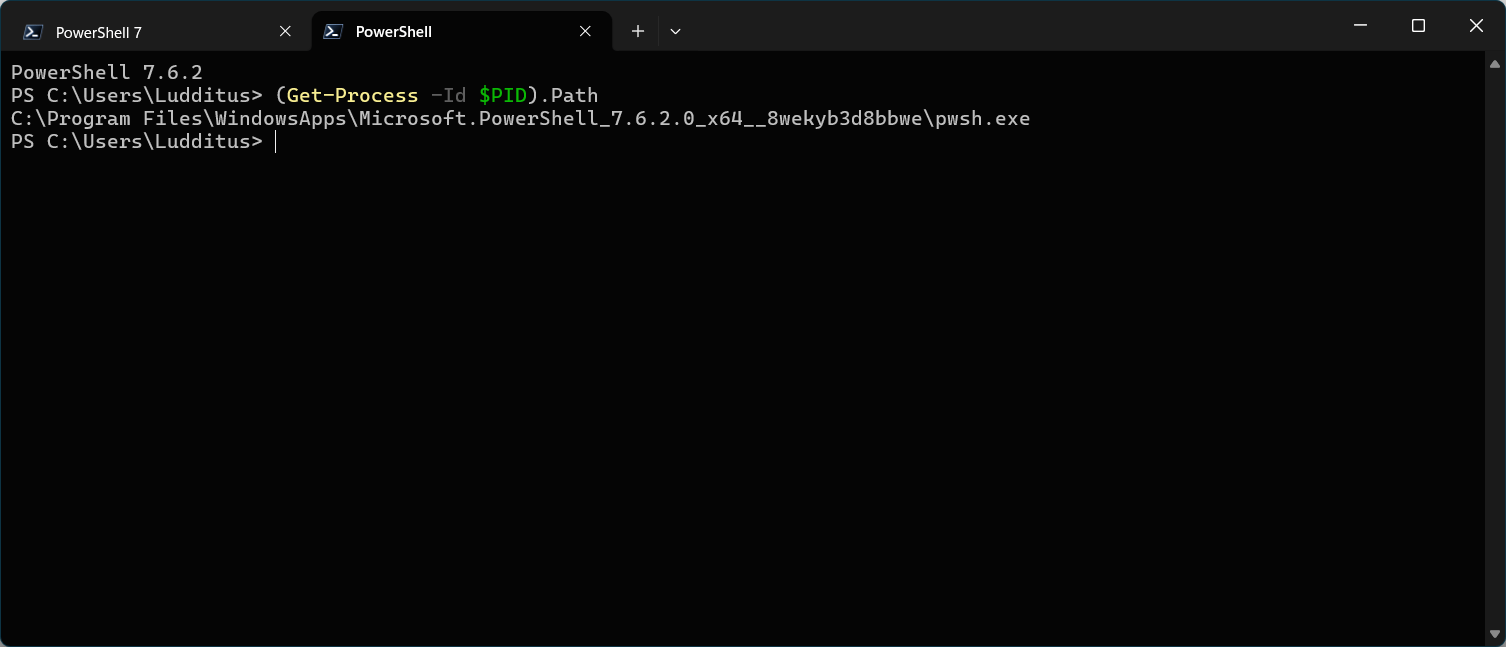
PS C:\Users\Ludditus> (Get-Process -Id $PID).Path
C:\Program Files\WindowsApps\Microsoft.PowerShell_7.6.2.0_x64__8wekyb3d8bbwe\pwsh.exeSo it’s technically a “Store App” even if WinGet installed it!
💩❺💩
Gemini to the rescue:
Gemini: The reason 7.5.5 sees the stable 7.6.3 version, but 7.6.2 does not, comes down to how those two different packages check for updates:
- The 7.5.5 MSI: Pings Microsoft’s GitHub releases directly. As soon as a new version drops, it knows.
- The 7.6.2 MSIX (Store/Winget): Relies on the Microsoft Store or Winget repository manifests. These manifests often lag a few days behind the official GitHub release while they wait for certification.
Whatever. If it says so…
OK, what black icon to uninstall?
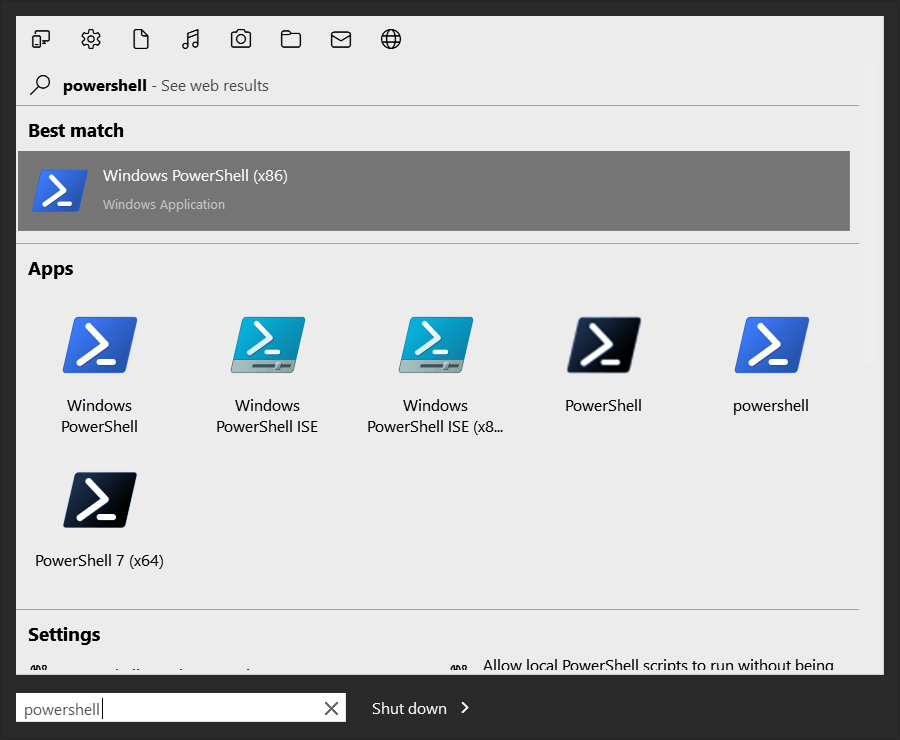
Well, it’s the first BLACK PowerShell icon!
Oh, no, sorry, it’s not. It leads me to this:
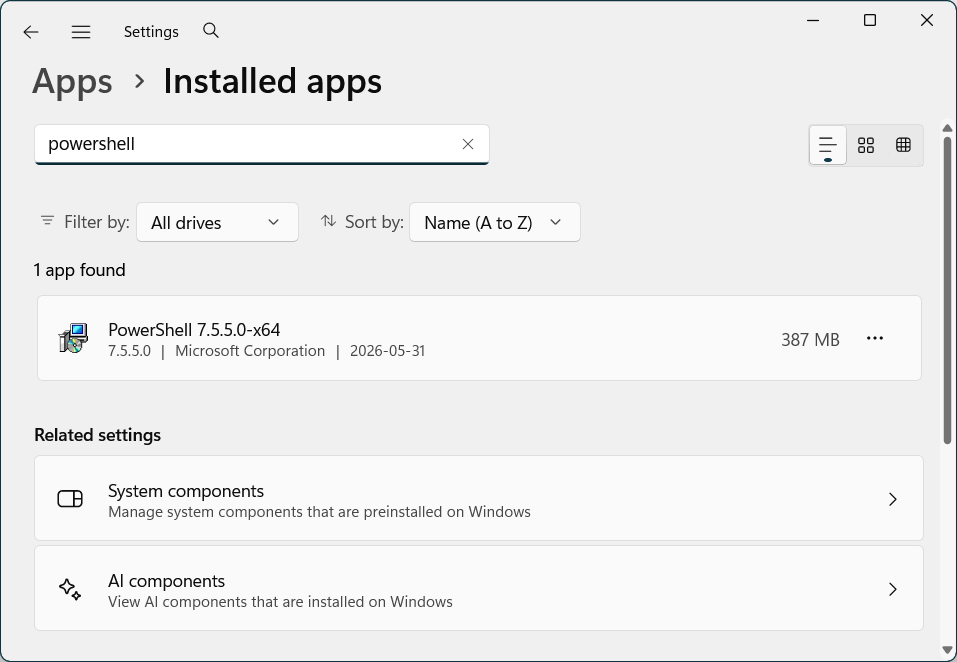
I had to ask it one more time:
Gemini: Because 7.6.2 was installed as a modern MSIX package, the Windows Settings GUI is either filtering it out or getting completely blinded by the presence of the classic 7.5.5 MSI registration.
I’m not sure that it makes sense, or that anything under Windows 11 makes sense.
💩❻💩
In the end, this is what I did.
① I uninstalled the shit:
winget uninstall --id Microsoft.PowerShell --version 7.6.2.0② Then, I went to github.com/powershell/powershell/releases, I grabbed PowerShell-7.6.3-win-x64.msi, and I installed it!
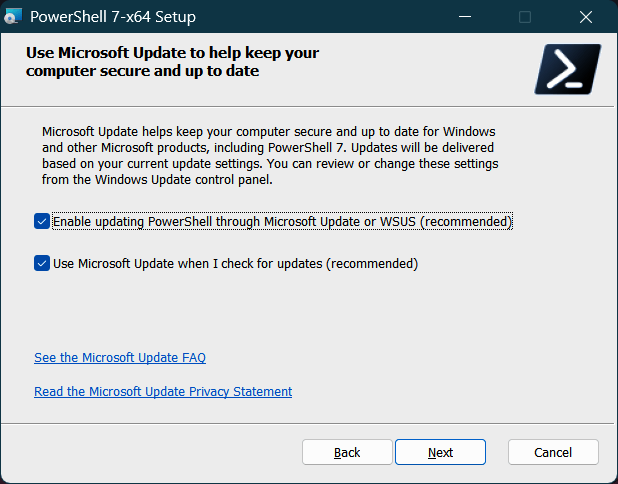
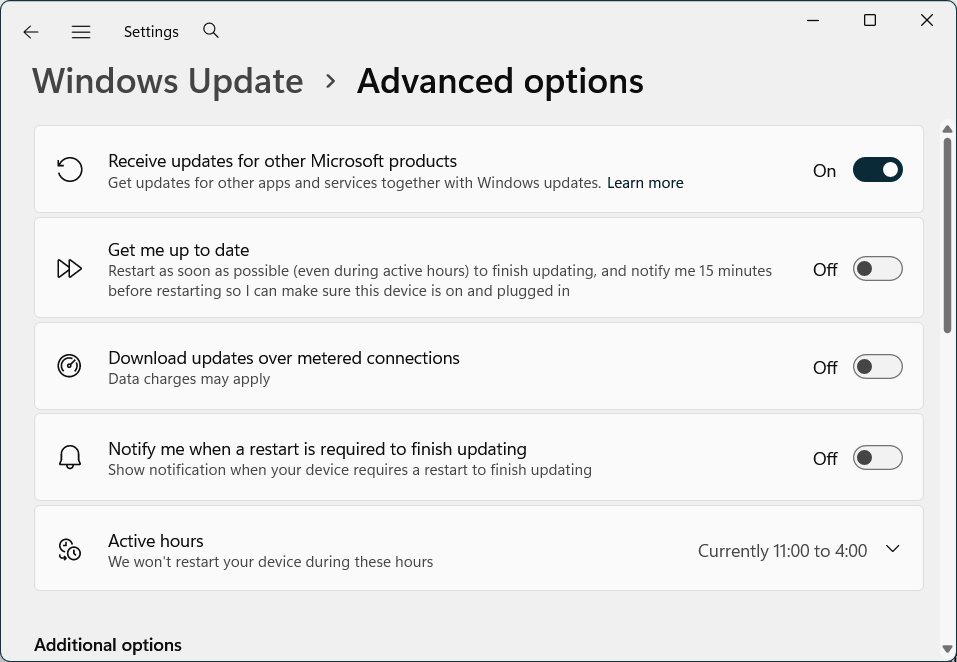
Having “Enable updating PowerShell through Microsoft Update or WSUS (recommended)” only works if “Receive updates for other Microsoft Products” is enabled in Windows Update, but I have yet to see that it actually does it:
💩❼💩
Some final touches. I had to delete a residual profile for PowerShell 7:
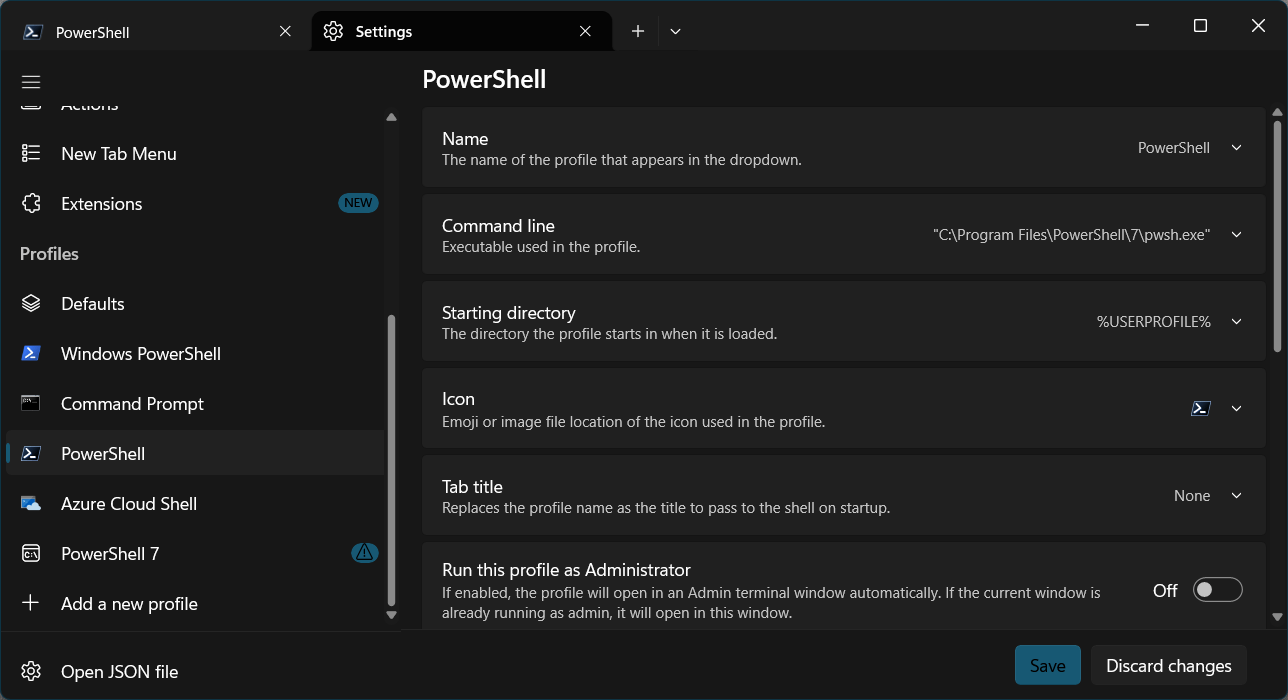
Microsoft being fucking Microsoft, PowerShell without “7” in its name is stored, who would have thought, under C:\Program Files\PowerShell\7\pwsh.exe:
But at least it works as expected:
Microsoft Corporation should have been annihilated using nuclear bombs as soon as they started working on Windows 8.
Leave a Reply