
A cursory look at WPS Office
Years ago, I quite liked Kingsoft Office. I remember I have used it under Win7 and Android. Since the suite became WPS Office (from Writer, Presentation, Spreadsheets, not from “Wonderfully Peculiar Suite”), I stopped using it. Initially, the reason was that I discovered SoftMaker Office. Much later, upon retrying WPS Office, I was unpleasantly surprised by it trying too hard to be featureful (or feature-rich) and by its aggressive promotion of its paid features. It’s fair enough for freemium software, but why bother when several free alternatives exist (LibreOffice, ONLYOFFICE)? I gave up SoftMaker Office, which has older versions marketed as FreeOffice, because of some annoying bugs in TextMaker that never got fixed, while they, too, added “features nobody asked for” and a subscription model.
Someone at WPS Office noticed my I never thought I’ll prefer ONLYOFFICE, and wondered whether I’d be willing to give it a try, this time using a trial paid account. They knew I can’t be bought, so it was just a friendly request. The paid test account is one shared by all reviewers, so it’s not advisable to upload sensitive documents to the Cloud. I wasn’t very keen to do so, but on second thought, curiosity made me try it a little bit.
Platforms and components
The entire experience described below refers to WPS Office 2026 version (or update) 12.1.0.26372 64-bit. There are two reasons for that.
UPDATE: An update to 12.1.0.26880 brought a few changes, including the associating of image files to WPS Photo, a small text viewer and editor that includes a number of AI tools: “AI Text Editing,” “AI Text Clarity,” “AI Extract Text,” “AI Formula/Table Extraction,” “AI Outpaint,” “AI Enhance,” 2x and 4x upscaling, some AI filters, and all the basic image editing tools one might need (crop, rotate, resize, annotate, add watermarks, and much more).
This is not a separate EXE, but it’s launched like this:
"%LOCALAPPDATA%\Kingsoft\WPS Office\ksolaunch.exe" /photolaunch /photo /src=photo_public_shortcut
UPDATE 2: I received from wangwang huang an English summary of a guide in Chinese on the topic of How to stop WPS Office from being the default app for Word, Excel, PowerPoint, or PDF files on Windows:
- Open Settings → Apps → Default apps.
- Search by application or by file type.
- Check each extension separately, especially .doc/.docx, .xls/.xlsx, .ppt/.pptx, and .pdf.
- Select the application you want Windows to use by default for each extension.
- Close the office applications and test by double-clicking sample files.
- If the file icon does not change immediately, verify which application actually opens the file; the icon may simply be cached.
- If needed, also check WPS’s configuration/file-association settings and disable only the formats you do not want WPS to handle by default.
A useful point from the guide is that changing the default application for one format does not automatically change the others. DOCX, XLSX, PPTX, PDF, and their older equivalents should be checked independently. Also, uninstalling WPS is not necessary just to change Windows file associations.
First, I wanted to know how it performs under Win11 on very low-end hardware. I still had my old Acer described in Masochistic me: Win11 IoT on a 2016 laptop slower than N100, and I had some references. On that machine, Win11 itself (even if IoT and cleaned of bloat) is slow. However, LibreOffice performs quite well (it’s not as slow as it used to be 10–15 years ago), but ONLYOFFICE can be rather slow, and I’m not even talking about its known slowness with spreadsheet formulas. It’s just that, on low-end hardware, ONLYOFFICE is not the best choice there is. At least, not under Win11.
Second, Linux is a second-class citizen for WPS Office, which focuses on Windows, Mac, Android, and iOS. The provided .deb and .rpm files install an antiquated version that nobody would want to use: WPS Office 2019 version (or update) 11.1.0.11723.XA.
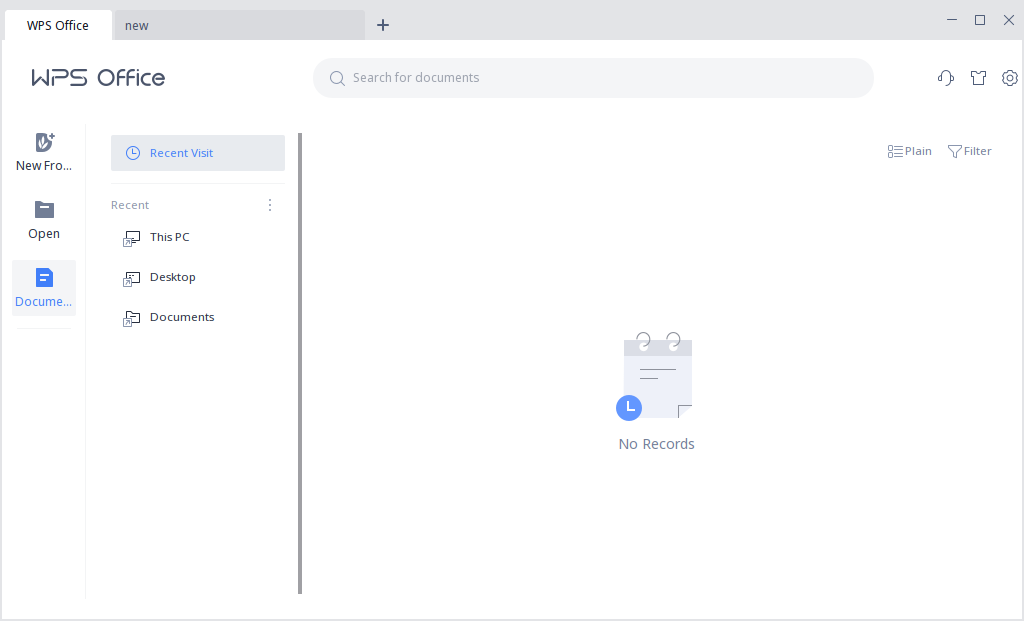
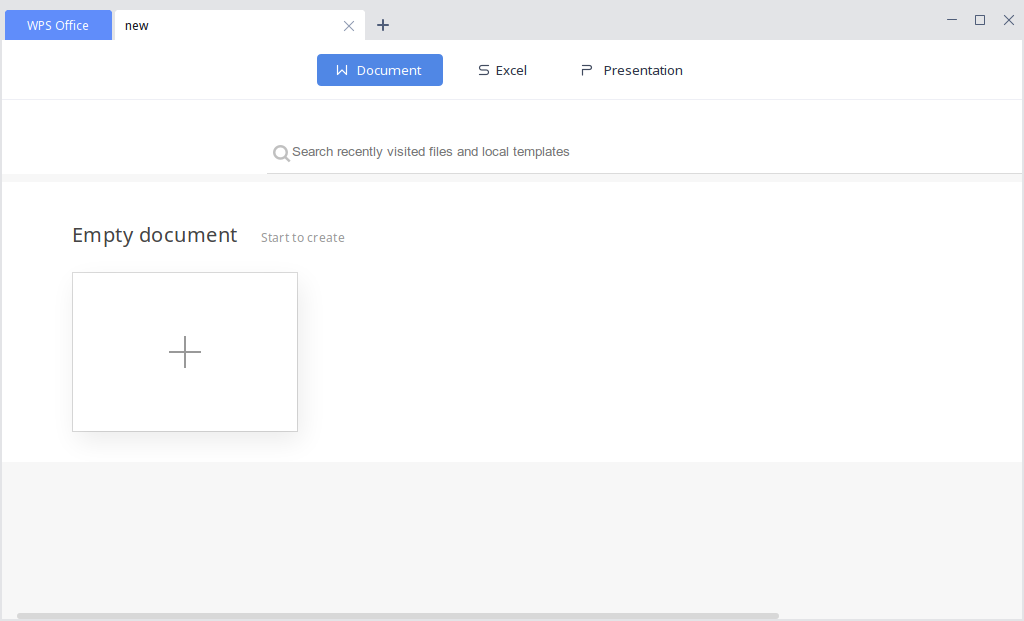
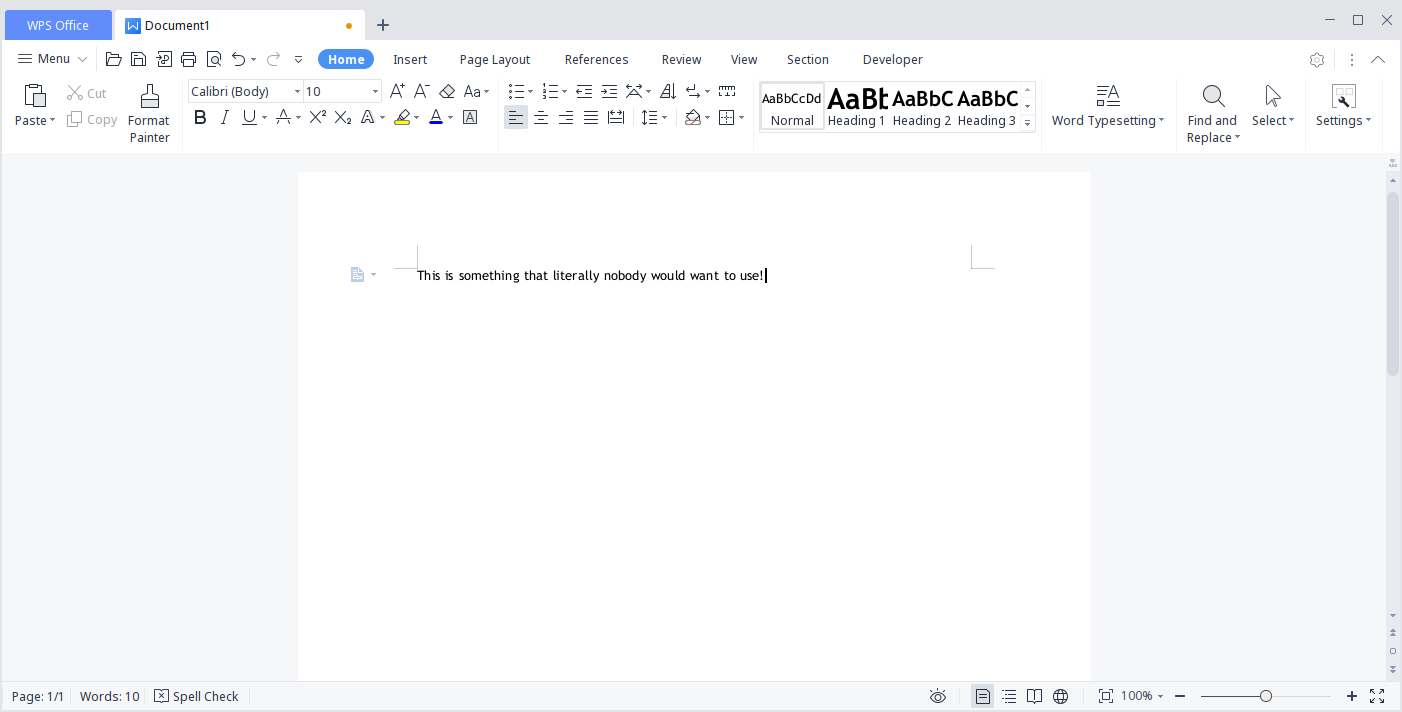
No AI, no premium features, no nagging. Too much emptiness. It might work, but it’s stuck in 2019.
A first look at WPS 2026
The very first impression was a positive one: even on a laptop that’s not suitable for Win11, WPS 2026 was fast! Fast to launch, snappy during its use. Certainly faster than ONLYOFFICE!
Shortly after, I connected to the test paid account, so I had access to all premium features, which could be simplified as follows:
- No ads, no nagging (except the first-time closing of the pop-ups or the disabling of the features you don’t want to use).
- Virtually unlimited access to all AI features (and there are many of them!).
- Full PDF editing features, including full text/image editing, OCR, file conversion, and more.
- Cloud storage expanded to 20 GB.
But there is a catch. This test account doesn’t emulate a WPS Pro+, but a WPS Premium plan, which is not listed on www.wps.com/buy, so I wouldn’t know how to purchase it:
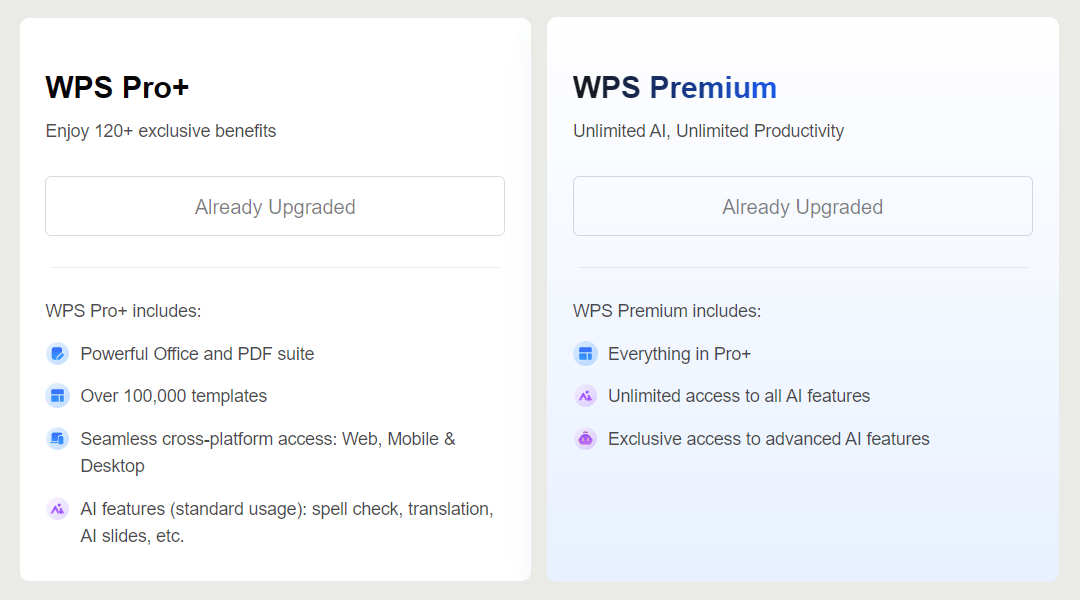
🐛 So this is the first bug, albeit on the website: how to purchase unlimited AI access?
🐛 A second website bug goes as follows: for certain countries, the currency for the shown prices is not always the expected one if the language of the website doesn’t correspond to the local language. Some examples:
- When accessing the site with a real or fake (VPN) IP from Germany, the prices were correctly shown in euros, regardless of the language of the site.
- When accessing the site with a real IP from Romania, I got prices shown:
- In the local currency (“lei” = RON for Romania), if any other language than English was selected (German, French, Italian, etc.).
- If “English” was selected, initially in Indian rupees, but later (after several IP changes via Proton VPN) either in the currency of a previously mocked country via a VPN or in dollars! This happened even if all cookies were deleted after each change of country! It eventually stabilized to “lei”…
- When accessing the site with a VPN IP from Switzerland, prices were in local currency (CHF) if the language was German, French, or Italian, but often in euros (but higher than in the Eurozone) if the language was English. Similarly, when accessing the site with a VPN IP from Poland, prices were in local currency (PLN) only if the language was Polish; otherwise, they were in euros (but higher than in the Eurozone; those for “English-language Switzerland”).
- However, different browsers (Firefox, Edge) can lead to different results. At some point, after a VPN connection to Romania, followed by the clearing of all cookies, I got all prices in RON in both browsers. But disconnecting from Proton VPN and using a real Romanian address changed the prices in Edge to Swiss Francs and in Firefox to dollars! 😳 OK, at least they were not in rupees anymore, but the dollar of which country was that? The US plan is $5.83/month when billed $69.99/year, but this plan was $2.24/month if billed $26.99/year! Some mega-dollars. I should have taken screenshots, because it’s unbelievable, and I wasn’t able to reproduce that behavior!
- I cannot explain this random behavior, but wouldn’t it be simpler if the user could manually select the currency? Isn’t the website trying too much? And what is it that it’s using when, with all “wps” cookies deleted, it “invents” another country? A browser fingerprint, maybe?

That said, the “WPS Pro+” plan that only includes “essential AI tools with usage limits” has such pricing:
- In the Eurozone: €4.99/month when billed €59.99/year, €5.99/month when billed €35.99/6 months, €7.33/month when billed €21.99/3 months.
- In Romania: 17.49 RON/month when billed 209.99 RON/year, 21.66 RON/month when billed 129.99 RON/6 months, 25.99 RON/month when billed monthly. (That’s cheaper than in euros. But SoftMaker Office is also cheaper in RON than in EUR.)
The full “WPS Premium” plan included all the available templates and AI tools:
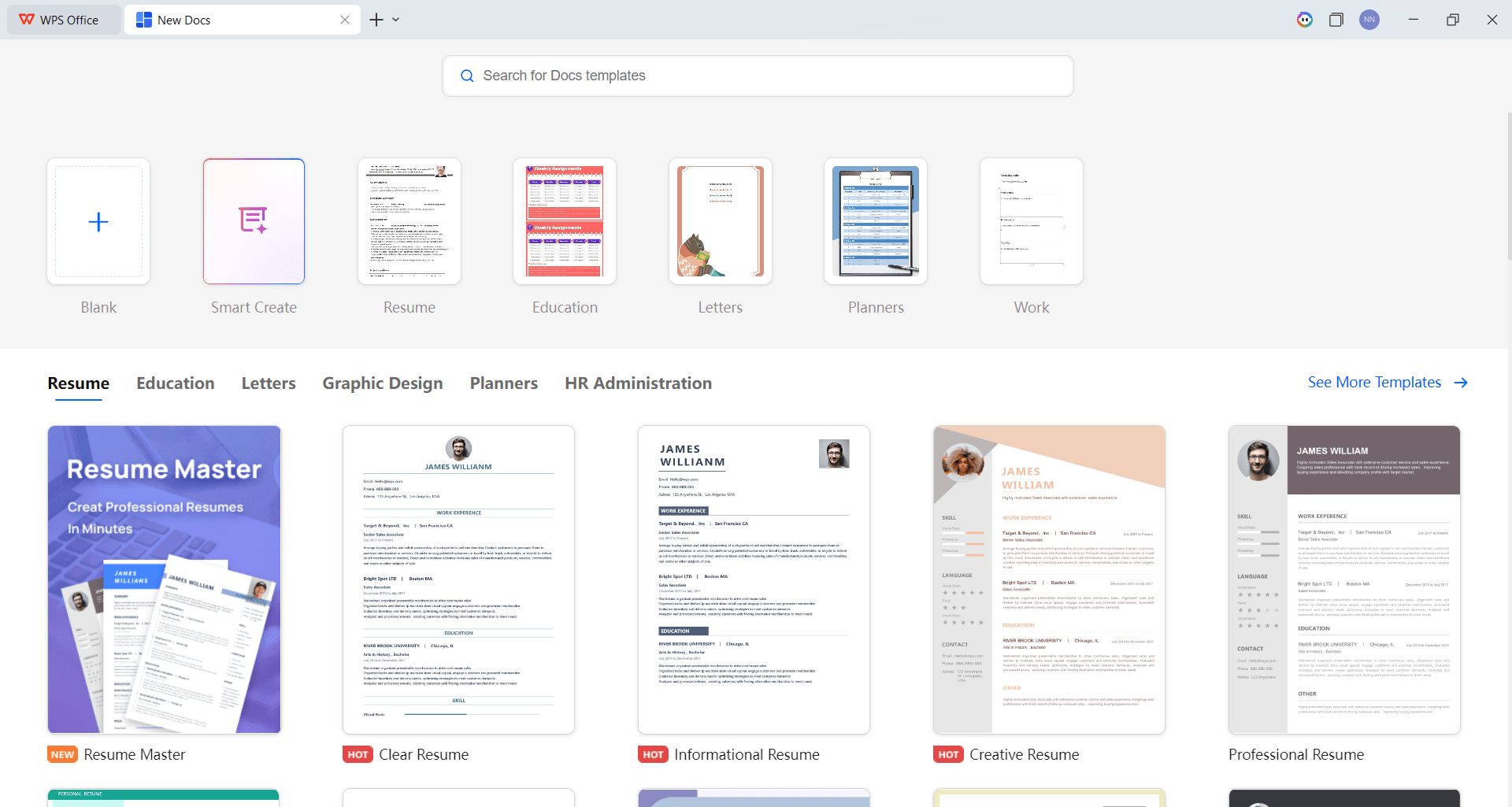
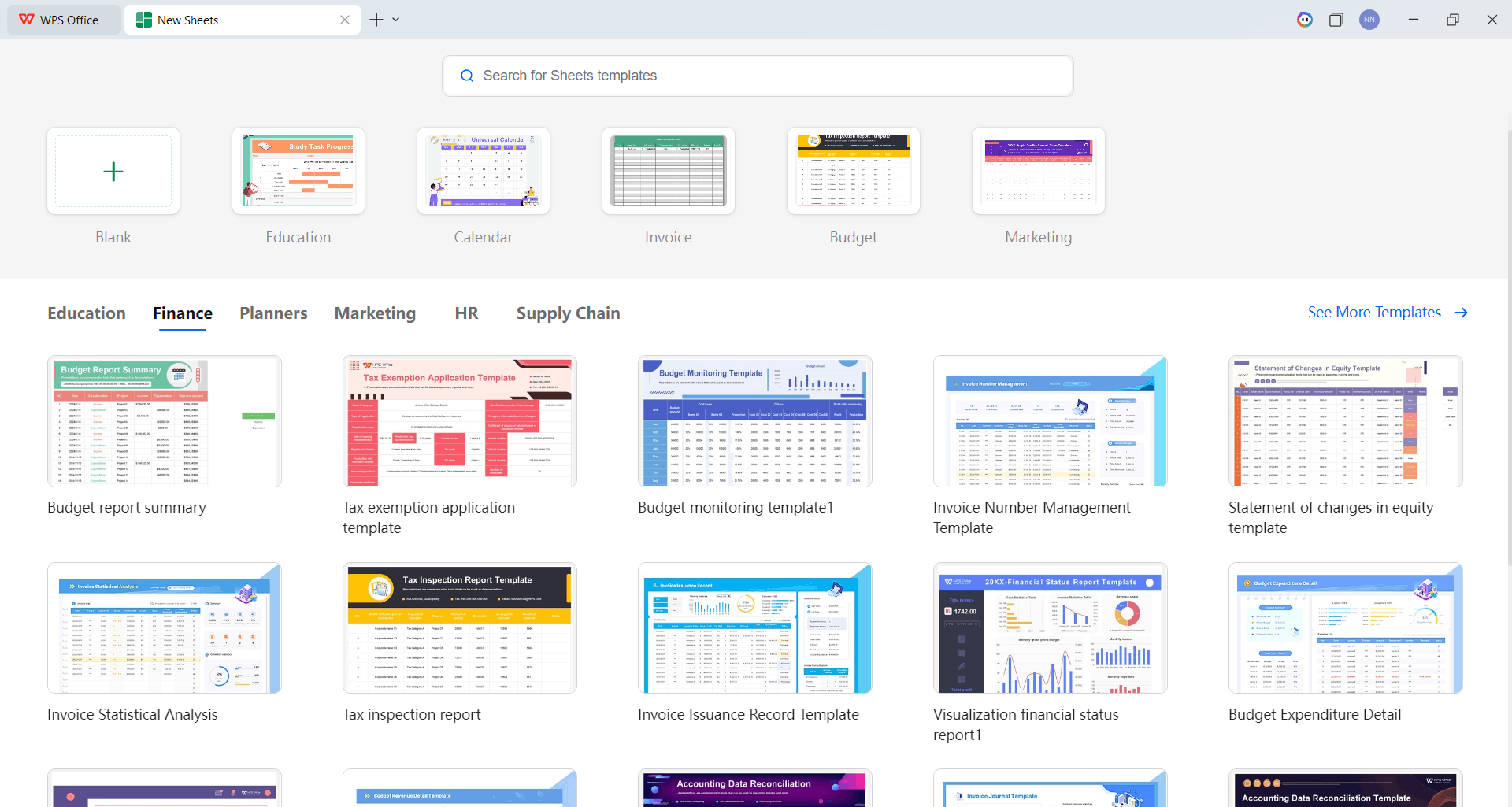
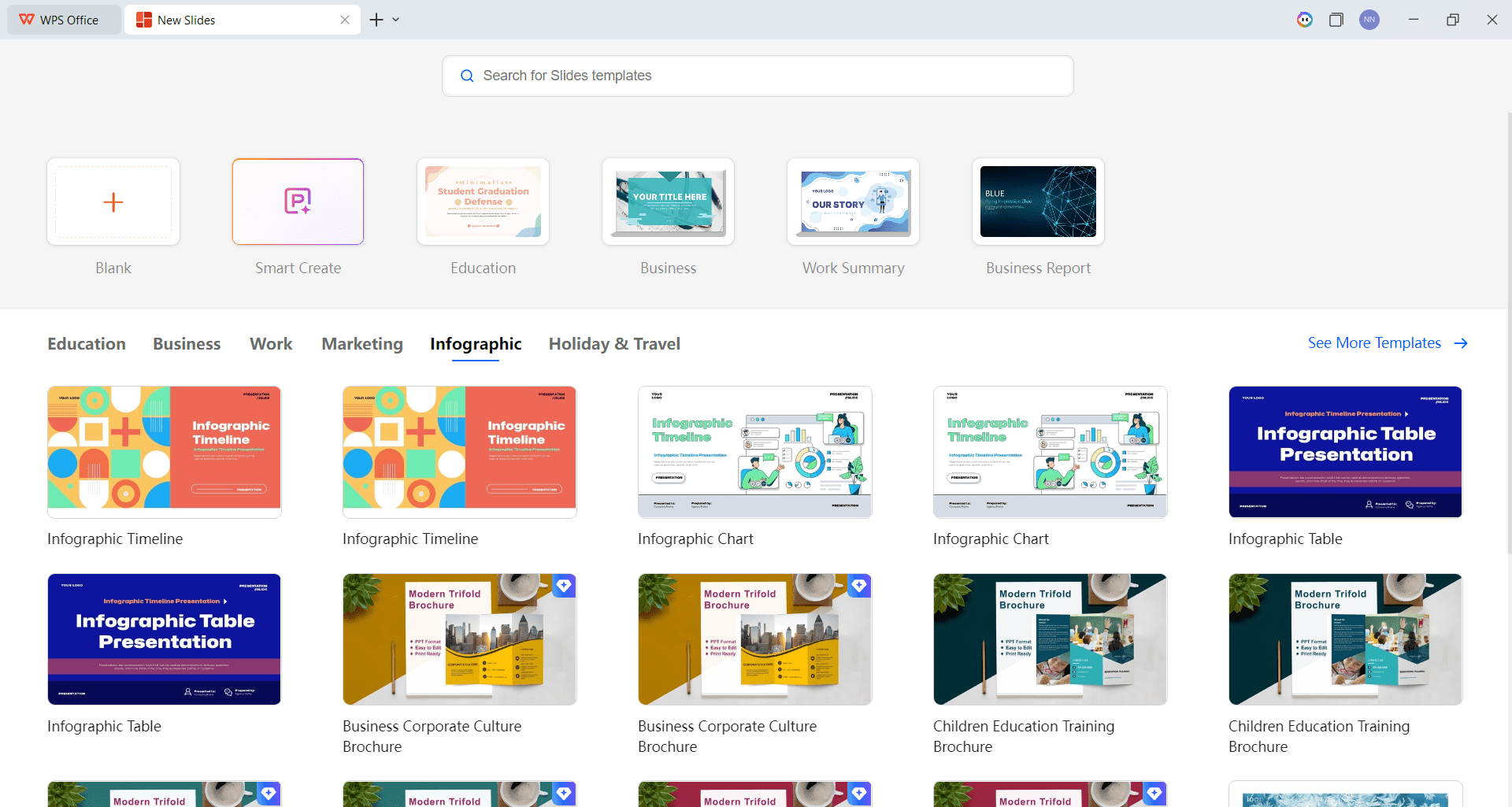
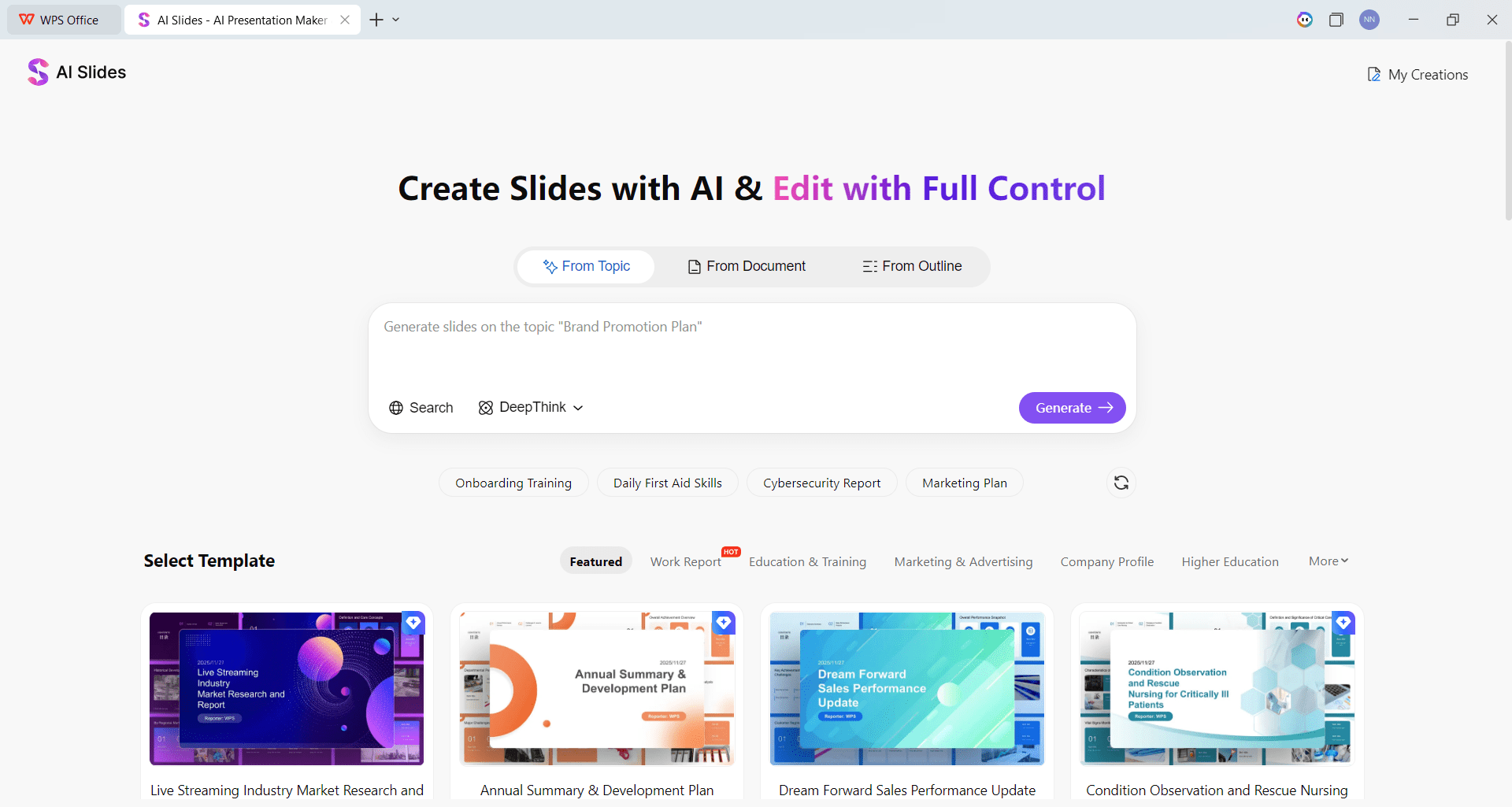
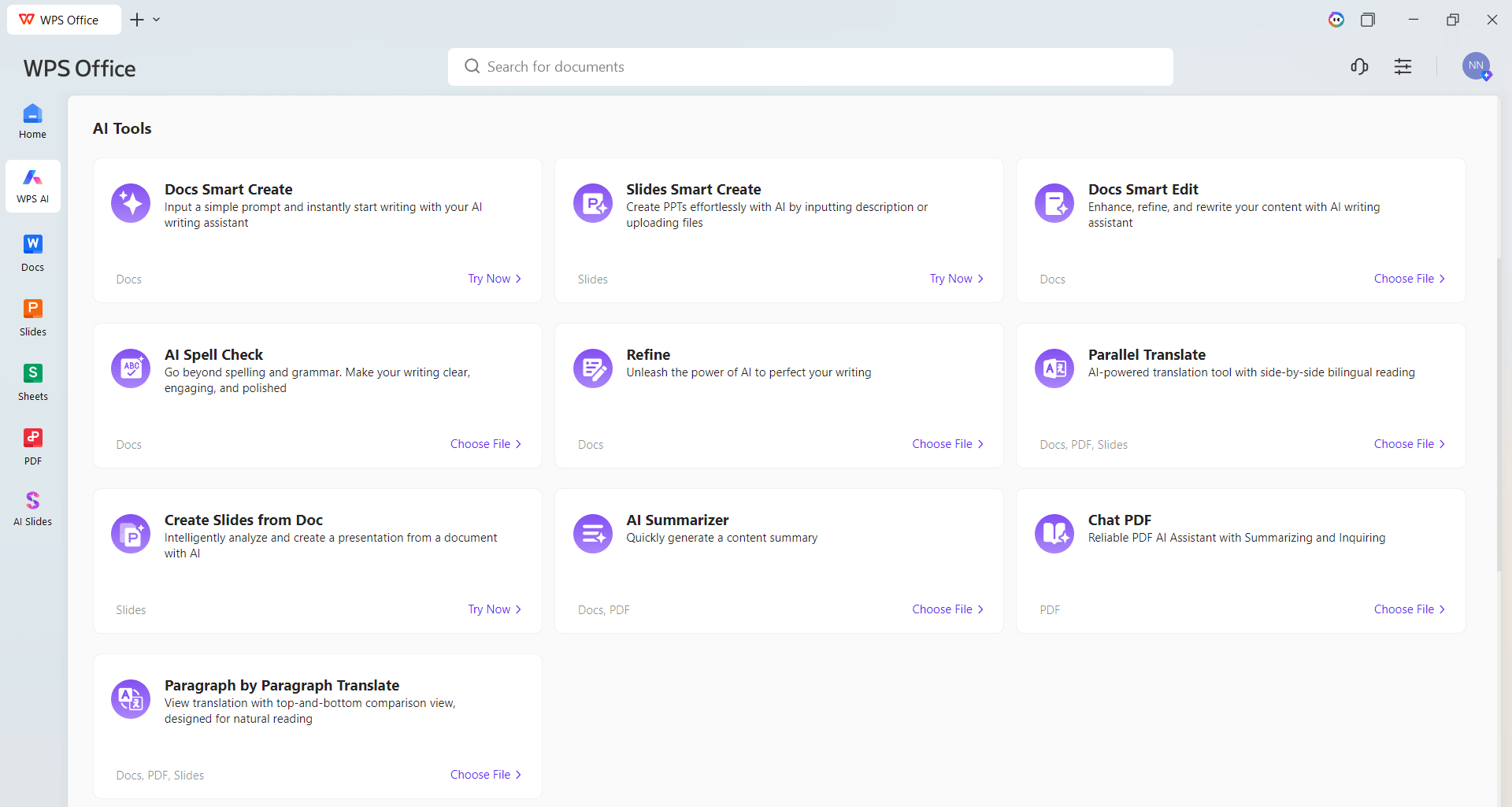
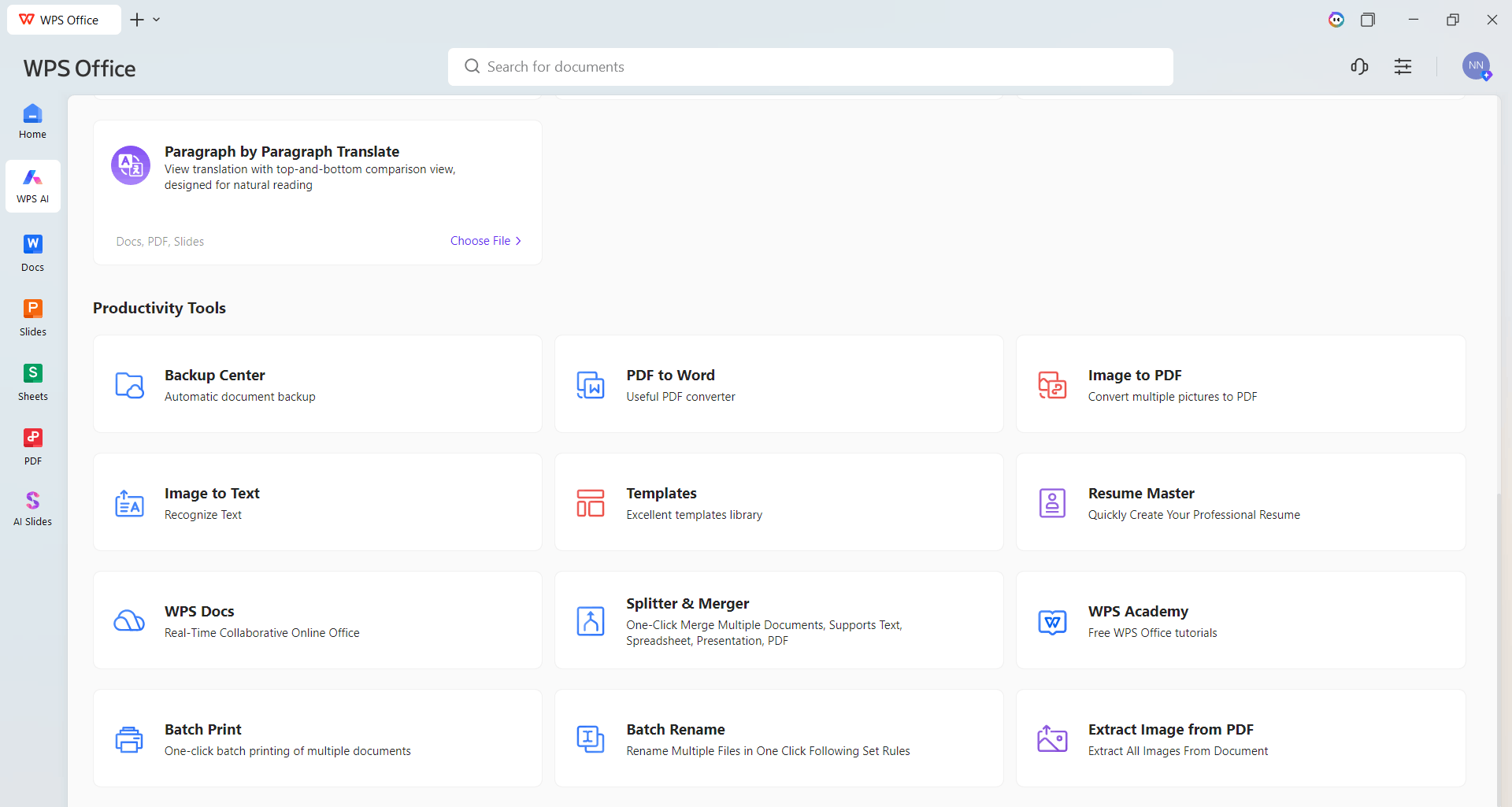
I am not a fan of predefined templates, so I can’t tell how useful those provided can be. At first site, the “Excel” ones looked the most promising, with the “Word” ones being rather meh, and the “PowerPoint” templates being the least impressive. But I literally hate PowerPoint-style presentations, so I’m the least qualified to assert them. “Create Slides with AI” isn’t something that I’d do, but the list of “AI Tools” and “Productivity Tools” is rather impressive.
ℹ️ Beware that, for each type of template, there are categories selectable via tabs (for Docs: Resume, Education, Letters, Graphic Design, Planners, HR Administration), but also a very short list right after “Blank” and “Smart Create” (for Docs: Resume, Education, Letters, Planners, Work). This can be confusing, because the “Resume” and “Education” categories include several templates each, whereas the “pinned” “Resume” and “Education” templates are just that: individual templates.
Focusing on WPS Docs
I have to admit that my primary interest in an office suite is a replacement for Microsoft Word. I’m much less interested in sheets and slides, so in the case of WPS Office 2026, I only tested that they work without any visible bug or annoyance. I am not Dedoimedo, so I don’t have complex test slideshows made in Microsoft PowerPoint that don’t display perfectly in any other software. I’m just a basic user of such features of an office suite.
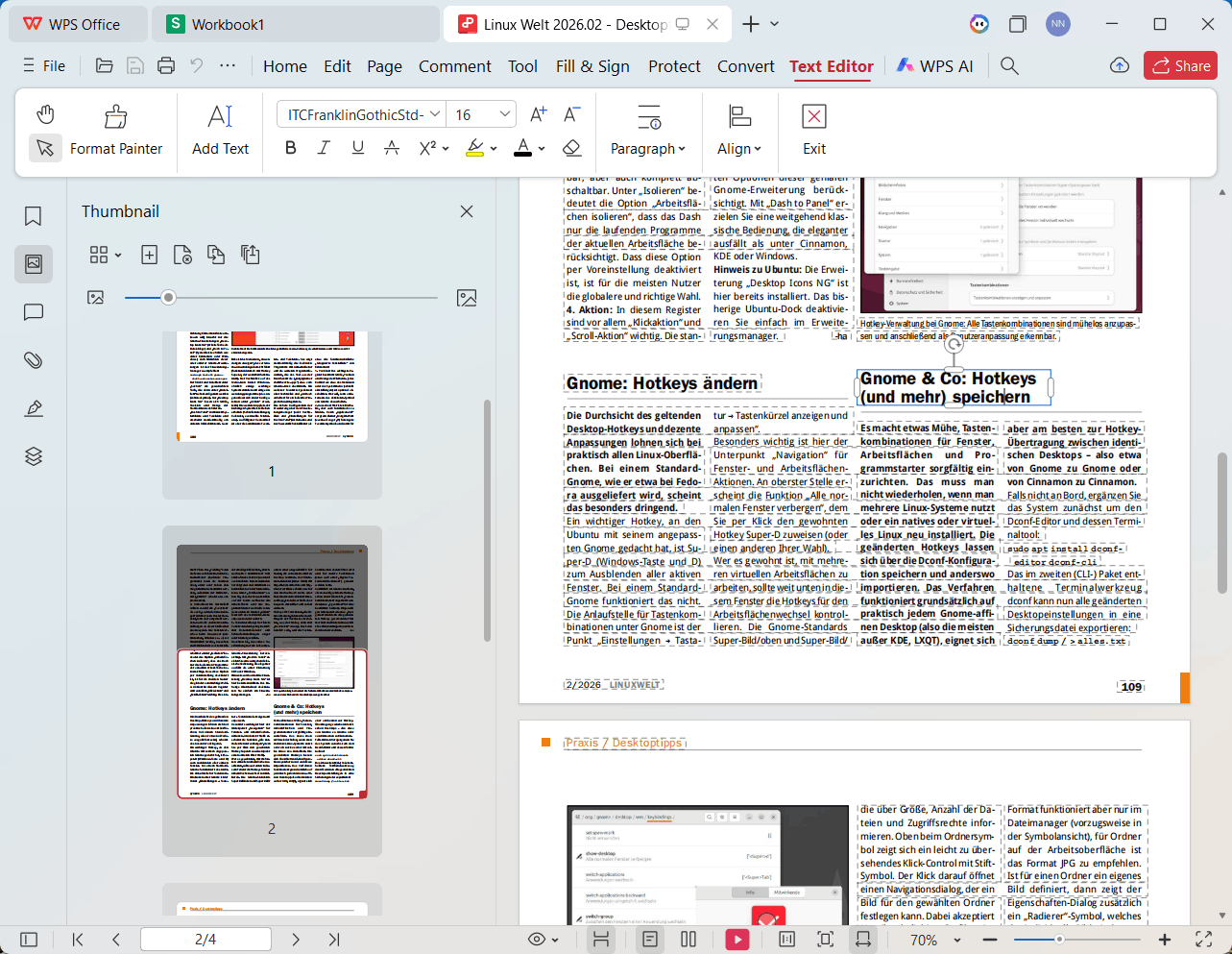
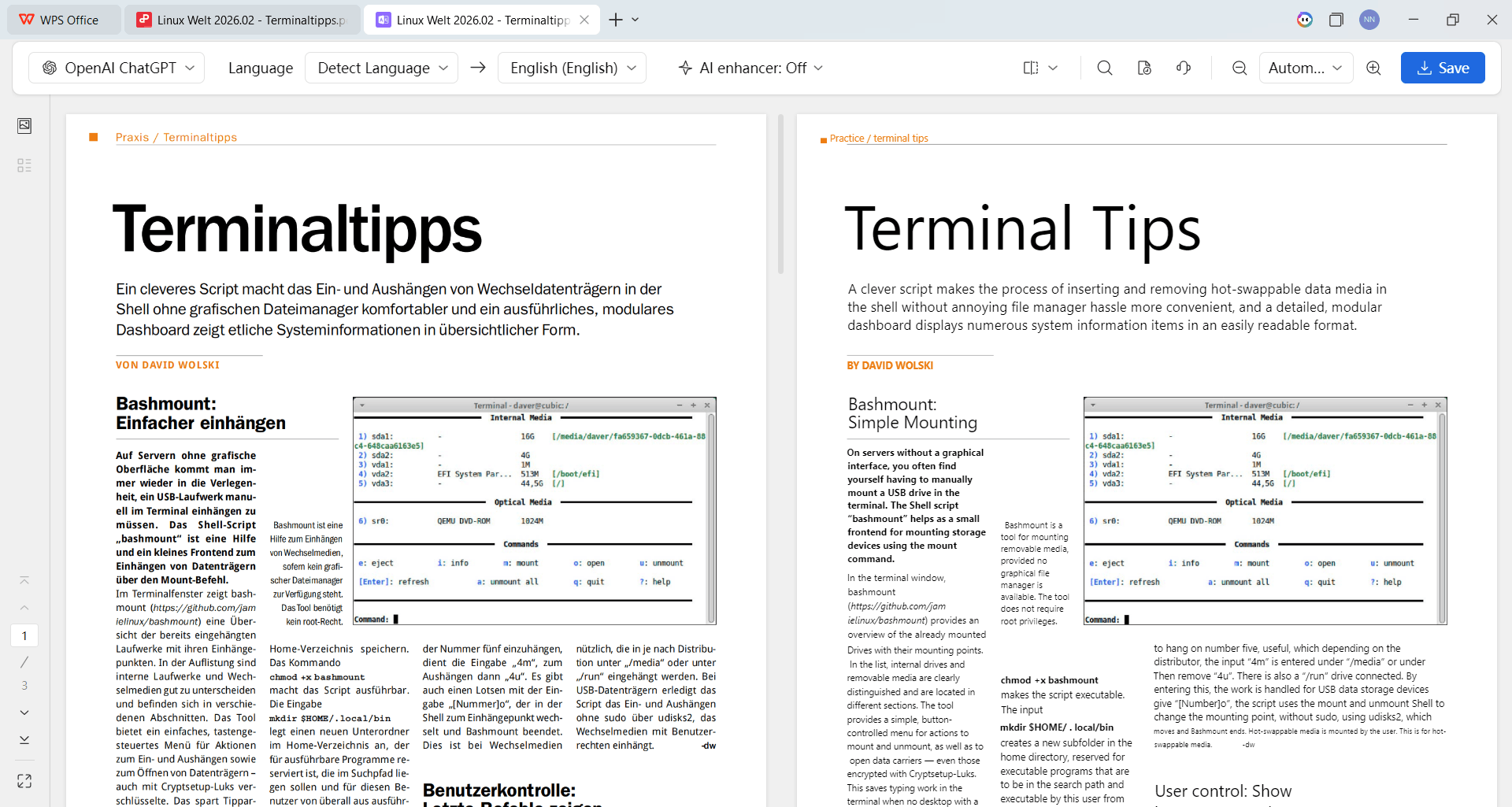
As an exception, I was particularly interested in WPS PDF, not only because full editing is a premium feature, yet an extremely useful one, but also because, once a PDF is editable, all AI tools are also available for PDFs! So one can translate the text, and then, if desired, the text can be improved or summarized via AI (although that’s usually a feature for docs). Editing worked as expected, and the translation was not publishing-ready but very intelligible:
Returning to the actual test, that of WPS Docs, I used it to write a blog post, An Armchair Theory of Bodily Modesty.

In the process, I used:
- AI Spell Check, which is not perfect, but it’s better than LanguageTool.
- AI Co-Writing, which I only used for a very limited number of suggestions.
This allowed me to discover a number of bugs that I’ll list below.
It’s Bugzilla time! 🐛
① There was a hijacking from WPS Office that affected my multi-language keyboard setup.
For my German keyboard, I have two alternate keyboard layouts in Windows: US International and Romanian. I am using both with AltGr to input some characters:
- US INTL: AltGr+comma =
ç; AltGr+RightShift+comma =Ç, but instead it launched WPS Office. - RO: AltGr+RightShift+comma and AltGr+RightShift+dot should issue the French guillemets (
«»), but instead the first one launched WPS Office.
Because Windows translates AltGr directly into Ctrl+Alt, my key combinations are hitting the system as Ctrl+Alt+Shift+comma and Ctrl+Alt+Shift+dot.
And WPS Office in %APPDATA%\Microsoft\Windows\Start Menu\Programs had Ctrl+Alt+Shift+dot assigned as a shortcut! I had to remove the keyboard shortcut from the launcher.
② The default settings for headings add more space after a heading than before it.
③ The text inserted by WPS AI Co-Writing will not have plain quotes transformed into smart ones. You have to delete the quotes and re-enter them to “smartify” them.
④ The text inserted by WPS AI Co-Writing can come right after the full stop or glued to the previous word, without a space. It’s actually inserted right where the caret is.

⑤ The text inserted by WPS AI Co-Writing cannot easily be inserted only partially. TAB inserts all of it, then you have to delete the undesired portion (normally, the ending). Partial inserting requires Ctrl+RightArrow, which advances and enables one word at a time, or RightArrow, which only advances one word at a time. This is absurd; the arrow should advance by words, not by letters!
Note that Alt+DownArrow offers more suggestions (this is documented on-screen). At least, this does make sense.
⑥ AI Spell Check insists on ending with a period all headings that are not clearly capitalized as a standard title. In such a case, dismissing simply doesn’t work, as it transforms the said heading into a paragraph (it adds a comma, then it continues with a suggestion). Get rid of that, and it will one more time underline in red the last word of the respective heading! The only way to have this behavior removed is to use Proper Capitalization of Chapter Titles That Are Headings.
⑦ I saved a .docx file created from a blank template, then I reopened it. At some point, I noticed an error on the status bar. Clicking on it, it informed me that a font with a Chinese name was missing, so it was replaced by SimSun. But I never used any Chinese font!

Even if you click on “Convert Permanently,” this will not fix the default template but only the current document.
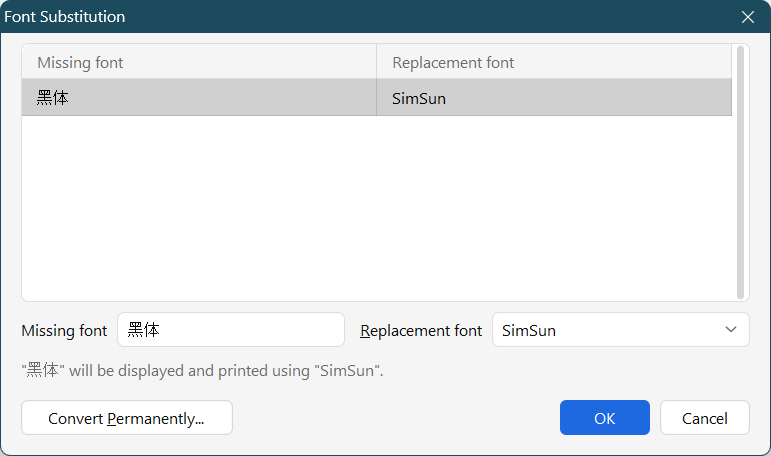
The funny thing is that “宋体” is the localized Chinese display name for the SimSun typeface under Windows! I’m told that “宋体” is the generic Chinese name for the entire “Song” style of typography, but in this particular case, it should automatically match the SimSun typeface under Microsoft Windows and STSong under macOS.
⑧ Furthermore, pasting a text without formatting (say, from a text editor) or in a missing typeface (say, from a web page) will result in SimSun. This Chinese typeface, like all East Asian typefaces, shows Latin characters in a specific manner (thin and always with serif) that comes from the fact that Western scripts are foreign to those typefaces. The suggested continuation will, obviously, also be in SimSun.
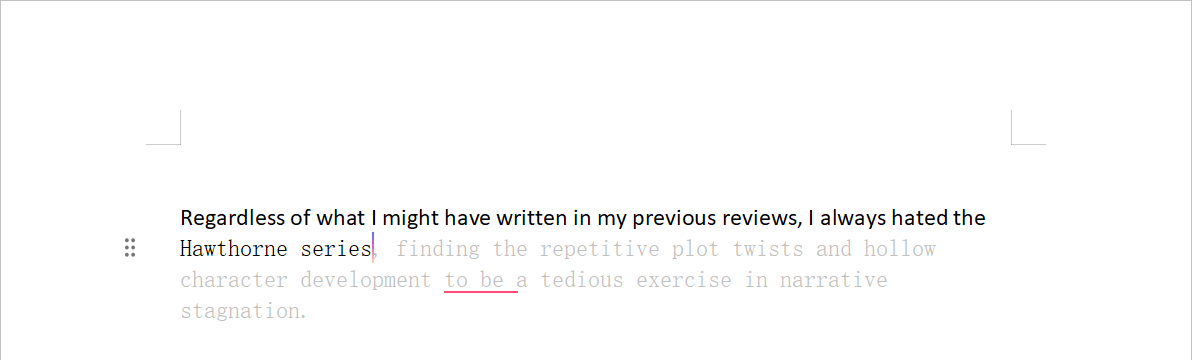
⑨ Since we also noticed a red underlining in the above screenshot, let’s notice a lack of coordination between the AI generation tools (Co-Writing, refining, polishing, and changing the style) and the very strict AI Spell Check. This results in the suggested or otherwise generated text being marked as having “errors”!
Most such “errors” include shortened versions that “need” lengthening or vice versa (think of “don’t” vs. “do not”), apostrophes that need smartification, and other tiny improvements. To avoid unnecessary annoyances, such changes should be automatically applied before the suggested text is inserted!
But no, I don’t remember what it didn’t like in the “to do” part of the above suggestion.
⑩ This might or might not have to do with the slow CPU of the test machine (i5-5200U), but AI Spell Check seems to have issues in situations such as:
- A double space existed, but it was corrected by the user.
- A space was inadvertently inserted in a word, thus splitting it in two, but it was corrected by the user.
- A space was missing after a full stop or other sentence-ending character, thus gluing it to the next word, but it was corrected by the user.
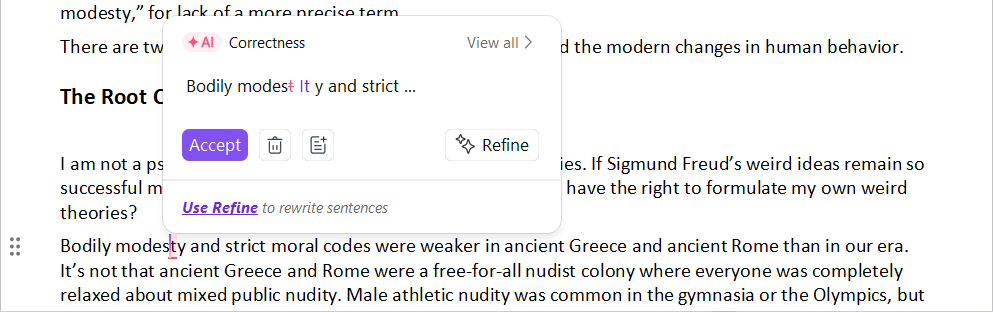
The spell checker, probably because of a failed synchronization or a race condition, will attempt to correct an error that’s no longer there! This is very annoying when it wants to add a space when there’s already one there or to delete a double space when there’s no double space anymore!
Here’s a case when “modest lt y” was already corrected, in a split second, to “modesty”—but the editing didn’t reach AI Spell Check!
Not bugs per se, but a couple of “nice-to-haves”:
⑪ Double-clicking a word selects it together with the space following it. This wrong behavior is very common in software using Windows controls, as it happens even in WordPress’ Gutenberg editor in Firefox under Windows, but not under Linux. It also happens in ONLYOFFICE, but not in LibreOffice Writer!
This behavior is harmless, unless you want to export the document to Markdown. If the closing asterisk comes after a space, it would usually be misinterpreted.
As WPS cannot export to Markdown, I tried exporting a document created by WPS Docs from ONLYOFFICE and LibreOffice. Having known the buggy converters of the respective office suites (see my older post, LibreOffice and ONLYOFFICE vs. Markdown: FAIL!), the results didn’t surprise me:
- ONLYOFFICE exported to Markdown without empty lines after paragraphs, thus breaking the ending of bulleted lists. It also choked on bold and italic that ended after a space.
- LibreOffice exported with nice paragraph separators, but it made half of the paragraphs bold for no reason at all. A complete failure.
So, should WPS Office ever want to implement a “Save As” or “Export to” Markdown, they should make sure they don’t export bold text as**This is bold **
but only as**This is bold**
⑫ I’d like to be able to know which fonts are embedded or referenced in a .docx file.
Currently, this is not possible in LibreOffice, ONLYOFFICE, and WPS Office.
Only the files embedded in a PDF can be known (Document Properties, Font in WPS PDF).
As such a feature is missing for documents, there is only one workaround:
- Change the file extension from .docx to .zip (is this even possible in macOS?!).
- Extract it or open the archive.
- If there are fonts under word/fonts/, then every file listed inside is an embedded font.
- Otherwise, word/fontTable.xml includes the referenced fonts.
In documents created from the default template. I was able to identify 3 fallbacks and a replacement (duh):
<w:family w:val="roman"/>
<w:family w:val="swiss"/>
<w:family w:val="modern"/>
<w:font w:name="宋体"><w:altName w:val="SimSun"/>
As there is no <w:embedRegular r:id="*"/> tag, nothing is embedded.
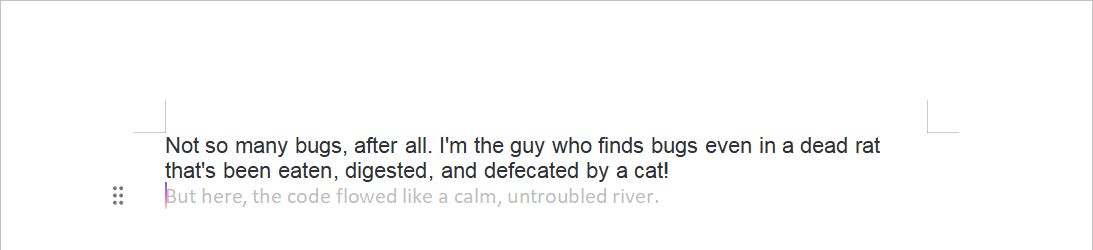
Not so many bugs, after all. I’m the guy who finds bugs even in a dead rat that’s been eaten, digested, and defecated by a cat!
Well, I’ll actually add a few puzzling issues later in the review. OK, here’s a funny one: what could be said about the following AI continuation suggestion? 🙂
The first AI detection assessment
OK, about that blog post written in WPS Docs with AI Co-Writing enabled. Even as I was slightly annoyed by the AI’s insistence and length of the suggestions, so I only marginally inserted some such suggested texts (because I wanted it to express my opinions, and in my way), I was curious to see whether the AI contribution would be detected.
Most online detectors are far from being reliable, and a popular plagiarism check is a complete fraud, but I still wanted to give them a try. After all, if a student uses WPS Docs to write an essay, and his teacher makes an accusation of “AI slop,” who’s to blame?
As a free user, I can only check the first 1,400 words of a text with Grammarly. Mine had over 3,100. Even so, Grammarly detected “6% AI” in the first 45% of my essay:
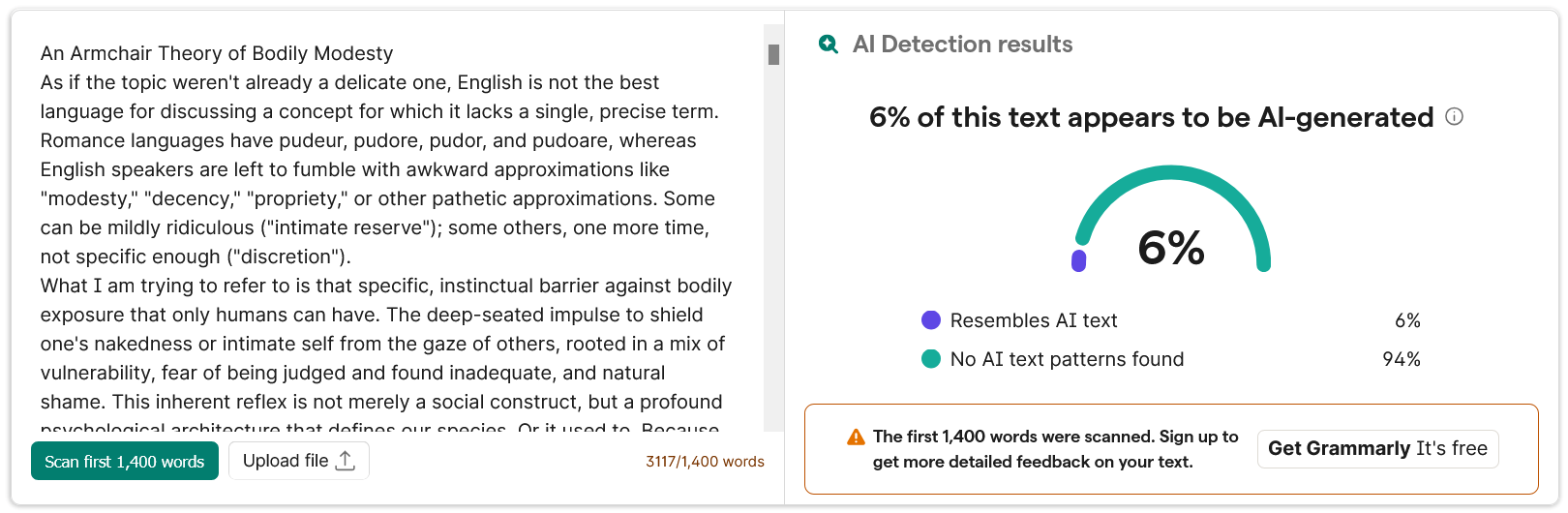
Oops. I’ve been exposed!
ZeroGPT gave a verdict of “8% AI” for the entire text, and it correctly highlighted the exact text that was 100% generated by WPS AI Co-Writing!
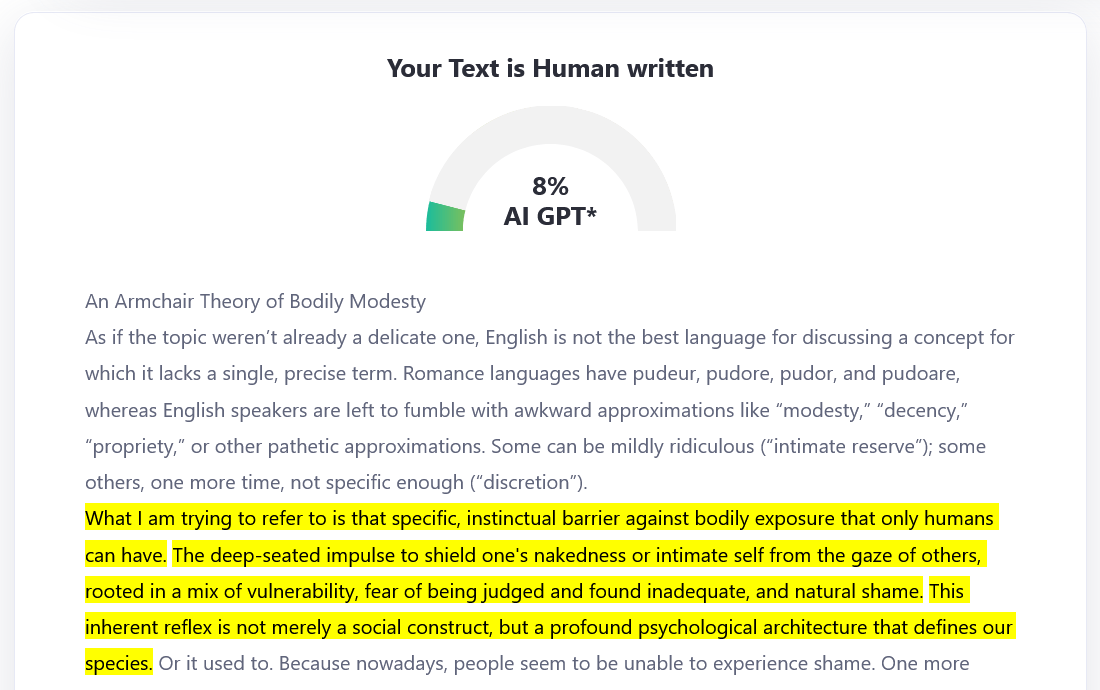
You can run, but you can’t hide.
Finally, GPTZero wasn’t that helpful. What does it mean to have “85% entirely human text and 15% mixed text”? How much of that 15% is written by AI?
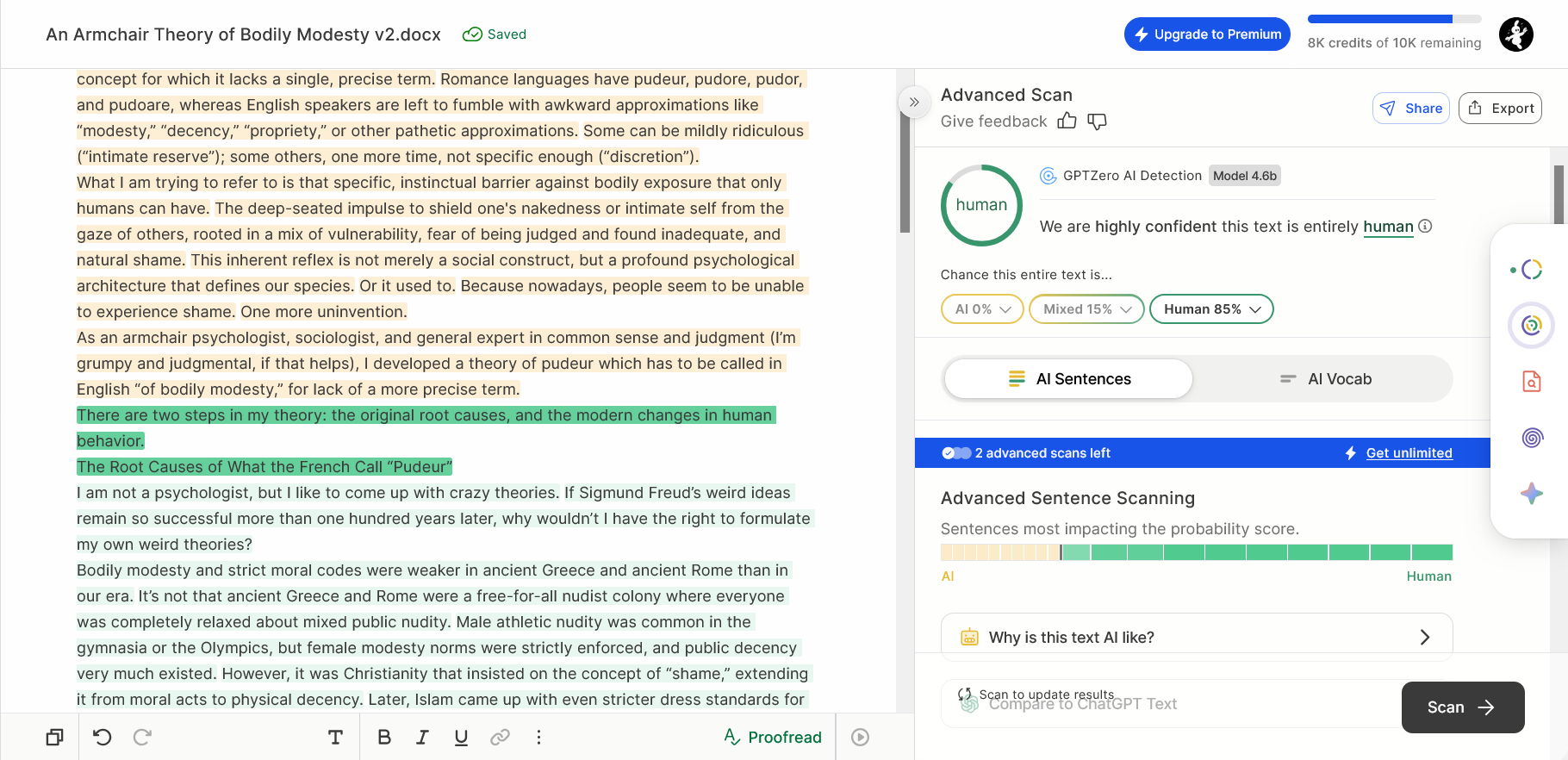
And it failed to detect the exact portion that has been entirely written by AI (it even sounds like AI!):
What I am trying to refer to is that specific, instinctual barrier against bodily exposure that only humans can have. The deep-seated impulse to shield one’s nakedness or intimate self from the gaze of others, rooted in a mix of vulnerability, fear of being judged and found inadequate, and natural shame. This inherent reflex is not merely a social construct, but a profound psychological architecture that defines our species.
There is 0% “fully AI” text in its opinion. That peachy color covers too much text and leads to the 15% “mixed,” but there’s an “AI 0%” tag that’s simply wrong.
Further testing the AI capabilities
I then played a bit with WPS Office’s AI tools over a text written in a text editor (Notepad3) and checked by LanguageTool, which smartified the quotation marks but not the apostrophes (it can’t). It’s a tiny review of The Twist of a Knife (Hawthorne & Horowitz #4). 252 words in all.
0% AI detection, because there wasn’t any. The game can start.
Now, here’s the extra “bug report” that’s actually a confusing design that I kept for this section.
❶ Let’s consider the standard WPS AI options available right away on right-click:
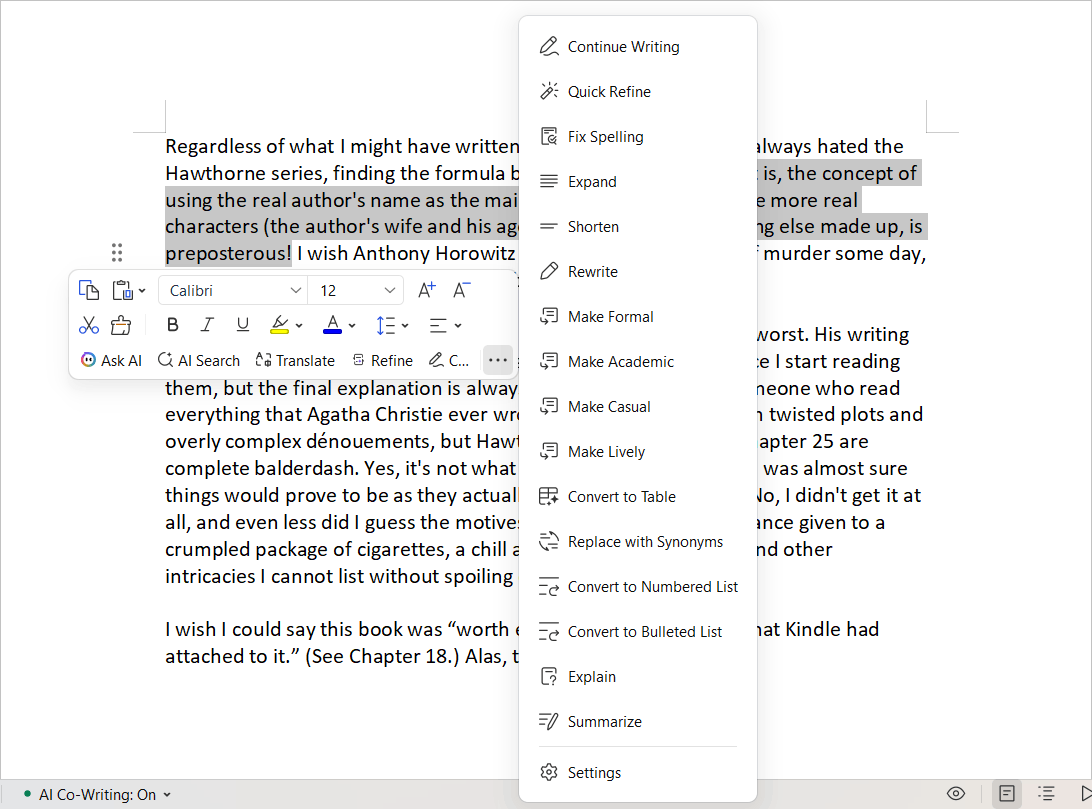
- I’ll skip ①“Ask AI” and ②“AI Search” to focus on features that modify this text.
- I’ll go over the fact that ③“Continue Writing” is shown as “C…” (terrible design choice!).
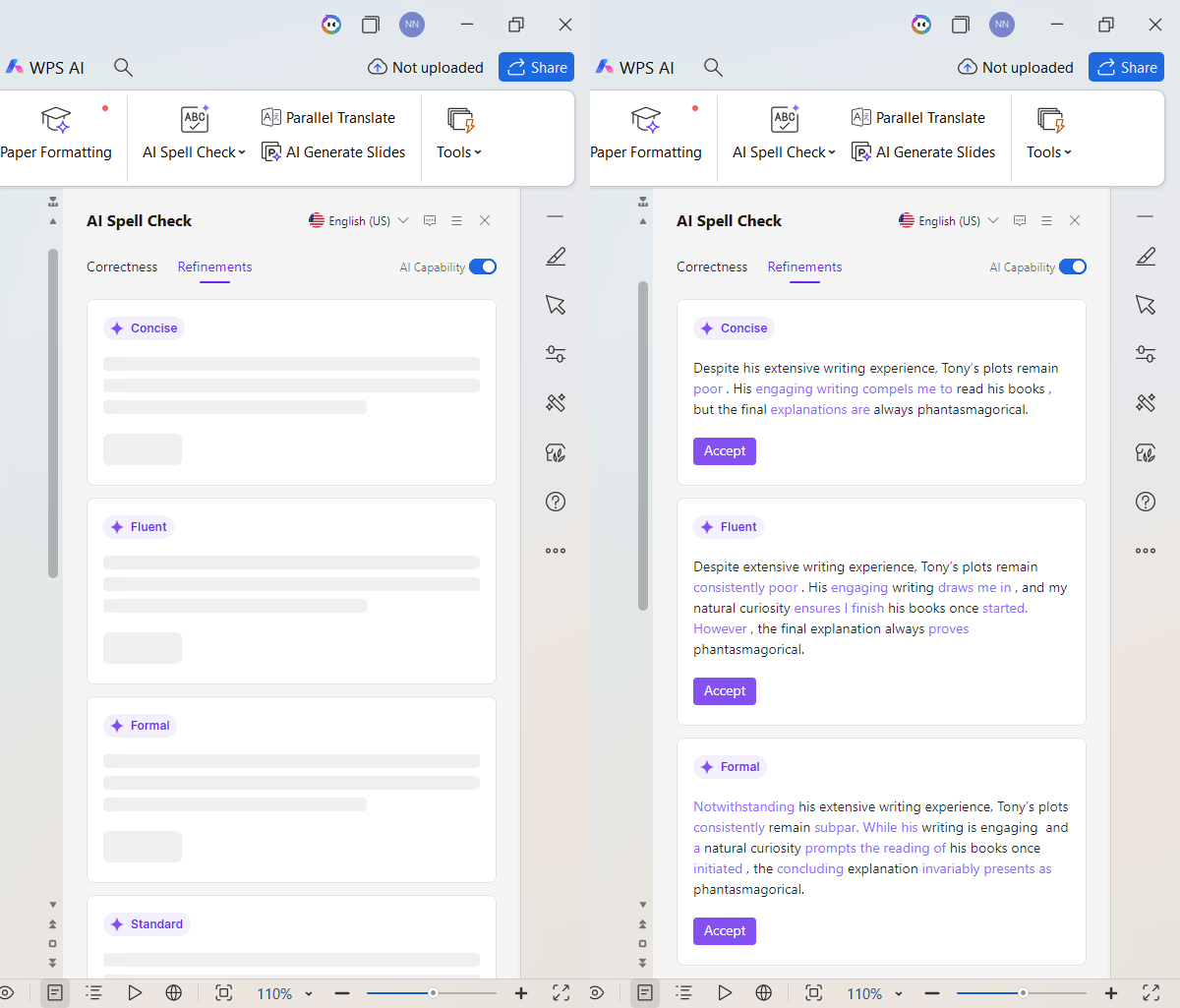
- There’s ④“Refine,” which will rephrase the text in 3 or 4 styles: “Concise,” “Fluent,” “Formal,” and sometimes “Standard” (but the fourth option is rare, and in my experience it always disappears!).
- On “…” there’s then: ⑤“Rewrite,” ⑥“Make Formal,” ⑦“Make Academic,” ⑧“Make Casual,” ⑨“Make Lively.”
- ⑩“Explain” and ⑪“Summarize.”
- ⑫“Replace with Synonyms” is also an AI feature, not a rigid thesaurus one.
❷ Then, on the toolbar shown when “WPS AI” is clicked, there are:
- ⑬“Expand” and ⑭“Shorten.”
- “Polish”: ⑮“Quick Polish,” ⑯“Make Formal,” ⑰“Make Lively,” ⑱“Make Casual,” ⑲“Make Academic.”
- “Refine” (the same as above).
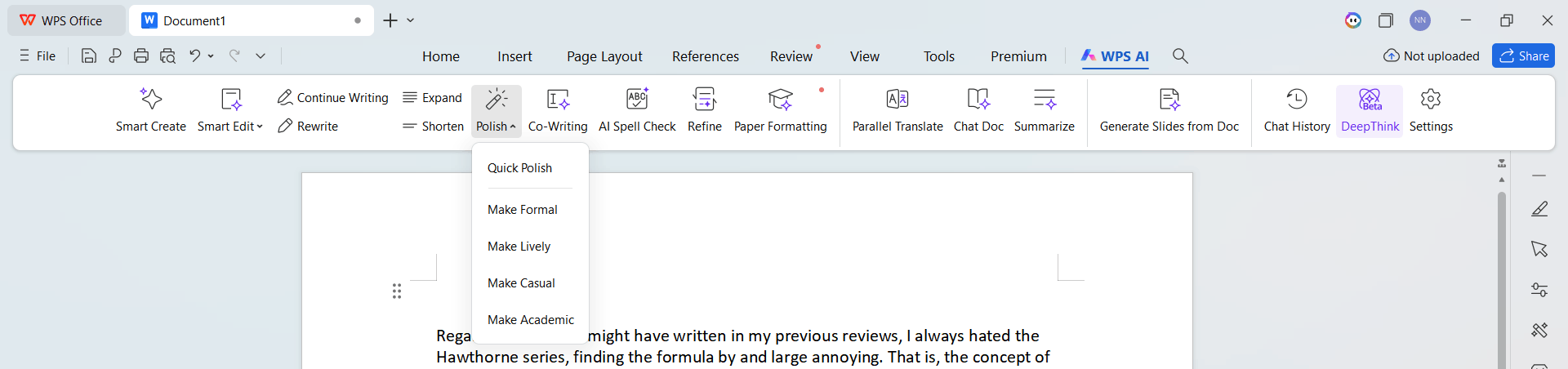
❸ If you want further duplicates, the “Premium” toolbar also includes:
- “Continue Writing” (which, by the way, is a form of “Expand”).
- “Rewrite,” “Expand,” “Shorten,” “Polish” (with the same submenu as above).
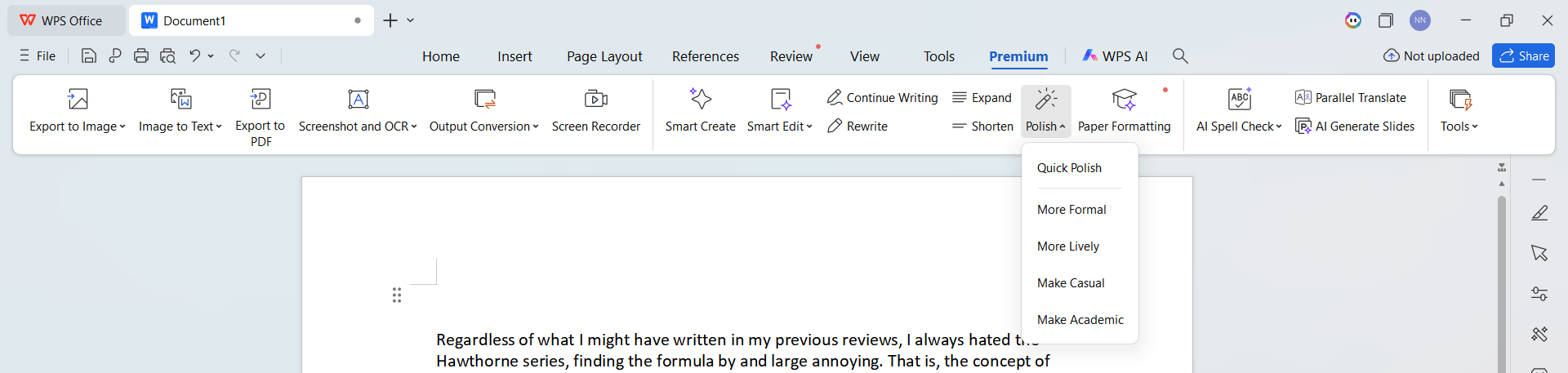
Maybe you don’t consider duplication as necessarily confusing. But it is! 🤯
🤔 Furthermore, how would the user know when to choose from refining to “Concise,” “Fluent,” or “Formal,” and “Make Formal,” “Make Academic,” “Make Casual,” or “Make Lively”?
🤔 Then, when to use “Rewrite” and when to “Polish”? Both are single-style (they seem to try to preserve the style), and they don’t attempt to “Expand” or “Shorten.”
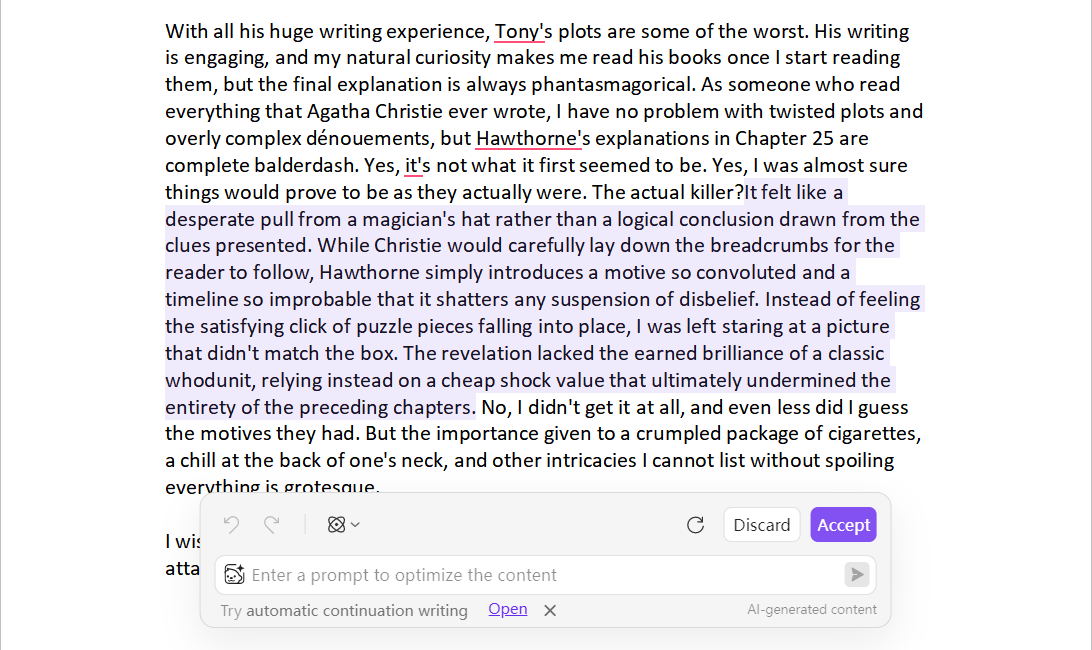
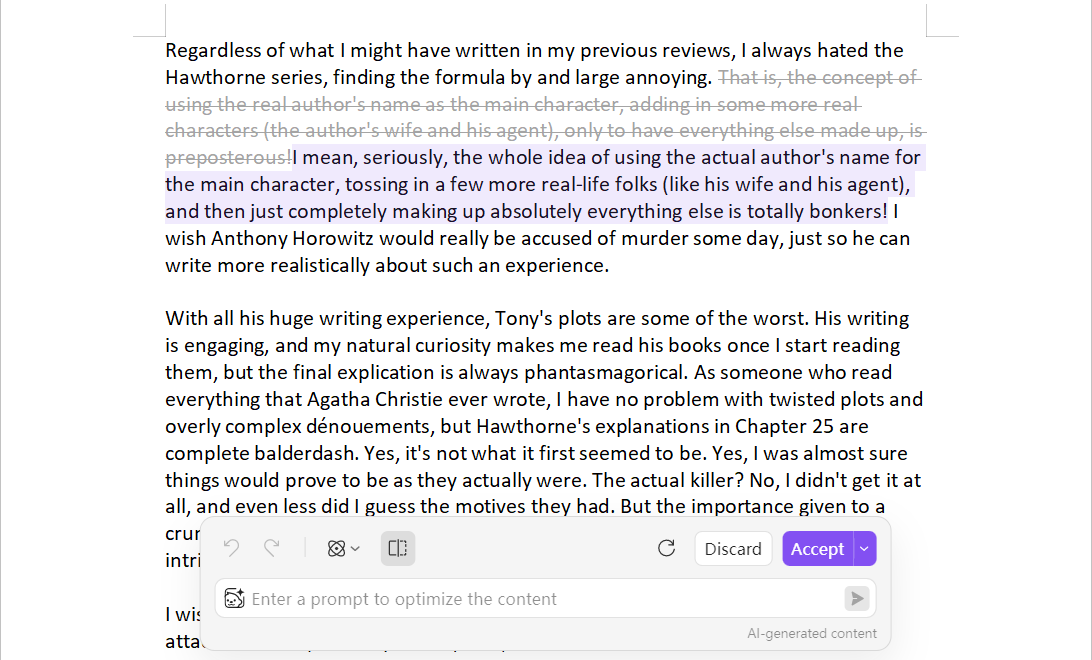
😲 “Continue Writing” is actually the most original of all. I selected “The actual killer?” and it wrote the entire text highlighted in soft lavender:
A key finding
The only AI alteration that’s not detected by Grammarly is Quick Polish!
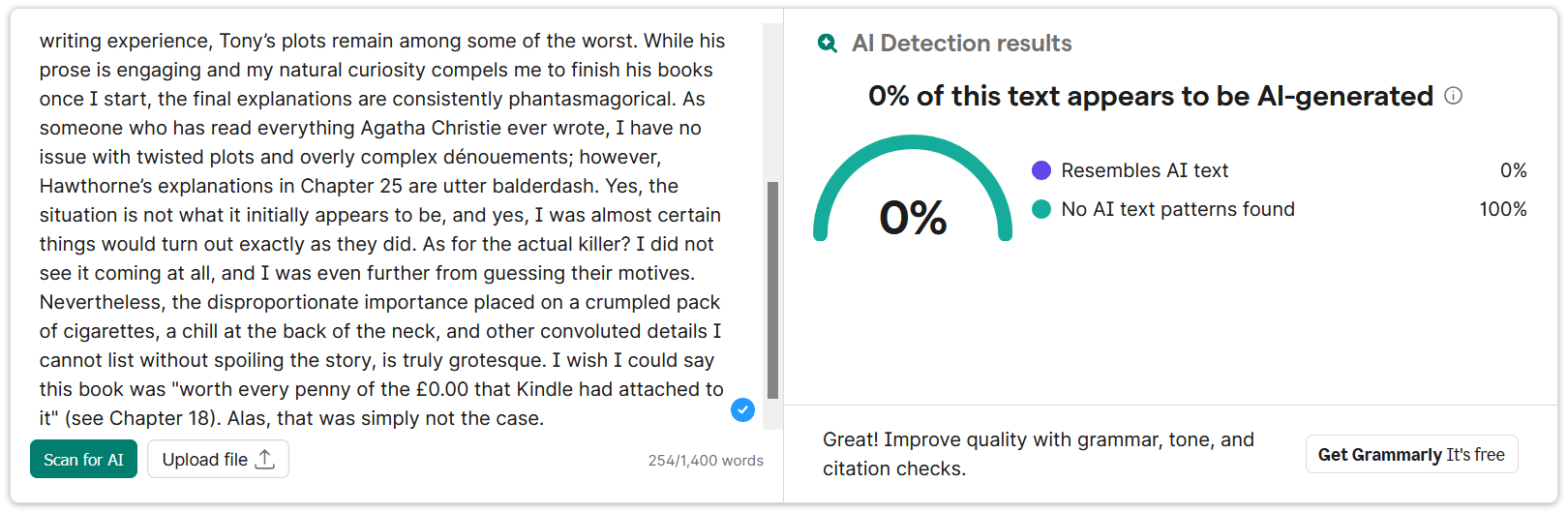
The explanation? The changes made are minimal.
Here’s how it works (it’s one of the AI features that seems to be using DeepSeek with DeepThink and displays the chain of thought):
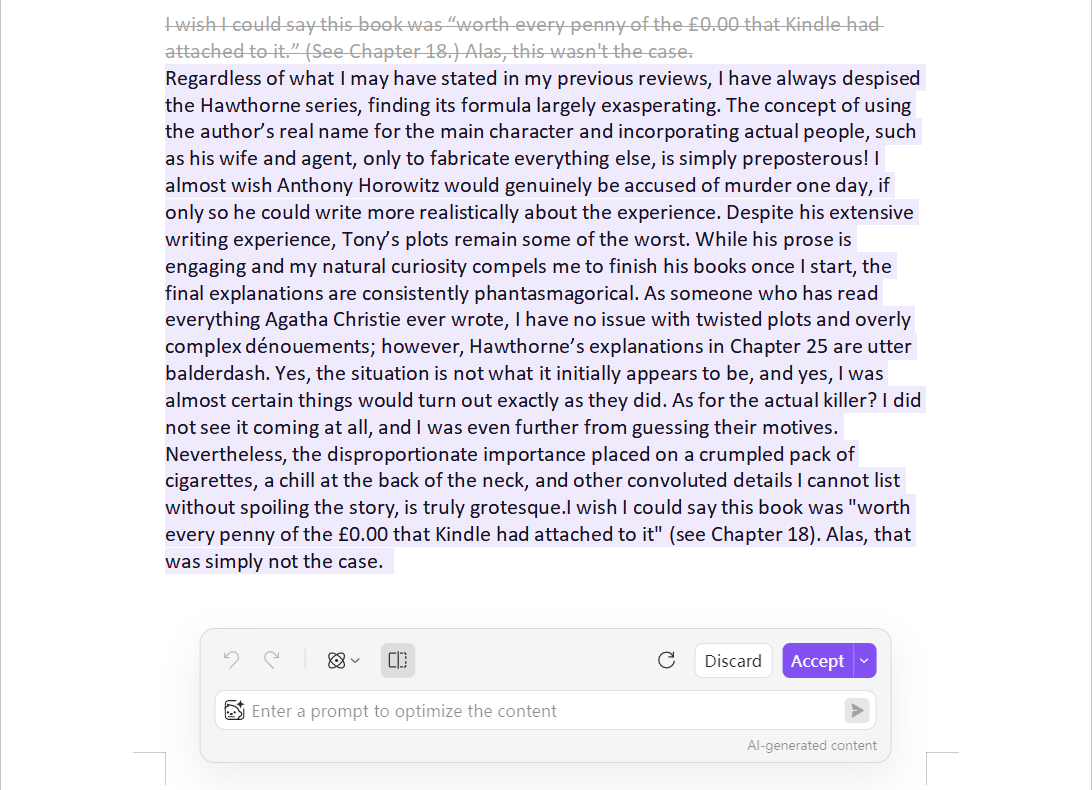
Needless to say, the AI spell checker had to have at least one objection regarding the AI-generated text!
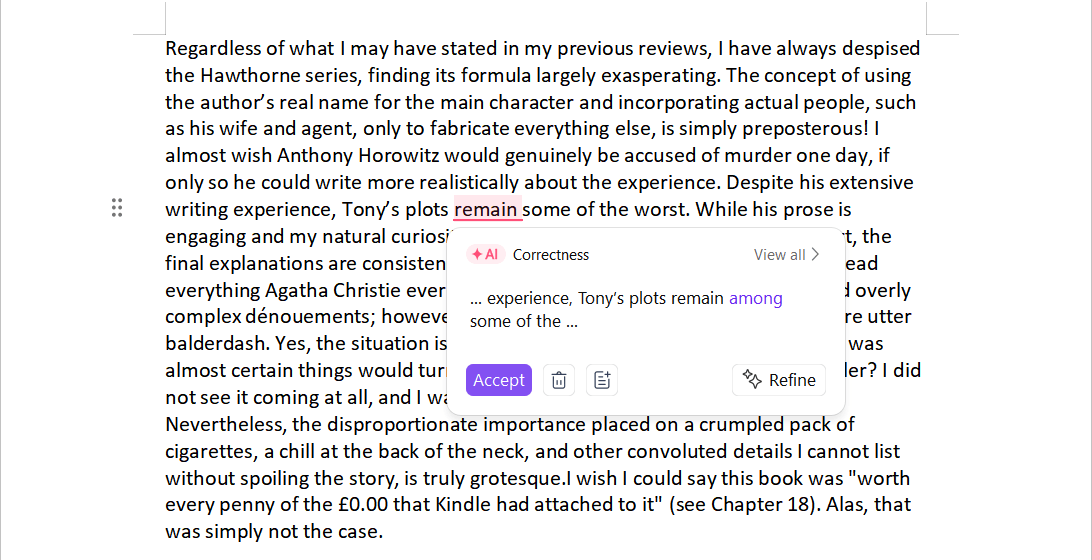
Oh, look, yet another place where “Refine” is offered!
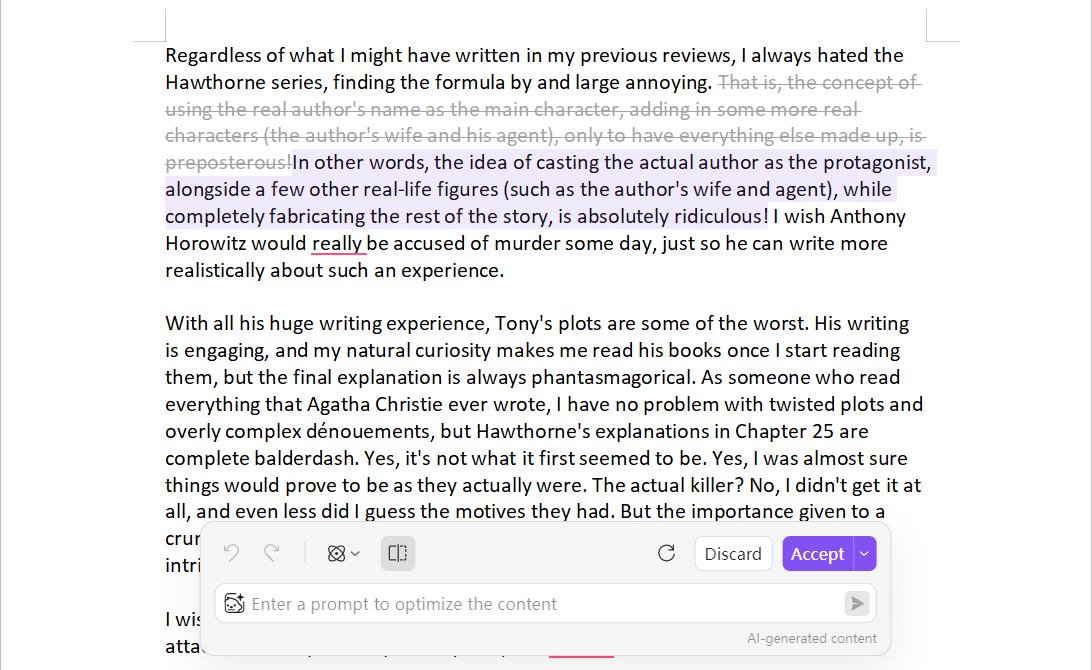
In another instance of quick polishing that resulted in more substantial changes still undetected by Grammarly, the post-generation AI check raised another objection:
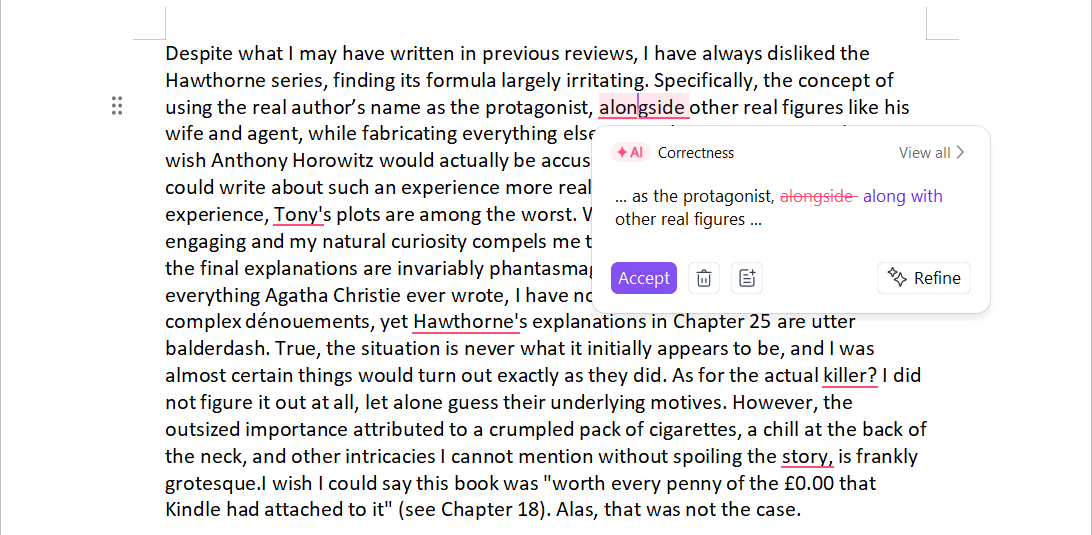
This polishing was started before replacing the plain apostrophes with smart apostrophes.
🐛 If you look carefully, you’ll see the last but one line starting with “grotesque.I wish”—but the lack of a space was not reported by the AI corrector! On the other hand, the corrector was confused about the correct spaces following “killer?” and “story,” and no, there weren’t double spaces!
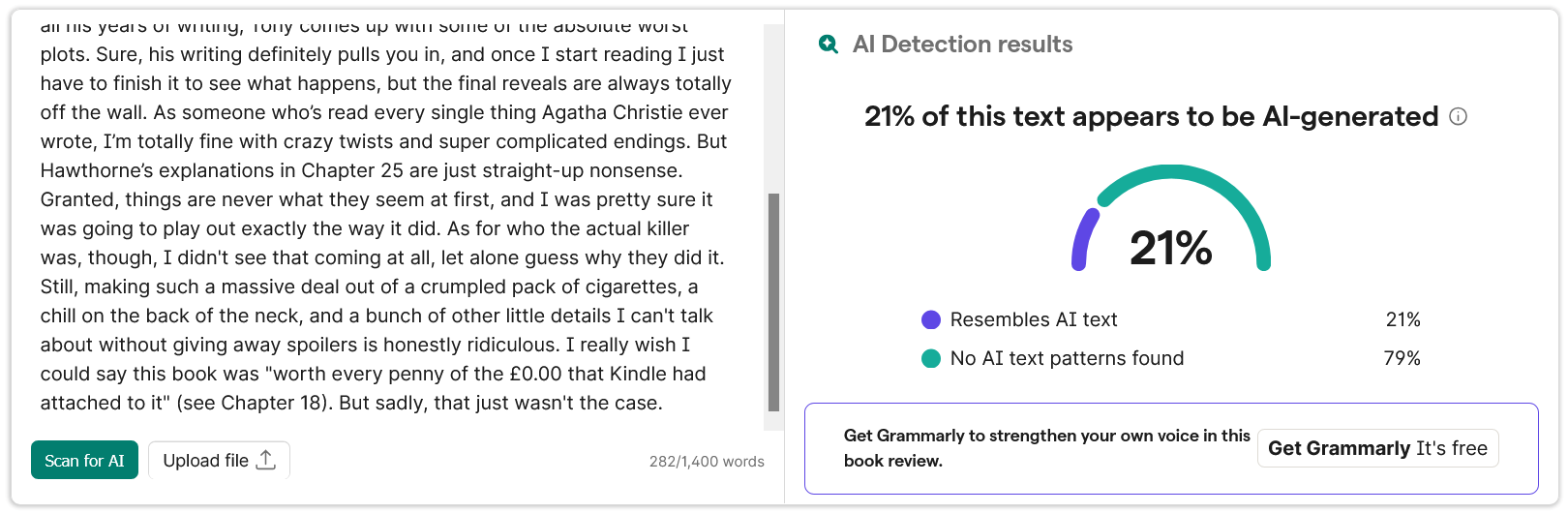
Here’s a result of “Make Casual” (uncorrected):
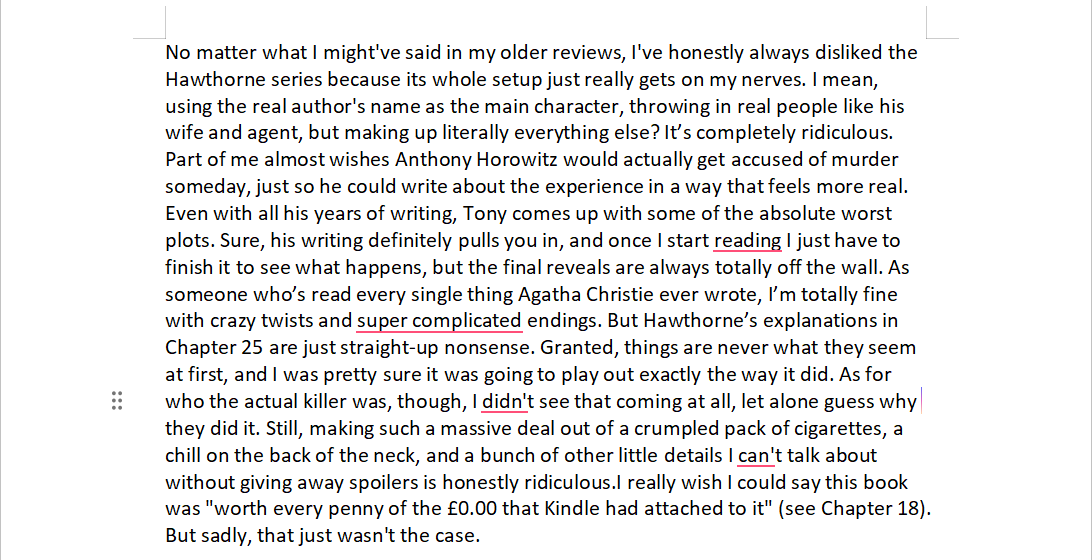
And Grammarly not being happy about it! 😭
I found “Make Lively” a bit too lively for my taste:
“Rewrite” is, however, very decent, but don’t apply it to the entire text if you want to escape detection!
🐛 “Refine” is that feature that offers you several styles at once, but the “Standard” style only shows up during thinking and possibly a fraction of a second with the final text, only to offer you three final options! And no, there was no scrolling possible!
The “Concise” and “Fluent” refinements seem decent enough, but using them repeatedly would certainly be detected as AI:
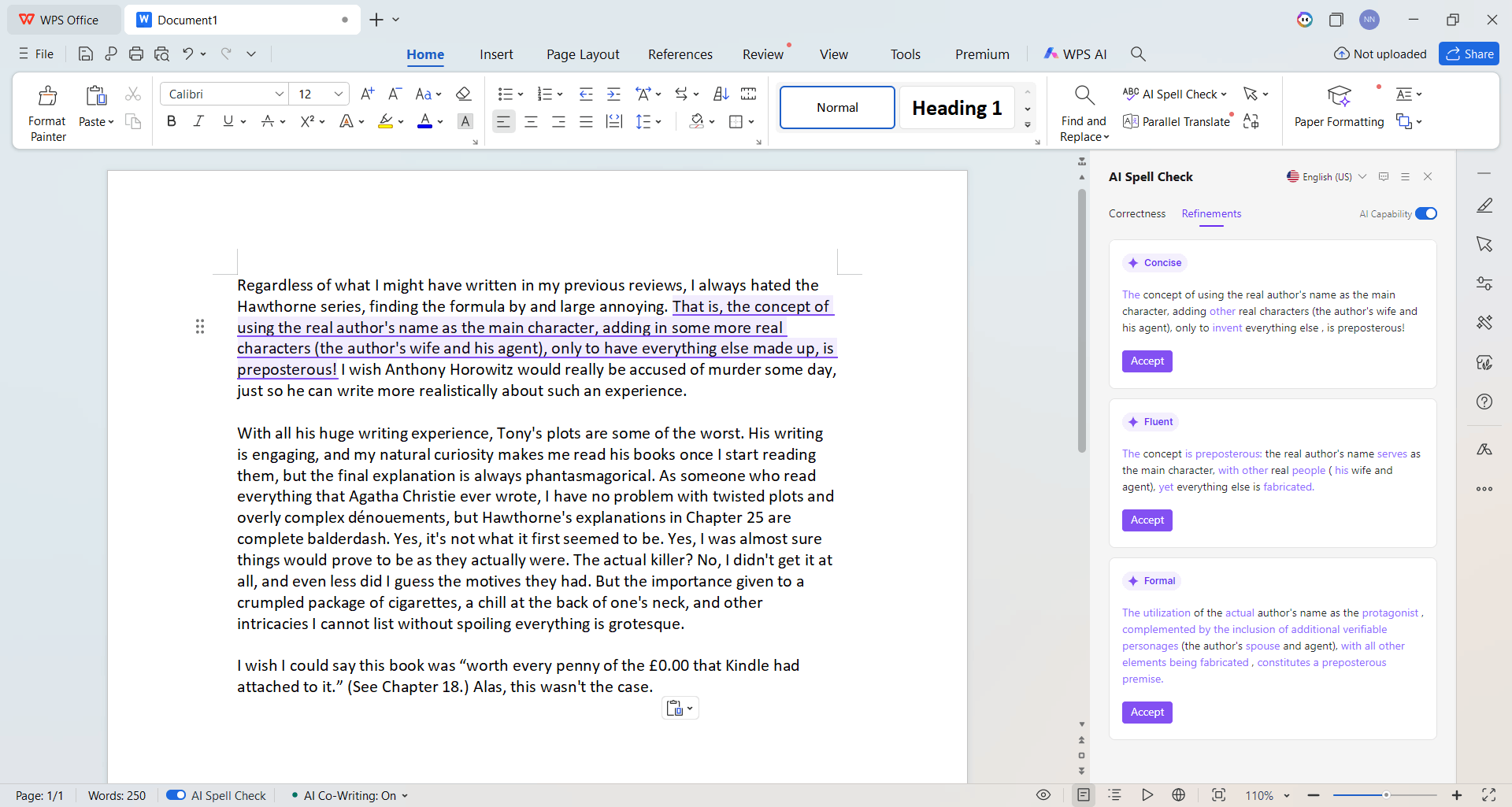
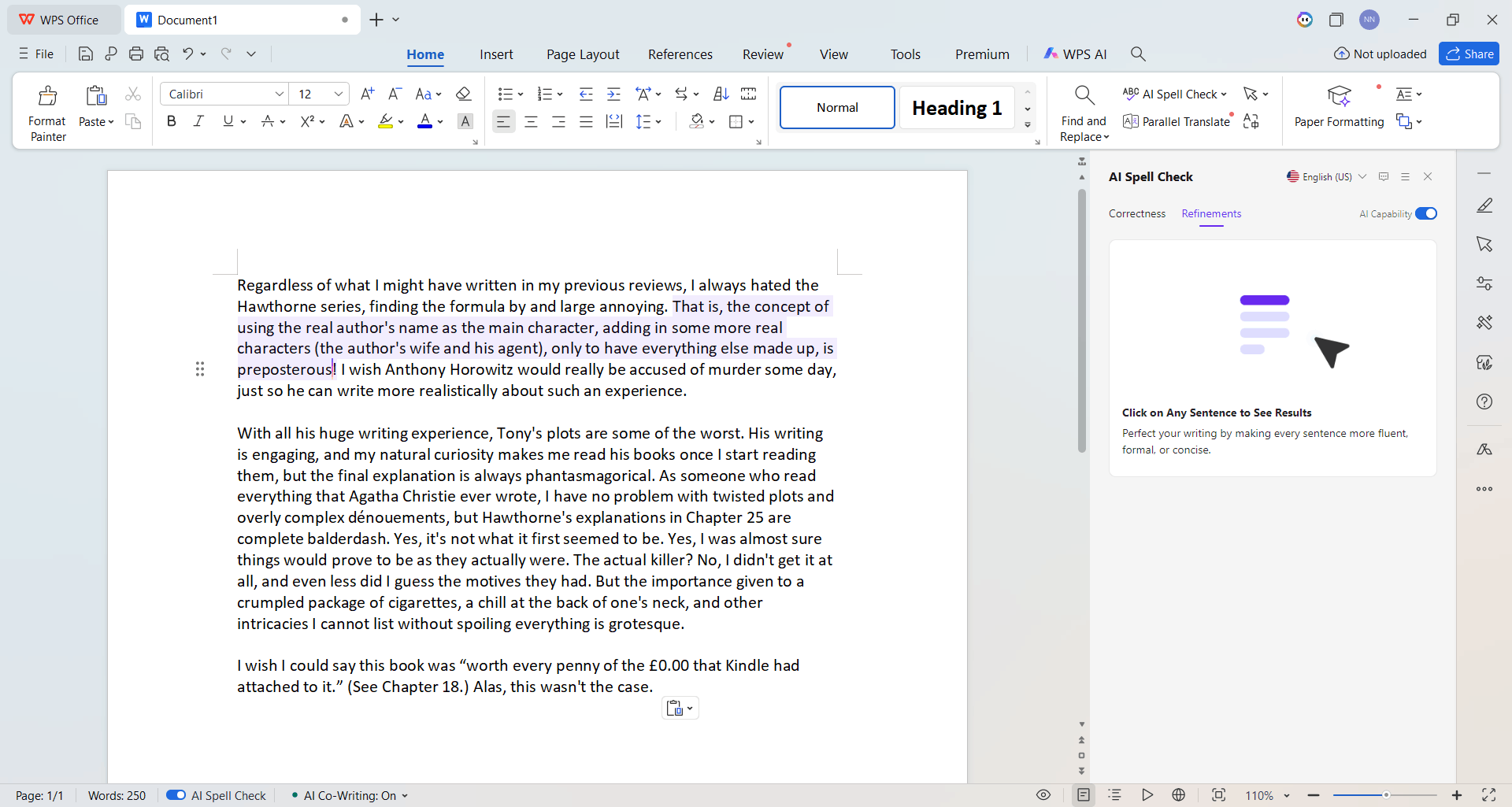
🐛 A last bug: sometimes, no matter how many times I clicked on a sentence, the AI process simply was not triggered!
In lieu of a conclusion
I should try to express a final opinion about WPS Office 2026, even if mostly based on my experience with WPS Docs and its AI features.
Personally, I favor simplicity and frugality, and I almost never buy subscriptions. I never pay for cloud storage, and I rarely subscribe to online services.
That said, I can imagine a range of market segments for WPS Office, but also a few aspects limiting its spread.
😉 Notwithstanding the aforementioned bugs and objections, WPS Office:
- Is fast.
- Has an excellent compatibility with Microsoft Office.
- Has a free version.
- Offers cloud storage.
- Has a PDF editor (only SoftMaker also has a PDF editor, but I’m not a fan of it).
- Has AI features that no other office suite has (although, I admit I never used “Microsoft 365” or “Microsoft 365 Copilot”—the new names for “Microsoft Office 365 with Copilot”).
- Has mobile apps.
🤔 However:
- Its Linux version is as good as dead (2019, really?).
- Using its AI features to generate documents would lead to the detection of having used AI. Students and authors should be aware of that!
- The AI suggestions tend to be too aggressive and too long. It’s too easy to accept them accidentally or to be tempted to accept them.
- The way of getting a WPS Premium (not WPS Pro+) subscription is not apparent, and the daily AI limits of WPS Pro+, while probably covering the needs of a casual user, might not satisfy a business user.
😉 On the positive side:
- Some AI features are meant for personal use (summarizing, translating for the purpose of understanding, not publishing, etc.).
- AI-generated text is acceptable, if not very common in marketing and advertising (where everything is a cliché), in corporations that already use AI to generate slides and summaries, and so on.
- The AI spell checking (with grammar and more) is really powerful, at least in English.
- The AI-powered translation can be extremely useful, and it also works for PDFs! (True PDF, not those that are merely embedding scanned images.)
- Once you have access to all its features, it’s literally fun!
🤔 Realistically, though, there are several categories of users:
- Adepts of a more traditional UI/UX might stick to LibreOffice or SoftMaker Office (including FreeOffice).
- Dogmatic adepts of open source will stick to LibreOffice.
- There is an incredible number of fans of LibreOffice! Some of them just wanted a free alternative to Microsoft Office, and LibreOffice is the only one they ever heard of. I was never a fan of LibreOffice (and even less of OpenOffice before the split).
- Those not needing AI, cloud, PDF, etc., and who don’t want to pay for an office suite might opt for ONLYOFFICE.
😉 On the other hand, a paid subscription to WPS Office might be ideal for:
- Power users who require as many features as possible from an office suite, including OCR, PDF editing and signing, and much more.
- People who need extended cloud storage for their documents.
- Those who are hooked on AI tools.
🤔 Unfortunately, there are reasons to tone down one’s enthusiasm:
- In the current anti-China stances in the EU and the US, no public authority would agree to use Chinese software, and even less a Chinese cloud.
- Even private individuals might have reservations regarding using a Chinese cloud and having the AI suggestions made remotely, meaning that their texts would travel to China and back (using a server in another country doesn’t radically change the situation).
So, in the end, did I like WPS Office 2026 or not? I can’t make up my mind yet. The overall score is positive. It’s fun. But not for Linux.
Leave a Reply