
From Win11 IoT 24H2 to Win10 IoT 21H2 + KB5099539: Mais quelle horreur !
Downgrading from Win11 to Win10 is not something people do, unless they do that between IoT LTSC editions of Windows, and they use UpDownTool_LTSC_v3.iso.
My history with the abominable Win11 in its slimmed-down IoT edition:
- On March 25 of last year, I wrote about Windows IoT 10 Enterprise LTSC 2021 (which I installed on a 1-liter HP micro-PC), but I also considered Windows 11 IoT Enterprise LTSC 2024.
- On November 30, I reported on having installed Windows 11 IoT Enterprise LTSC 2024 (26100.1742) on an old Acer from 2016 for (masochistic) testing purposes. It was slow as molasses, but fully functional, and Stardock Start11 made it look even better than Win10 in some regards.
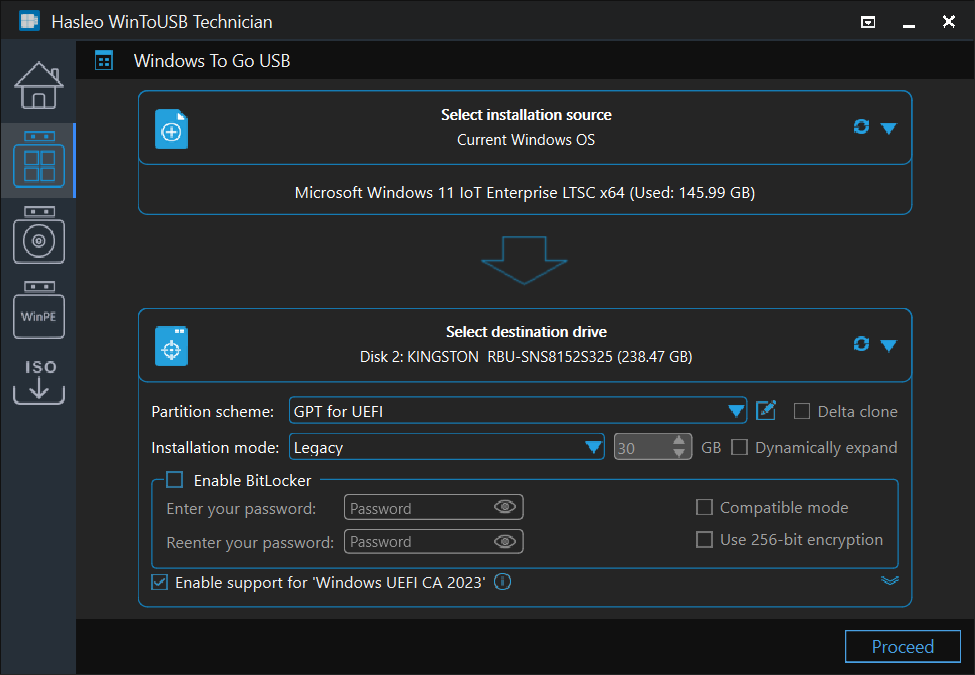
- On February 5, 2026, I used Hasleo’s WinToUSB to transfer the installed image to an old external SSD, preparing for a future installation on the 2023 Acer that at the time ran MX Linux XFCE.
- Sometime in June, I finally used Hasleo’s Disk Clone to transfer Win11 IoT to the newer Acer. As reported on June 29, when I complained about the many versions of PowerShell and the several ways of installing them, all I had to do was to update the drivers. Then, of course, to sort out a little mess with
Microsoft.WindowsTerminalandMicrosoft.PowerShell. - On July 11, I had to disable Automatic Folder Type Discovery in File Explorer, which still remained slower than its Win10 and Win7 editions.
- And then, on July 18, I decided to switch to Win10 IoT LTSC 2021!
ℹ️ The reason for this downgrade was based on a wrong assumption. I wanted to upgrade Ventoy on a flash drive, and its Windows version wasn’t able to see any drive! I mistakenly assumed it’s a Win11 issue, when in fact Camomile was blocking the drive, so Ventoy couldn’t get exclusive access to it (except in Safe Mode). Killing Camomile.exe (right-click on its system tray icon, then select “Exit”) restores Ventoy’s ability to lock a drive. But Win10 IoT is still a better choice than Win11 IoT!
I already had an ISO of UpDownTool on a Ventoy drive, but I forgot I did. So I tried to redownload it, but none of the 4 URLs worked (main, Europe, Oceania, North America). I eventually got it from FileCR, only to find out that I already had an identical copy! 🤦♂️
Downgrading and post-downgrade issues
Downgrading in itself was painless, once I made sure I had all the necessary drivers:

❶ Get the Wi-Fi drivers that are missing in Win10
From Intel® Wi-Fi 6E AX210 Downloads, the option Intel® Wireless Wi-Fi Drivers for Windows® 10 and Windows 11 results in WiFi-24.50.0-Driver64-Win10-Win11.exe, whereas Intel® PROSet/Wireless Software and Wi-Fi Drivers for IT Administrators offers the cleaner WiFi-24.50.0-Driver64-Win10-Win11.zip.
After the downgrade, all I had to do was to install the driver and connect to the access point.
ℹ️ Note that the use of the 6 GHz band is restricted to Win11, but my Wi-Fi runs on 5 GHz.
❷ One more driver was missing!
The Device Manager had a yellow triangle on “Universal Serial Bus (USB) Controller”; what was needed was the Intel Thunderbolt Driver for Windows 10 (Version 20H2 or later), and this download from Lenovo seems to be the most convenient way to get this driver.
❸ Activate Windows
I’m not going to tell you how to Massgrave it.
❹ Apply Windows Updates
This step was a huge pain in the ass! I almost believed KB5099539 would never install!
You see, the July 2026 “Cumulative Update for Windows 10 Version 21H2 for x64-based Systems” (KB5099539, because the retards use the same KB number for all those different OS builds) had to apply a huge bulk of system updates that would bring in one go an OS released in November 2021 to the latest binaries as of July 2026!
It repeatedly got stuck at 20%. At least thrice. Later, the most it could reach was 73%, then it failed:
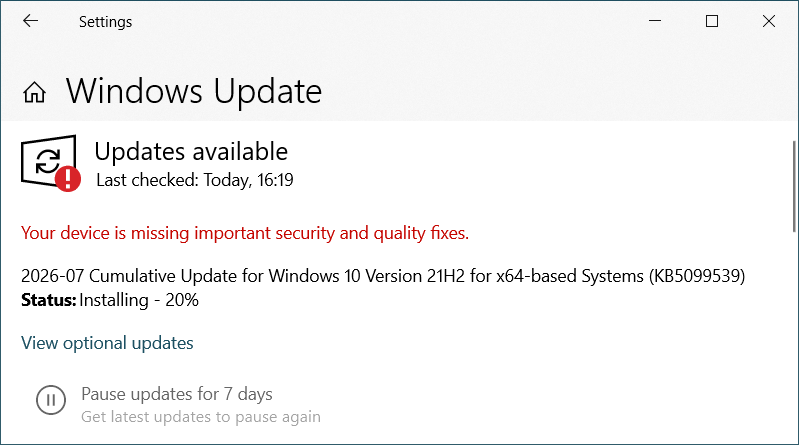
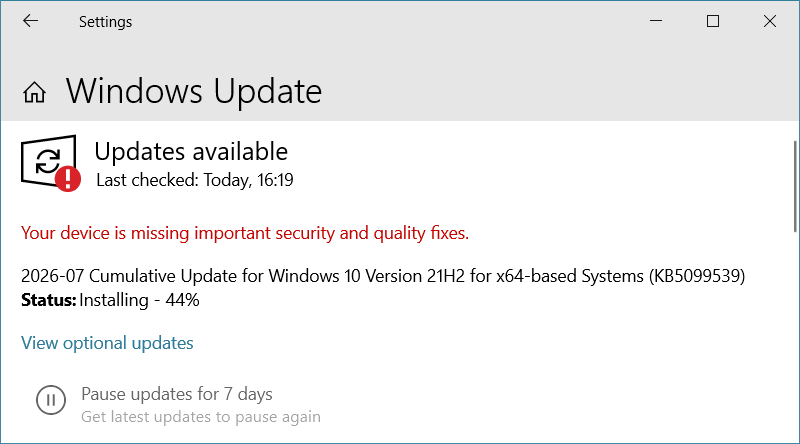


I even tried the standalone update (a 1.05 GiB EXE), which also failed:
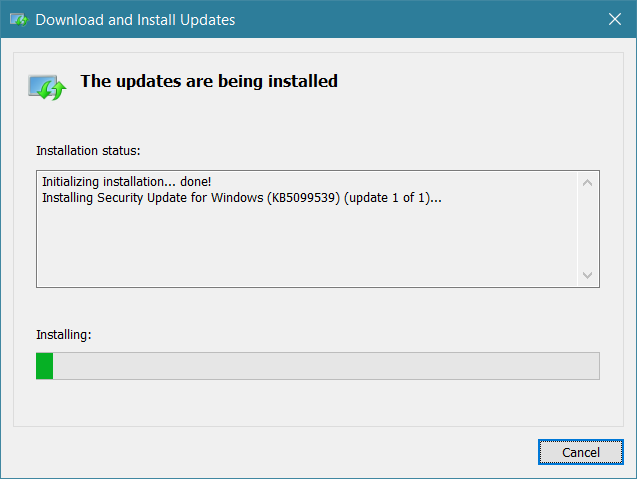

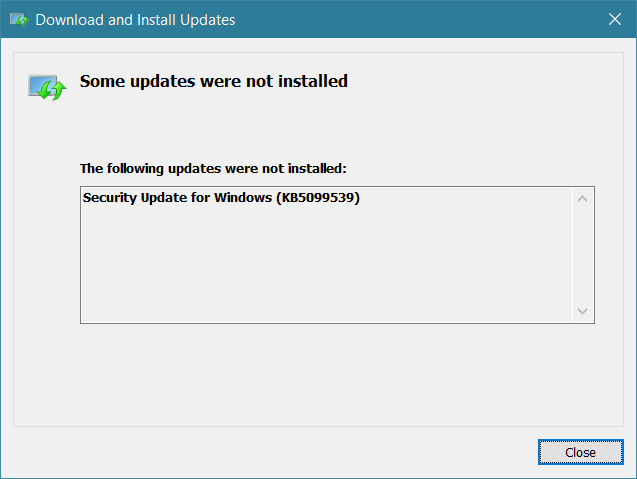
I let it cool down for a while, but eventually I needed to make it succeed, because PowerShell 7.6.3 refused to run on OS Build 19044.1288.
I let the update run one more time overnight. After more than 6 hours of running at 3.6 GHz (with Camomile disabled), it offered to reboot.
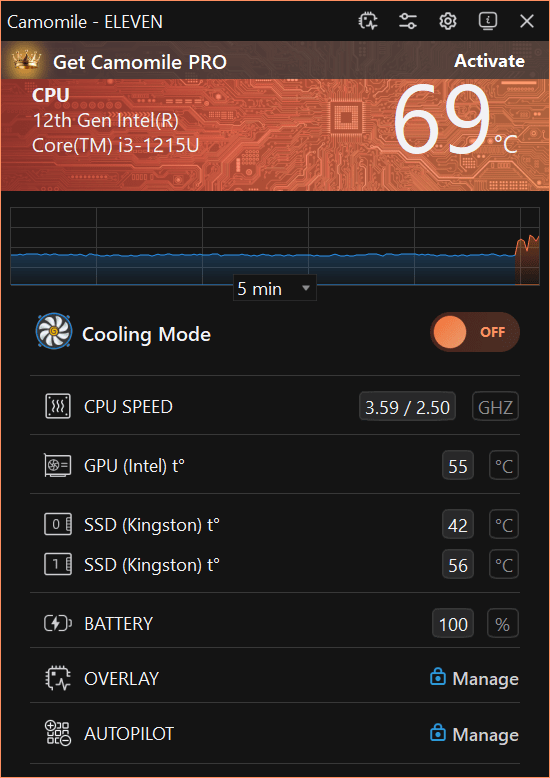
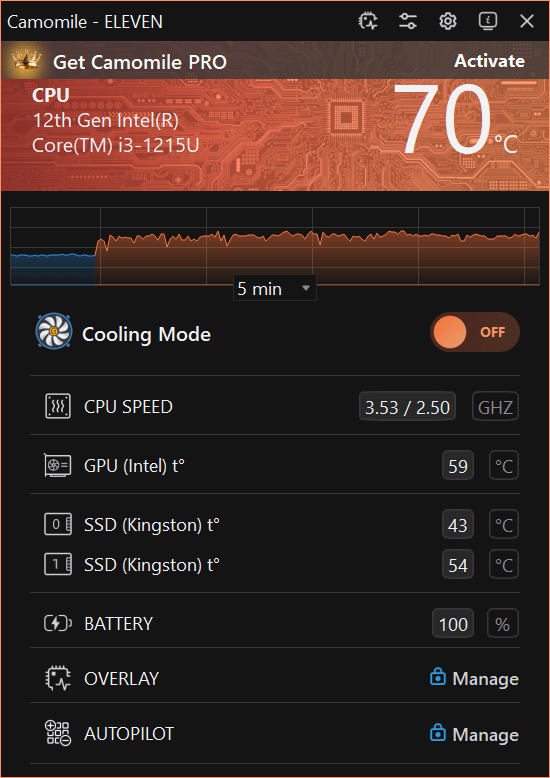
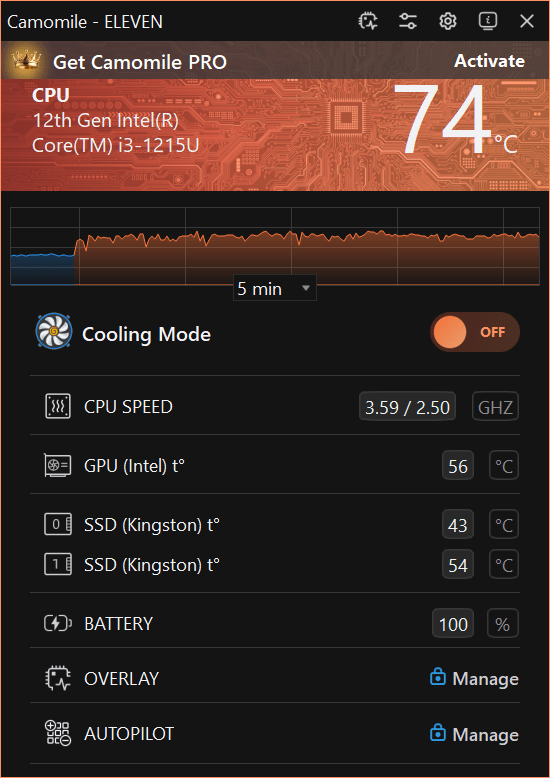
After 3 more reboots, the system was good to go.
ℹ️ A successful update of Win10 IoT 21H2 should upgrade the OS Build from 19044.1288 to 19044.7548.
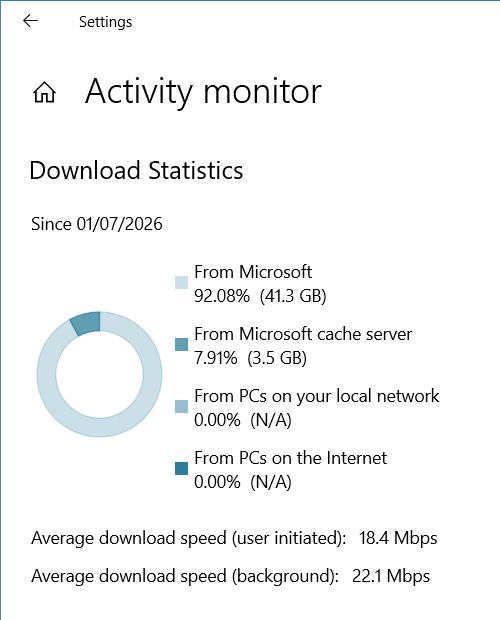
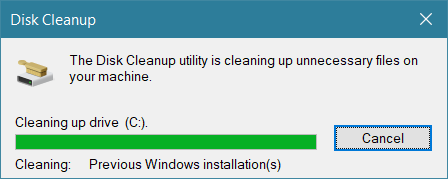
Funny thing, the downgrade seems to have been preserved the history of updates from Win11 onwards: 44.8 GB in 17 days! Definitely the best OS in the world. (And that’s actually “GiB” when reported by Microsoft, so 48 GB!)
❺ Re-disable Windows Defender
Because I don’t need shit. I used the gpedit.msc method mentioned here, plus the HKEY_LOCAL_MACHINE\SYSTEM\CurrentControlSet\Service one from here (setting Sense, WdBoot, WdFilter, WdNisDrv, WdNisSvc, WinDefend to 4).
I then disabled SecurityHealthSystray.exe to get rid of the system tray icon. Here, too, I overreacted and killed it more than once. In an Administrator Command Prompt:
reg add "HKLM\SOFTWARE\Microsoft\Windows\CurrentVersion\Run" /v "SecurityHealth" /t REG_SZ /d "" /f
reg delete "HKLM\SOFTWARE\Microsoft\Windows\CurrentVersion\Run" /v "SecurityHealth" /f
Then, in gpedit.msc: Computer Configuration → Administrative Templates → Windows Components → Windows Security → Notifications. “Hide all notifications” → “Enabled”.
❻ Getting rid of Start11
I noticed I still had Stardock’s Start11 from Win11 running under Win10! Uninstall, reboot, nothing broke.
❼ Adding Microsoft Store
As wsreset -i wasn’t enough, I needed to run the troubleshooter and add a Microsoft account. Later, I had to switch back to authenticating using a local account. Strange thing that the settings from Win11 were not preserved.
WinGet was still missing, and the search in Microsoft Store is abysmally stupid. Win+R, ms-windows-store://pdp/?ProductId=9nblggh4nns1 to install App Installer the easy way.
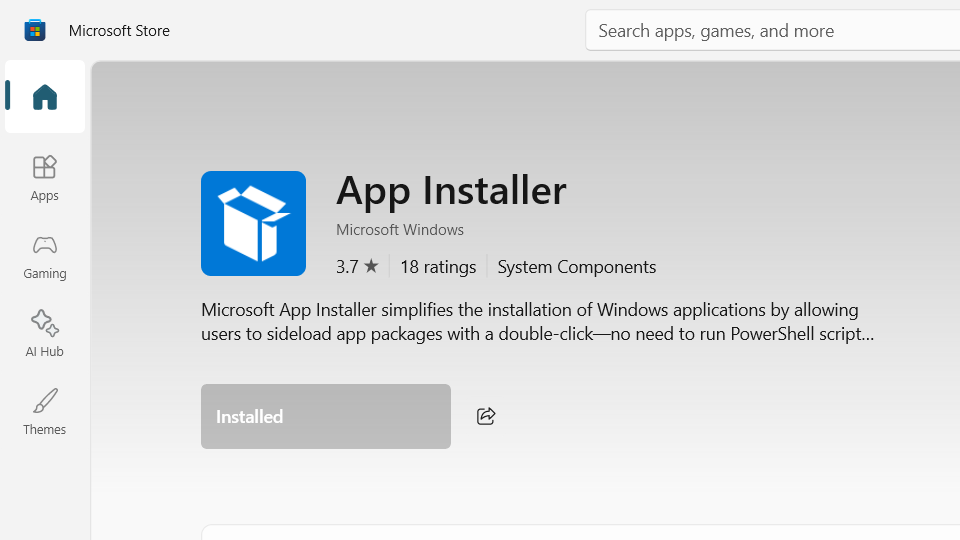
WinGet now works in PowerShell (not PowerShell 7) as Administrator, so I used it:
winget install Microsoft.WindowsTerminal❽ The PowerShell was broken
Been there, done that (under Win11), and now it’s almost the same mess with several editions and versions of PowerShell!
There were too many shells:
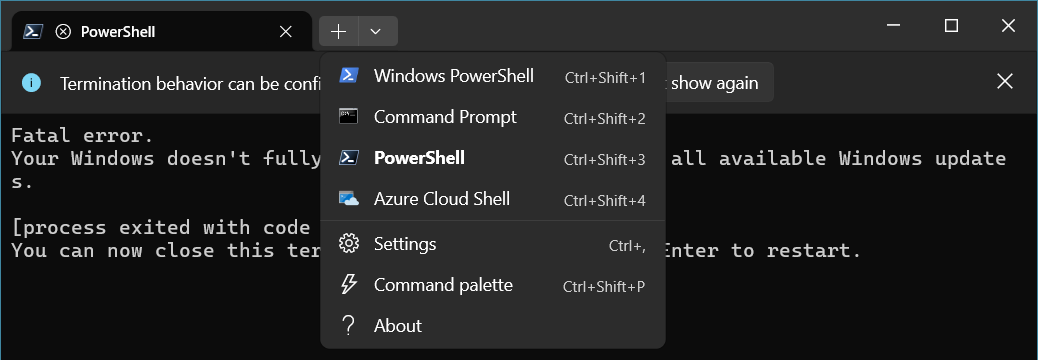
And wrong versions, again: what I need is the PowerShell without “7” in its name to be in version 7.6.3!
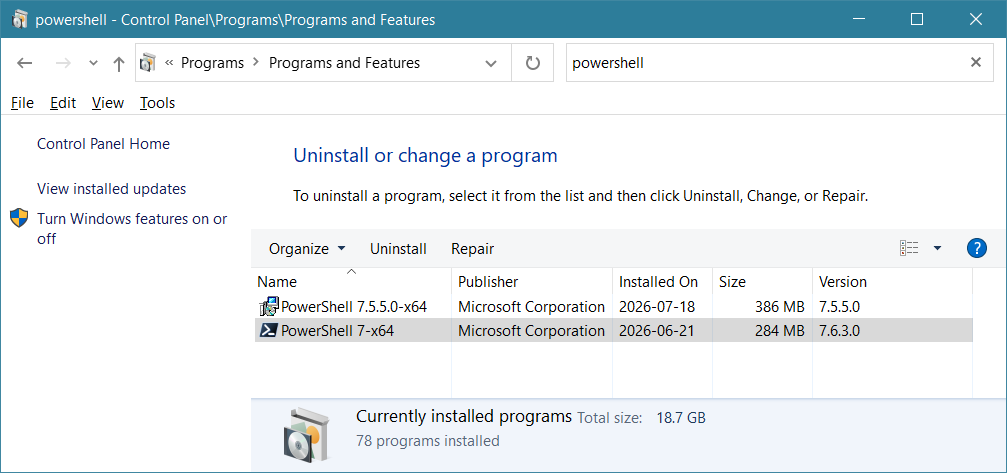
The first step (although both editions can first be uninstalled from the above appwiz.cpl):
winget install --id Microsoft.PowerShell --source winget --uninstall-previous --forceNow the shell was the correct one…
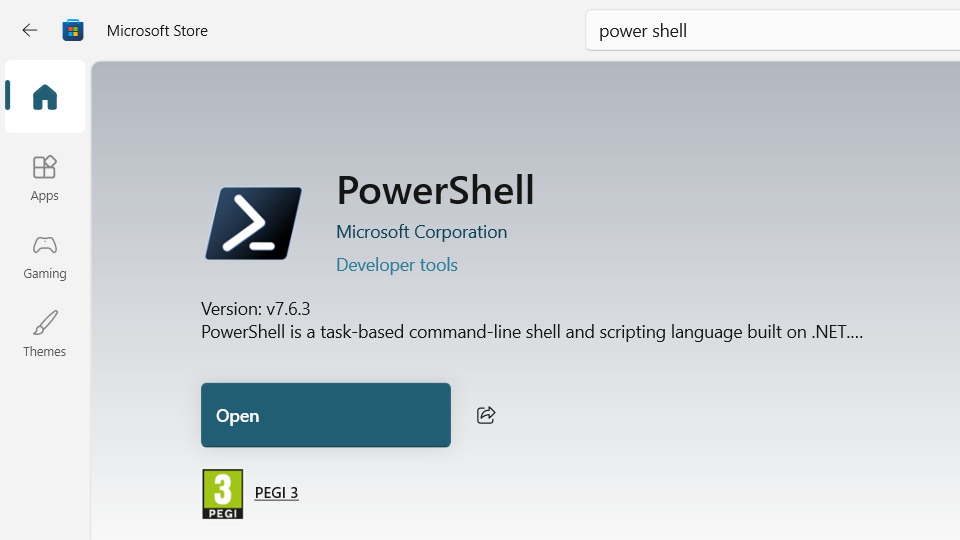
…but it wouldn’t work unless that bloody update succeeded!

After the successful installation of KB5099539, the latest PowerShell started working, but not before replacing the old path with the plain pwsh.exe in Windows Terminal:

Here:
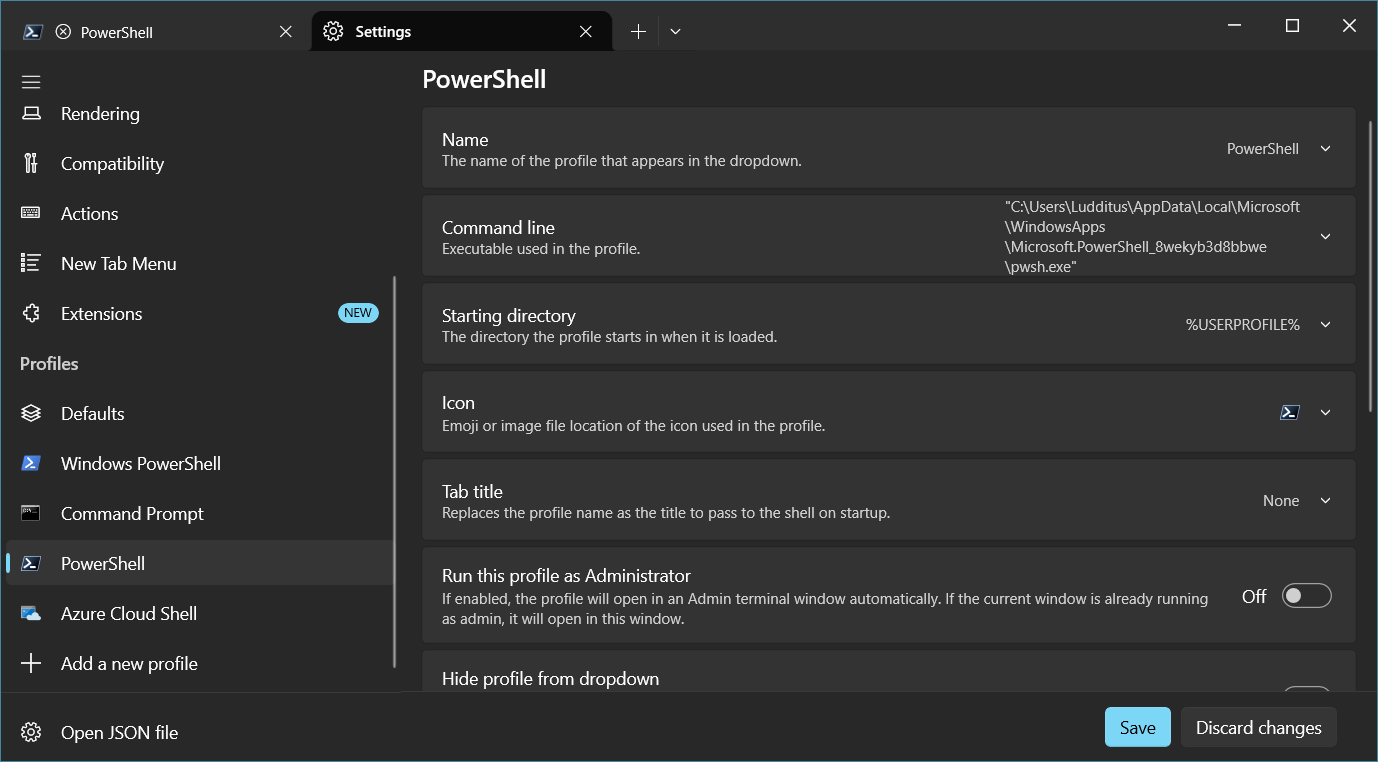
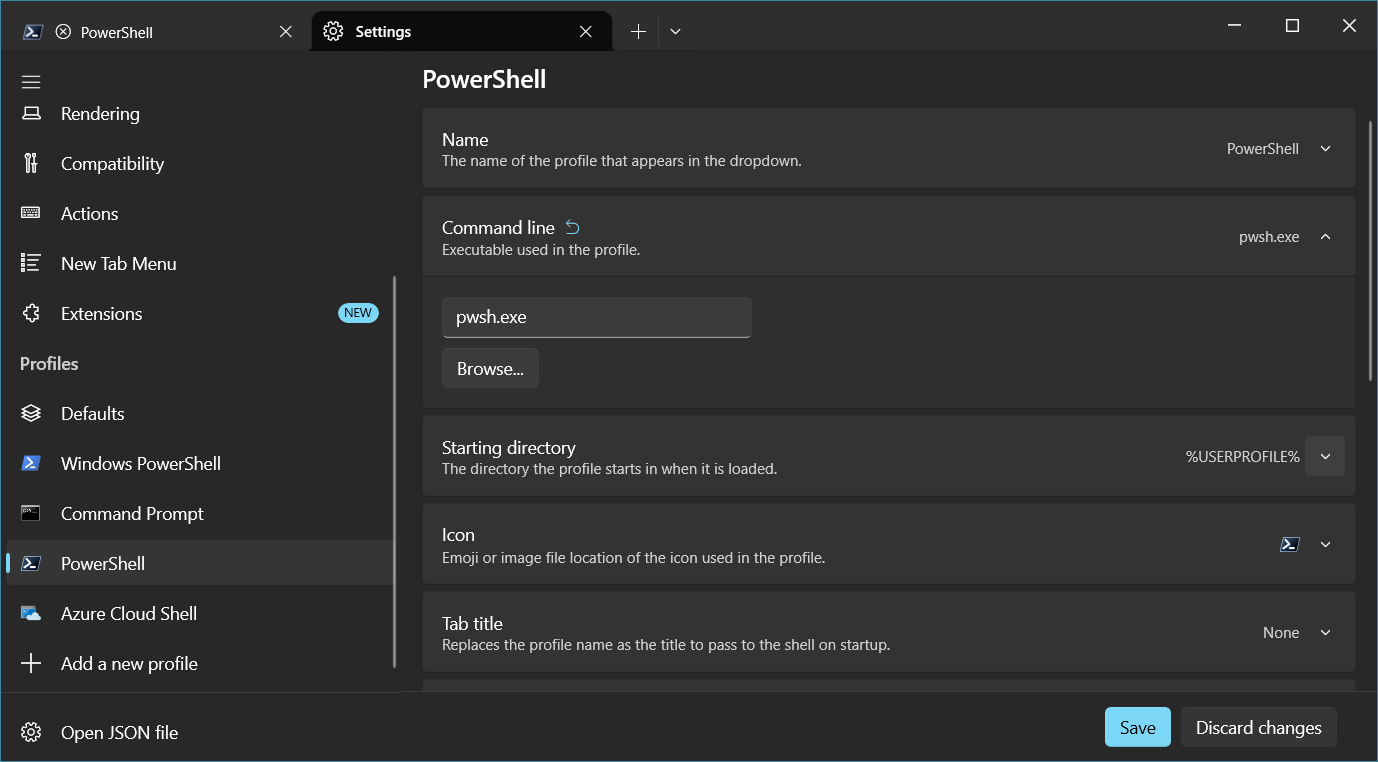
ℹ️ A workaround would have been to disable the CET (Control-flow Enforcement Technology, aka Hardware-enforced Stack Protection) either for pwsh.exe, or for everything:
# from Windows PowerShell 5.1, elevated
Set-ProcessMitigation -Name pwsh.exe -Disable UserShadowStack

# globally, but requires a reboot
Set-ProcessMitigation -System -Disable UserShadowStack❾ Adding several keyboard layouts
Once we ignored KB509953, the issue of configuring multiple keyboard layouts was the true nightmare I never thought I would have to go through! I even considered upgrading back to Win11! (I really miss Win7…)
In Win7 and Win10, I always used setups involving several keyboard layouts, and the same is true for Linux, but the combination of keyboard layouts changed over time for several reasons. One major reason is that the physical layout of most keyboards I use changed from US International (usually with a “fat” ISO Enter key, not the “dash” ASCII one) to German. But regardless of what physical keyboard I use (and I have plenty of them), I always needed to enter French accented characters and Romanian characters.
Depending on the OS and year, I had various ideas regarding French characters. When I didn’t use German keyboards, I used in Win7 a UK Extended layout (with AltGr), which helped a bit. Nowadays, I use character composition in the German layout for some characters and in the US International layout for other characters. For Romanian, I use the standard Romanian keyboard, but under Linux I also used the bizarre Romanian (Germany) layout (to be used with German keyboards and to be searched for under “German”).
Lately, I stabilized to the following requirements under Windows:
- A unique system language, US English.
- English (Ireland) for date, time, paper format, and currency.
- If the physical keyboard is US English International:
- US English International with dead keys as the default keyboard layout.
- German and Romanian as extra keyboard layouts.
- If the physical keyboard is German:
- German as the default keyboard layout.
- US English International with dead keys and Romanian as extra keyboard layouts.
This is what I had under Win11 before the downgrade:

Everything was right: the language for the UI was English, but the keyboard layouts were three.
But downgrading to Win10 screwed everything:
- No keyboard switcher, no matter what I tried.
- No language switcher either, even if I added a second language, say Romanian!
So, to be clear, I had:
- The same English (United States) as language.
- Three keyboard layouts under this language.
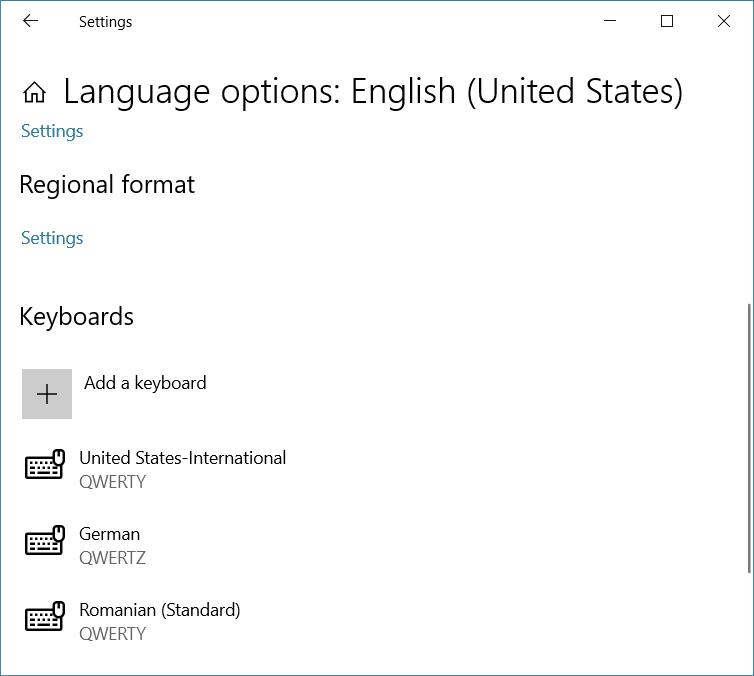
And yet, neither the keyboard switcher nor the language bar accepted to be displayed! It should have worked, but it didn’t.
I have literally spent all my Google AI Pro tokens for a 5-hr window trying to fix this issue, and I failed. Adding a second language helped, but not by much. It still wouldn’t display keyboard layouts!
Several hours later, I started again to play with languages and layouts, just to see if I could persuade this shit of Windows to properly read its own settings. From the many attempts, here’s one:
- 3 languages, of which English (Germany) is something that exists even in KDE 🙂
- English (United States) configured with 3 keyboard layout.
- English (Germany) configured with a German layout.
- Romanian (Romanian) configured with a Romanian layout.
- That makes 5 layouts across 3 languages, with the UI being kept to US English.

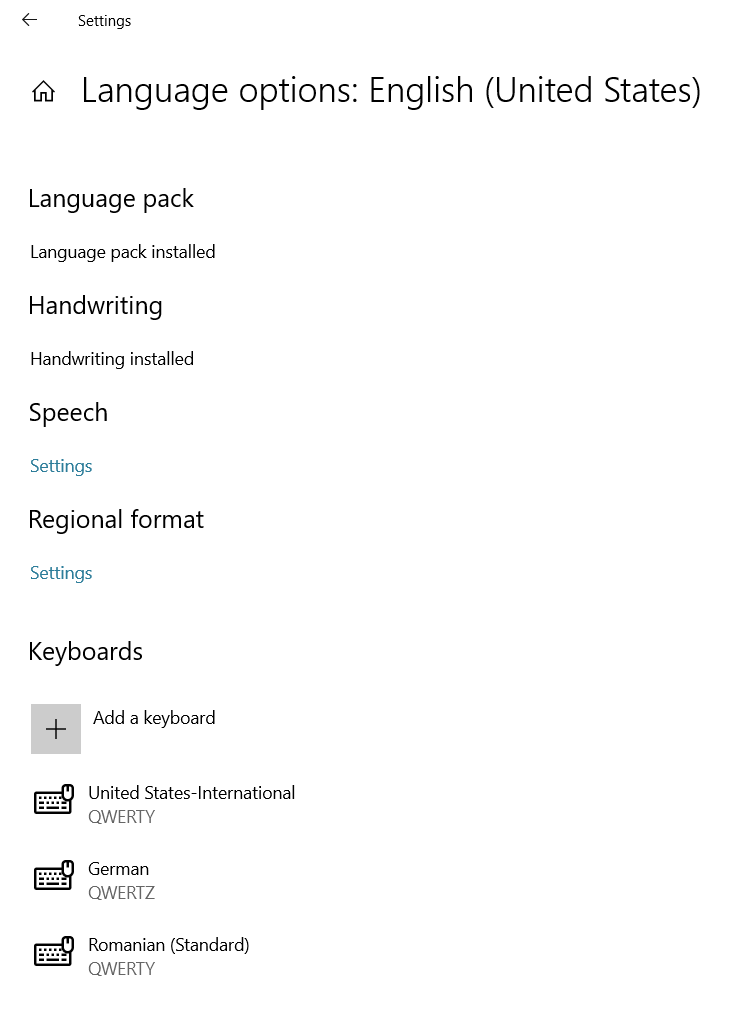

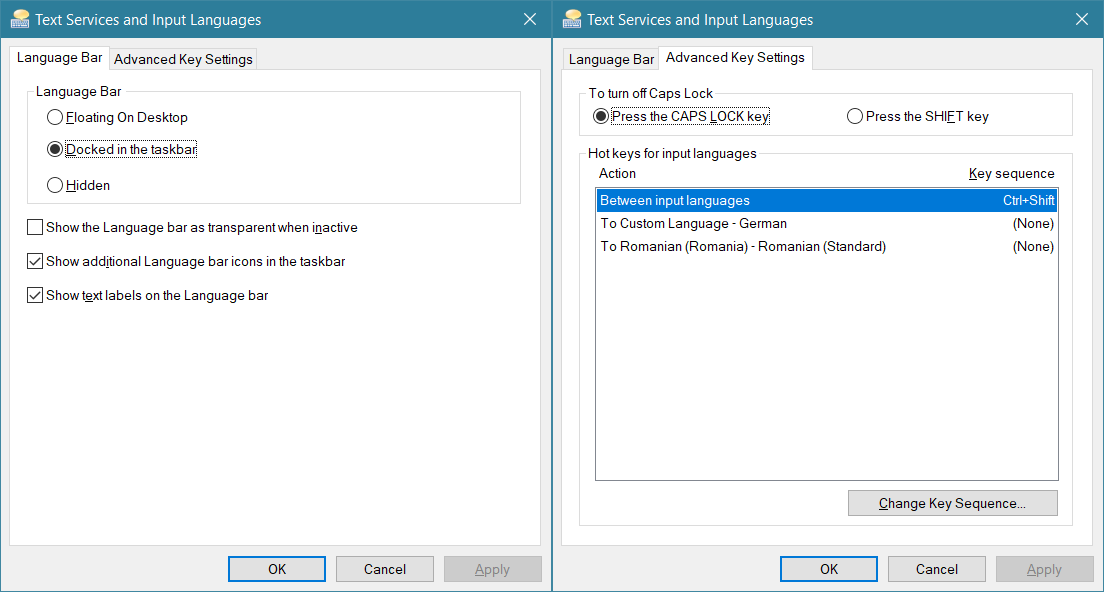
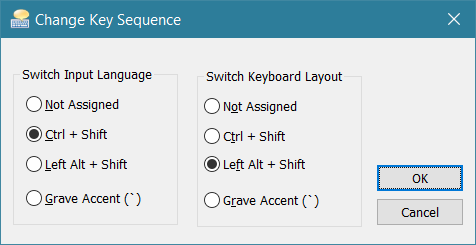
Now, guess what this retard was displaying?
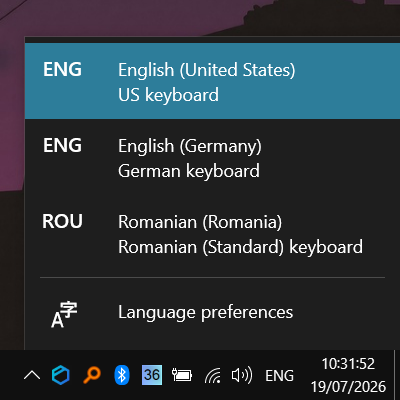
Look carefully: the US keyboard is not International! It had no dead keys whatsoever, despite the configured layout being International!
Alternatively, the language bar was ugly:
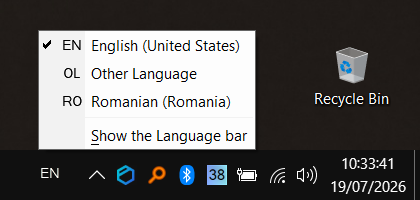
85 minutes later, after having played at length with adding and removing languages and keyboards, and after reaching a final configuration IDENTICAL to the one above (3 languages, 5 keyboards, IDENTICALLY DISTRIBUTED AND CONFIGURED), by some divine miracle, it decided to offer me such a choice:
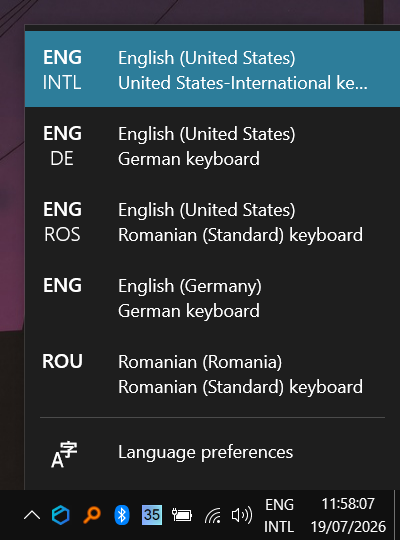
That’s too much, but I’m keeping it as is because I can’t stand fiddling with shit anymore. Now I have some extra flexibility:
- I can switch between the first and the last two items with the shortcut for languages.
- I can switch between the first three layouts with the shortcuts for layouts.
If this is confusing, it is because Windows is such a humongous piece of shit! MATE, XFCE, KDE, GNOME, Win7, and, after some effort (using a chatbot), Win11 allowed me to switch between keyboard layouts without the need to add extra languages for nothing (because the OS UI doesn’t use them)! But this Win10 IoT, at least the way it fucked itself in the ass when the Setup downgraded from Win11 IoT, would not display any switching options UNLESS I added extra languages! And even then… not the first time.
I hope I’ll never need to install any other Windows edition, EVER!
The End
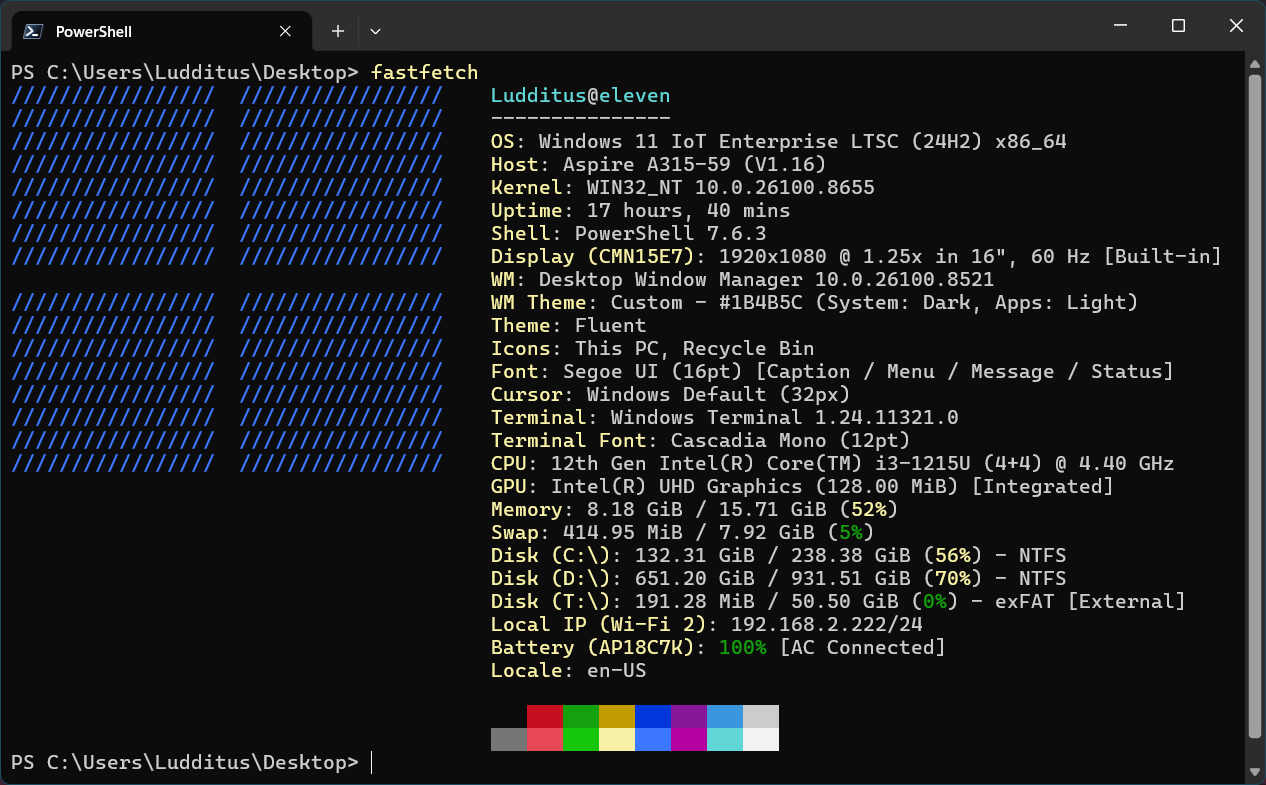
Before:
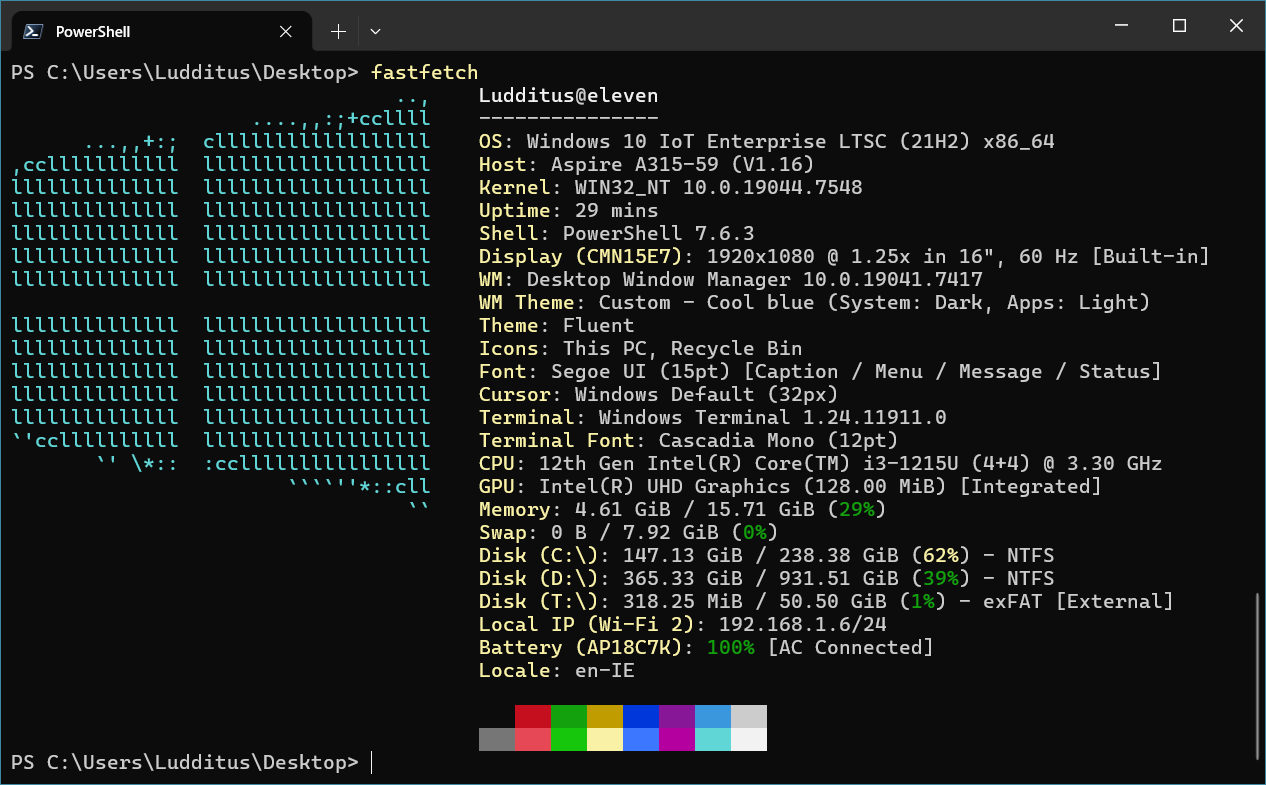
After:
No turning back:
I wish Microsoft literally died.
Leave a Reply