
Woes with Bluetooth and the audio jack in Windows
First, I want to stress that even if the following happened under Microsoft Windows 10 IoT Enterprise LTSC 2021 (Version 21H2 Build 19044.7725), nothing is specific to Windows 10 and should behave the same in all versions of Windows 11. I’d also like to mention that this is the only Windows 10 version to receive support until 2032.
Windows has made it a habit to kill my Xiaomi Bluetooth speaker!
I have to admit I am a cheapskate, and I bought this almost unknown Xiaomi Smart Speaker Lite (“Xiaomi Speaker-6311” model 07G) because I paid about €20 for it (half its MSRP) and because it doesn’t use a battery; instead, it’s always connected to the mains. Its extremely low market penetration may be due to drawbacks I didn’t know at the time. Specifically, it doesn’t “just work”; you need to install both the Alexa app and the Xiaomi Home app on your smartphone (or on a tablet) for it to work! They say it also works with Apple AirPlay, but I don’t even know what that fuck means. Either way, you need the Alexa app to pair it with a sound source, and the Xiaomi app connects it to Alexa and Spotify and can adjust the default audio volume, since the speaker’s buttons can’t. Other than that, it’s powerful and even bassy.
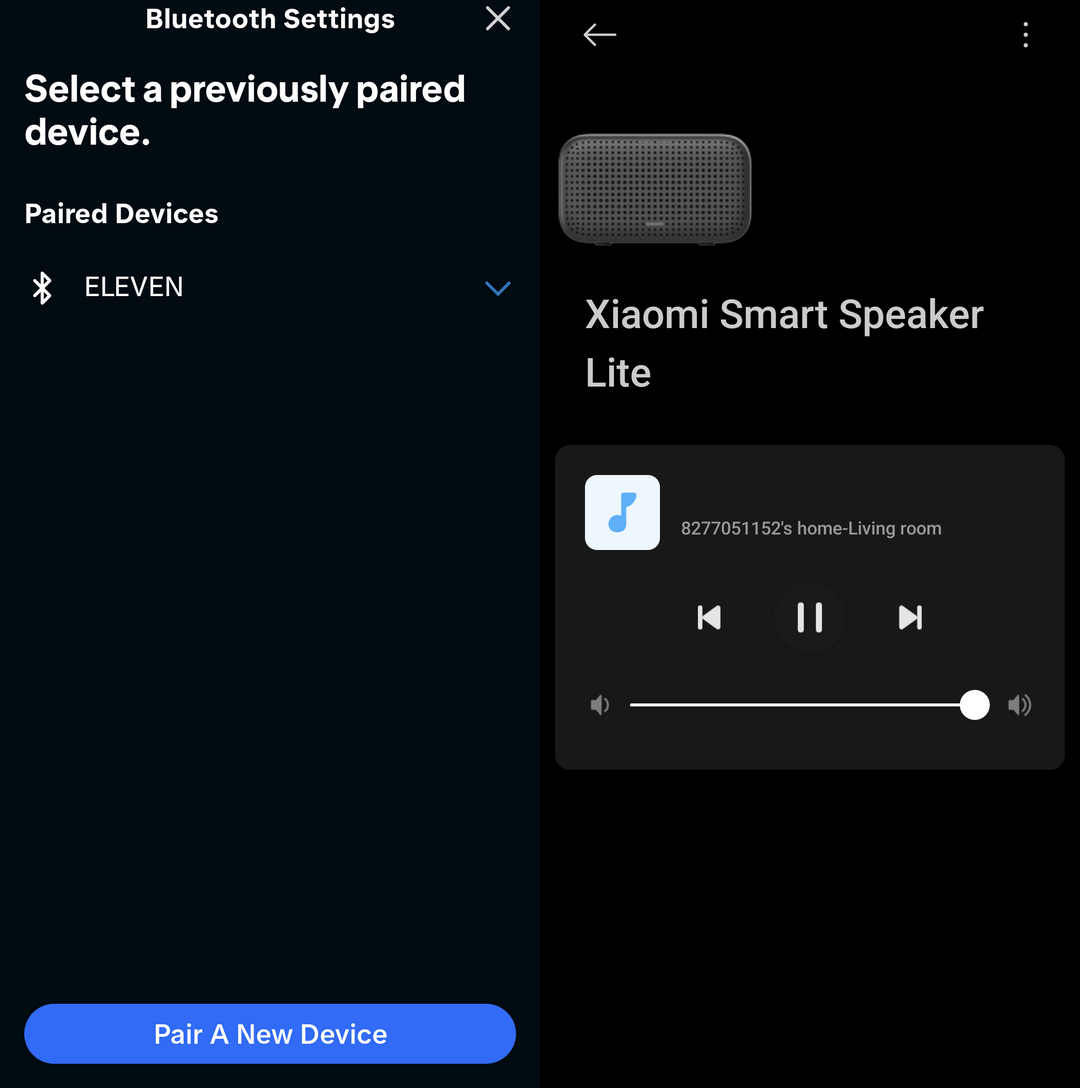
But then, even though I had no issue when it connected to Android or Linux, keeping it connected to Windows made it “die” on a daily basis, sometimes several times a day, often in the middle of playing a YouTube video! WTF, Satya?!
Sure enough, I asked a chatbot, and several approaches have been proposed and tried. I need to adapt what Gemini told me, because we chatted in Romanian.
The starting point was that this behavior is caused by the way Windows manages power for the Bluetooth adapter. Linux manages the Bluetooth connection differently and avoids aggressively dropping data packets to save power.
Apparently, if the speaker freezes during playback, this might be due to Windows sending control signals (AVRCP—Audio/Video Remote Control Profile) in the data stream that the speaker’s firmware cannot process, causing a buffer overflow that can only be resolved by cutting off the power. Linux (via BlueZ) handles this protocol differently, which is why I didn’t encounter the problem on Debian.
According to Gemini, the most common culprit in Windows 10/11 for Bluetooth smart speakers is the “Absolute Volume” feature, which sends volume synchronization commands every time playback fluctuates. So I went to HKEY_LOCAL_MACHINE\SYSTEM\ControlSet001\Control\Bluetooth\Audio\AVRCP\CT and made sure the DisableAbsoluteVolume is a DWORD (32-bit) value set to 1.
Furthermore, I was instructed to disable “Remote Control” and “Remotely Controllable Device” and leave only “Audio Sink” enabled—the A2DP profile required for audio playback. Gemini declared that, when I play a video on YouTube, Windows constantly sends volume synchronization signals, metadata, and media commands to the speaker through those two control options. The 07G model’s firmware doesn’t process them correctly and crashes. So I needed to stop this from happening.
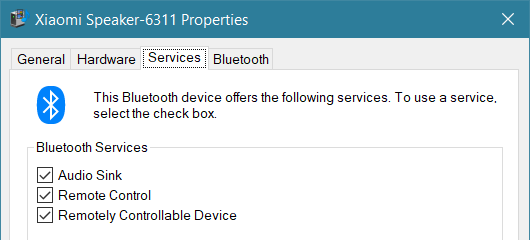
There were issues with this approach.
With both modifications, the speaker’s audio volume could no longer be adjusted and remained at a fixed low level. The Windows volume control did nothing at all, and the speaker has no volume buttons!
After I reverted the Registry change and restarted the computer, the Windows volume slider worked again, but only at the operating system level, without forcing synchronization (AVRCP Absolute Volume) with the speaker’s hardware controller. But even when the audio volume in Windows went to 100%, the speaker was still quite low, probably fixed at something between 25% and 40% of what it could do.
Connecting the speaker to Android, setting the volume to 100%, disconnecting it, then reconnecting to Windows was pointless: the setting was lost.
The only workaround was to set the default volume to 100% in the Alexa app, with the caveat that the speaker itself, when it connects to the laptop, yelled “Connected to device_name” at 100% because it was out of sync with Windows and set to 100% in the app.
What’s worse, even with these settings, the speaker still died after some time! 🤦♂️
It was clear that I had to roll back all changes.
Still, I wanted to know what exactly in AVRCP could cause a buffer overflow in such a speaker. An adapted translation of Gemini’s answer goes as follows:
The buffer overflow occurs because the Bluetooth stack in Windows (Microsoft’s implementation) is extremely aggressive with polling and notifications in the AVRCP protocol (version 1.6+), overwhelming the limited memory of the speaker’s microcontroller. The firmware of smart speakers typically runs on a real-time operating system (RTOS), where processes have fixed memory resources (queue buffers).
- The
RegisterNotificationFlood: To keep the volume perfectly synchronized, Windows repeatedly sends AVRCP commands of theRegisterNotificationtype (to check if you’ve changed the physical volume) andSetAbsoluteVolume. Even without you adjusting the volume, Windows constantly queries the speaker’s status throughout video playback.- Metadata and playback updates: AVRCP doesn’t just control the volume; it also sends metadata (the YouTube video title, playback position in seconds). If the browser or video player constantly reports status changes to the Windows media API, the Bluetooth stack bundles them and sends them in a continuous stream to the speaker.
- Lack of a “Packet Dropping” Mechanism: The speaker’s processor heavily prioritizes decoding the A2DP audio stream, which requires significant processing power to prevent audio interruption. AVRCP control packets are queued in a buffer. Since the firmware for this Lite model does not correctly handle a “queue full” condition (it does not discard old packets), the allocated memory is exceeded, corrupting the threads in the RTOS and causing an internal “kernel panic” in the speaker.
The BlueZ stack in Linux handles this traffic much more efficiently. Debian either negotiates an older AVRCP version (BlueZ 5.82 in Debian 13 implements AVRCP 1.5 for standard metadata transfer, track control, and absolute volume synchronization, but does not support detailed metadata) or sends status commands only when actual user-generated changes occur, leaving the speaker’s buffer free.
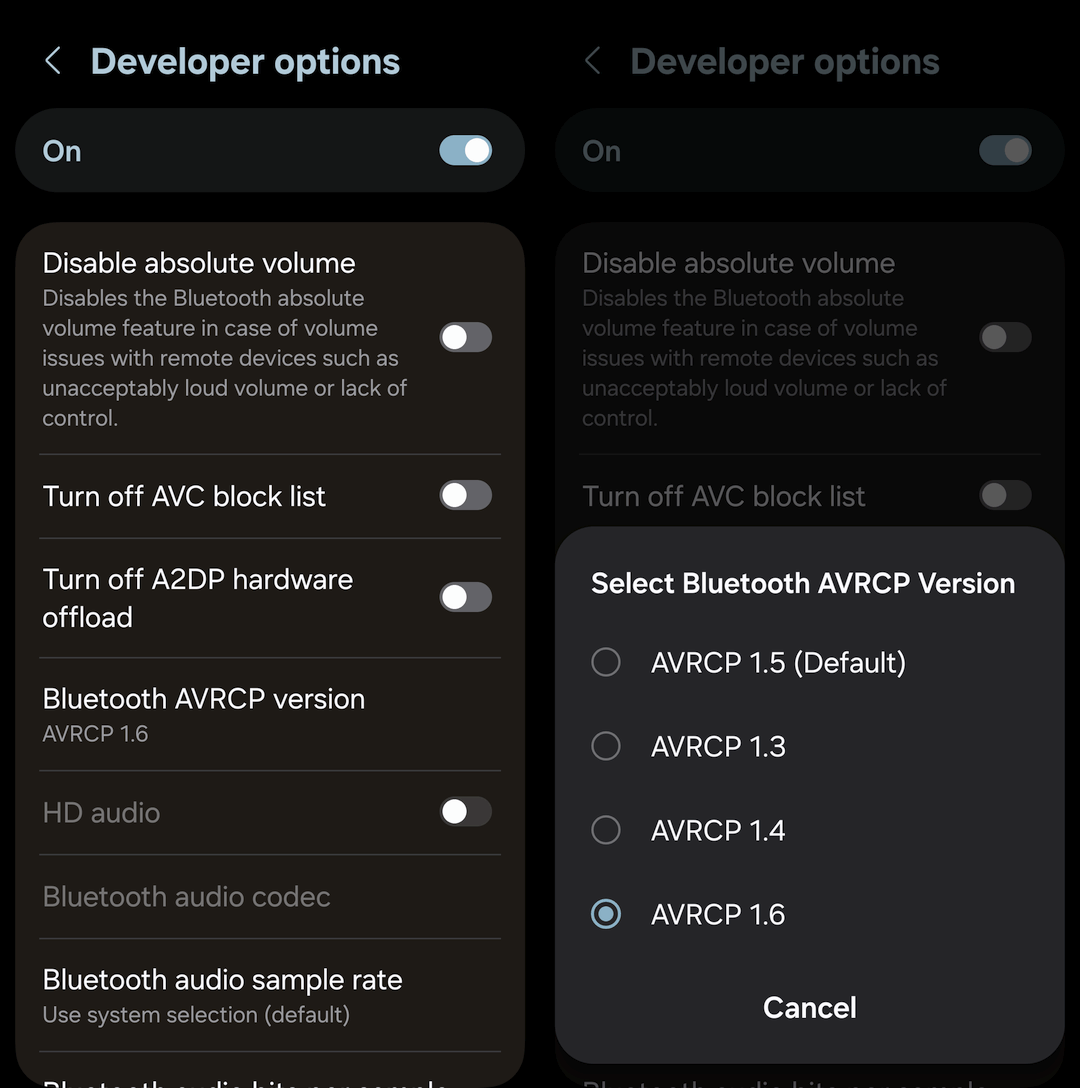
Since Windows 10 and 11 do not allow manually forcing an older version of AVRCP, as can be done through the developer settings on Android or via BlueZ configurations on Linux, Gemini came up with the idea of blocking the source generating the extra AVRCP traffic, in my case… Firefox!
When playing a video on YouTube, the browser constantly reports metadata to the Windows audio component (System Media Transport Controls). Windows converts this data into AVRCP packets and floods the speaker. So I needed to sever the connection between my browser of choice, Firefox, and the Windows media interface:
- Type
about:configin the address bar (then hit ENTER). - Set
media.hardwaremediakeys.enabledtofalse(double-clicking it toggles its value). - Restart Firefox.
Gemini:
With this change, Firefox is completely decoupled from the operating system’s audio control system. Windows will no longer know what is running in the browser and, as a result, will no longer send queries and status updates via AVRCP to the Xiaomi speaker’s microcontroller. Without these constant metadata updates and without Absolute Volume, the Bluetooth connection will remain a simple audio stream (A2DP), effectively preventing memory overload.
How about Chrome, Edge, VLC, MPC-HC, etc.? Gemini to the rescue:
Google Chrome and Microsoft Edge (Chromium)
- Type
chrome://flags(for Chrome) oredge://flags(for Edge) into the address bar and press Enter.- In the page’s search box, enter
Hardware Media Key Handling.- Change the option’s value from Default to Disabled.
- Click the Relaunch (or Restart) button at the bottom of the window to apply the setting.
VLC Media Player
- Open VLC and go to Tools > Preferences (or press
Ctrl + P).- In the lower-left corner, under the text Show settings, check the All option.
- In the vertical menu on the left, expand the Interface > Main interfaces section and click Qt.
- In the right-hand panel, scroll to the bottom of the list and uncheck the Integrate with Windows Media Controls option (this may also appear as Show playing media in Windows OSD, depending on the version you have installed).
- Click Save and restart the VLC application.
MPC-HC (Media Player Classic)
- Open MPC-HC and go to View > Options (or press the
Okey).- In the left pane, select the Player section.
- Locate and uncheck the Global media keys option (or Use global media keys).
- (Optional) For added security, go to the Keys section on the left and make sure there are no global shortcuts set for the media buttons (the Global column should be empty for the Play/Pause commands).
- Click OK.
Spotify (Desktop App)
- Click your profile picture and select Settings.
- Scroll down to the Display section.
- Turn off the toggle for Show desktop overlay when using media keys.
By isolating each media player from the Windows System Media Transport Controls (SMTC) interface, the operating system will no longer send metadata via the AVRCP protocol to the Xiaomi speaker, keeping its memory buffer free during continuous playback.
I haven’t tried any of them so far.
When pushed, Gemini suggested another idea: what if I disabled Bluetooth Low Energy (BLE), forcing Windows to communicate exclusively via Bluetooth Classic (A2DP) and eliminating the Low Energy traffic? That involved disabling “Microsoft Bluetooth LE Enumerator” in Device Manager. Unfortunately, this would have killed my Bluetooth mice, which use BLE. No can do; case closed.
Another idea was to make sure my Intel AX210 chip doesn’t use the 2.4 GHz band for both Wi-Fi and BT. Nope, it was connected to 5 GHz. Moot point.
Gemini had one last idea.
If disabling the Absolute Volume feature still didn’t stabilize the speaker, it means that its memory isn’t filled with control commands, but rather with errors occurring directly in the audio data stream.
This is where the major difference between Windows and Debian comes into play: Windows 10 (even prior to 21H2) introduced native support for the AAC audio codec over Bluetooth. Debian, in its default configuration (without specific settings in PipeWire/PulseAudio), typically negotiates the classic SBC codec. The AAC implementation in Windows is known for incompatibilities with certain third-party firmware, causing it to send malformed packets. After a few hours or tens of hours, the accumulation of these decoding errors can cause the speaker’s microprocessor to crash (kernel panic).
To prevent this, we need to force Windows to use the SBC codec, just like Linux.
Unrelated note: is Gemini writing like I do, or am I writing as if I were a chatbot? I noticed some patterns…
- Step1: I went to
HKEY_LOCAL_MACHINE\SYSTEM\CurrentControlSet\Services\BthA2dp\Parameters, I created a DWORD (32-bit) value calledBluetoothAacEnable, and I made sure it was0. - Step 2: I turned off Swift Pair prompts by unchecking “Show notifications to connect using Swift Pair” (enabled by default).
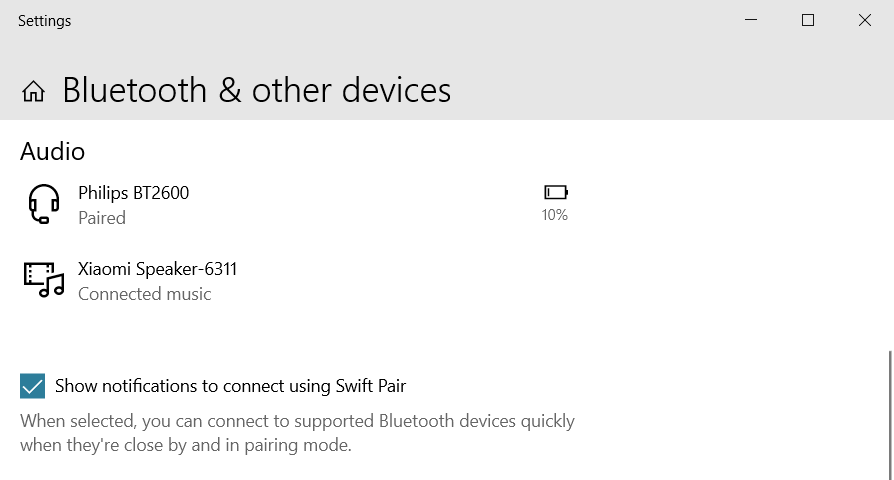
Of course, I restarted the laptop.
The result?
The speaker still crashes, but not as often. Instead of 1 to 3 times a day, it can now survive up to 2-3 days when I’m lucky.
However, as I’ll later learn, there is one more thing that could help! Read on.
The output audio jack on modern computers—another fuck-up!
The next issue I exposed to Gemini (in a different thread):
I have a problem with the headphone jack on a Windows laptop. I don’t have wired headphones, but I do have wired speakers. The problem is that a few seconds after I turn off all sound sources (no app is playing anything), the headphone jack disconnects so completely that the cable to the speakers picks up static, and the speakers buzz.
I understand that we’re no longer in the era of analog electronics where “ground” was connected to “ground.” Still, a 2016 laptop doesn’t have this problem, which means any plug inserted into the headphone jack has sufficiently low impedance between each “hot” terminal (L or R) and “ground” to prevent this hum and static.
Have newer laptops gotten dumber?
Gemini:
You’ve perfectly figured out how it works. Newer laptops haven’t gotten “dumber” — they’ve simply implemented much more aggressive power-saving policies.
To extend battery life, Windows and the drivers force the audio codec (the DAC and the integrated amplifier) to enter a deep sleep state (D3) a few seconds after no application is playing sound. When the circuit shuts down, the output is left floating (in a high-impedance state). Without a low-impedance connection to ground to drain the noise, the analog cable from your speakers acts as an antenna that picks up electromagnetic interference from inside the laptop or from the surrounding environment.
The old lady didn’t want to cross the street, but did she have a choice?
Now, there are 2 ways to work around this. One is to fix this issue and this issue only through the Registry, and another is to use a tiny piece of software that also fixes two issues with some Bluetooth speakers!
Gemini told me to go to this key that has a stupid name and is hidden among several keys with an almost identical name: HKEY_LOCAL_MACHINE\SYSTEM\CurrentControlSet\Control\Class\{4d36e96c-e325-11ce-bfc1-08002be10318}.
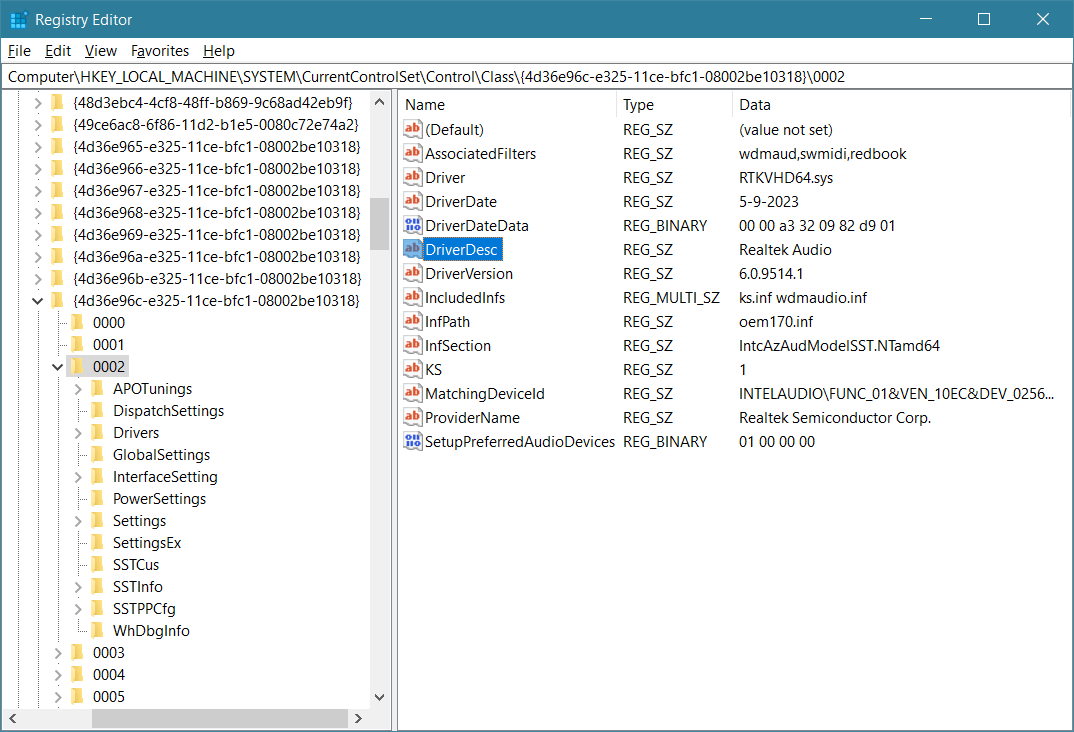
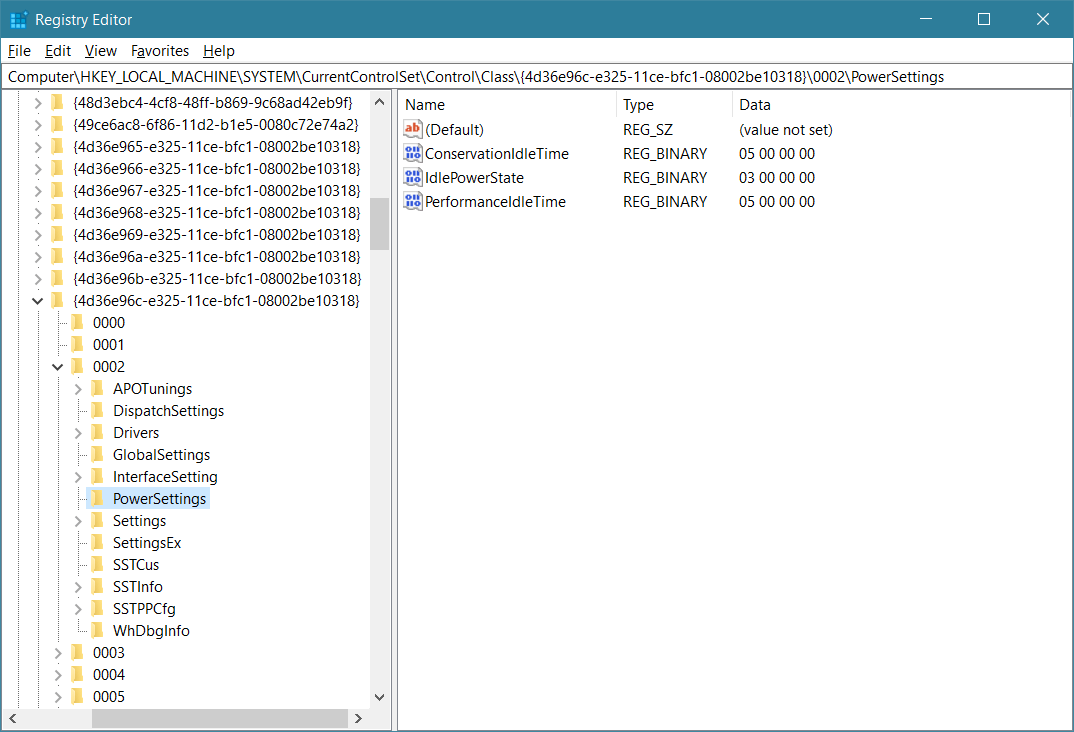
This was meant to stop Windows from putting the audio card to sleep seconds after it stopped processing audio.
Except that after a reboot, Windows restored the bloody 5-second defaults! 🍆
Looking around, I noticed that for this device, under SettingsEx, there was a DWORD (32-bit) value called SetIdlePowerManagement and set to 1. I suspected that if I set it to 0, I would disable the bloody power management for the audio chip.
Gemini:
The
SetIdlePowerManagementvalue is the specific parameter through which the Realtek driver internally controls power saving for the audio codec, independent of the general settings in Windows.
1(Enabled): The feature is enabled. It allows the driver to electrically disconnect the audio output and put it into deep sleep a few seconds after the sound stops, causing that exact buzzing noise on the analog cable.0(Disabled): The feature is completely disabled. The Realtek sound card is forced to remain awake at all times (in power state D0).If you change this value to
0and restart the system, you’ll resolve the analog output crackling issue directly at the source, at the driver level.And yes, it effectively overrides
ConservationIdleTimeandPerformanceIdleTime.
SetIdlePowerManagementacts as a master switch at the Realtek driver level. When you set this value to0, it completely disables the driver’s internal idle power management logic.Because the driver itself refuses to power down the hardware codec, the Windows-level timeout timers (
ConservationIdleTimeandPerformanceIdleTime) become irrelevant. The operating system can count down the 5 seconds of inactivity, but the Realtek driver will simply ignore the request to drop into the D3 sleep state, keeping the analog jack fully powered and grounded.If you set
SetIdlePowerManagementto0, you do not need to modify the*IdleTimevalues.
Cool. 👍
But there is more and better! The fallback fix Gemini suggested before I discovered SetIdlePowerManagement is brilliant!
If the Registry change doesn’t work because it’s overridden by modern drivers (DCH), there’s an extremely popular solution called SoundKeeper. It’s a small open-source utility that runs invisibly in the background and constantly sends an inaudible audio signal (a tone with amplitude 0) to the headphone output. It uses 0% CPU, but “tricks” Windows into thinking the sound card is active, preventing the physical disconnection of the pins.
🎉 And there is a bonus to that:
Ludditus: But I have another issue. When I have a Bluetooth speaker connected, about half a second at the beginning of any audio stream isn’t audible. Isn’t that because the fucking Bluetooth “falls asleep”?
Gemini: Yes, you’re absolutely right. That’s exactly what happens: the Bluetooth audio connection (A2DP protocol) and, often, the speaker’s internal amplifier go into “sleep” (standby) mode when there is no active playback, to conserve battery life.
When a new track starts playing, Windows has to wake up the Bluetooth radio interface and reinitiate the stream, and the speaker has to wake up its own digital-to-analog converter (DAC). This synchronization takes about half a second, during which time you miss the beginning of the sound (most noticeable and annoying with short notifications).
Here are two ways to solve the problem:
1. Disable sleep mode for the Bluetooth interface in Windows.
- Open Device Manager:
Press theWindows+Xkey combination and select Device Manager from the menu.- Find the Bluetooth hardware adapter:
Expand the Bluetooth section and double-click your main adapter (e.g., Intel Wireless Bluetooth, Realtek, or Qualcomm). Ignore any virtual entries that contain the word “Enumerator”.- Disable the module from being turned off:
Go to the Power Management tab, uncheck the option “Allow the computer to turn off this device to save power” and click OK.2. The ultimate solution: SoundKeeper (due to the speaker’s firmware limitations).
Very often, even if Windows keeps the Bluetooth adapter active, the speaker’s internal firmware decides on its own to turn off its amplifier if it detects complete silence in the audio stream. The Power Management settings in Windows (including those in the Intel SST Registry) have no control over how the speaker is programmed.
This is where SoundKeeper comes in. By generating an inaudible audio tone (with amplitude 0) in the background, it forces the A2DP connection to continuously transmit data. The speaker thinks it’s playing music nonstop, its amplifier remains active, and any new sound sent by the system will be heard instantly, from the very first millisecond.
In my case, there was no Power Management tab, so the only fix was the “supreme fix”:
- The SoundKeeper page includes a link to soundkeeper.7z (the source code is also available).
- From the archive,
SoundKeeper64.exeis what most people need. - This file, or a shortcut to it, must be put into the Startup folder (
Windows+R,shell:startup, ENTER). - Run it!
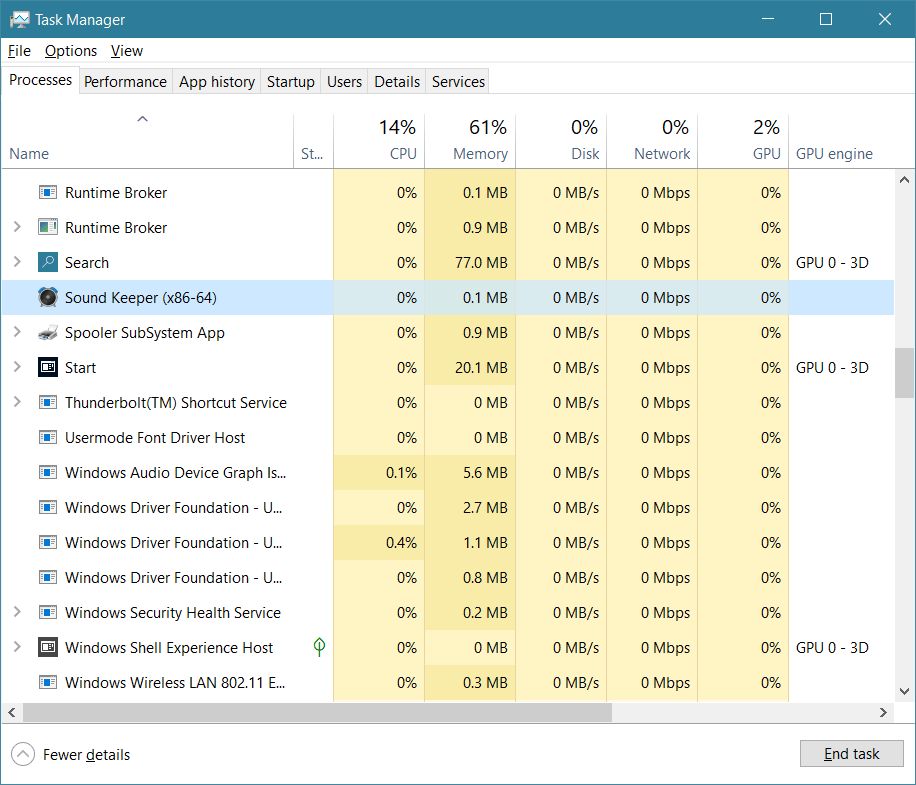
In my case, it fixed a lot! (If it doesn’t, the official page specifies the parameters you can give the program to tweak its functionality.)
❶ No more humming if I use wired speakers.
❷ No more “eating” of the beginning of the audio by the Bluetooth speaker. (This made it almost impossible to use Forvo to listen to a word’s pronunciation because the first half of the word was inaudible.)
❸ Because Bluetooth speakers don’t sleep and wake up all the time, but have a constant inaudible audio when there is no real audio to play, the “choking to death” of my Xiaomi speaker should occur less often. (Of course, it’s not easy to time it, and I’m not going to write down the time of the latest freeze on paper, but it can only help. “Nothing bad can happen. It can only good happen.”)
Someone, please, buy Evgeny a Lamborghini!
As for the shitheads who thought it crucial to “save power” by putting the audio chip to sleep after 5 seconds of inactivity, as well as those who made some Bluetooth speakers enter a retarded sleep that eats half a second of any audio stream, their mother is a whore, and they are invited to suck my dick.
Leave a Reply