
A question of time in XFCE
There was absolutely no time synchronization issue in my Debian XFCE installed from xebian-trixie-amd64.hybrid.iso, but I was made aware that in Xebian, trying to use the “Time and Date Settings” applet from XFCE’s System Settings to set “Keep synchronized with Internet servers” kept insisting that “NTP support is not installed”!
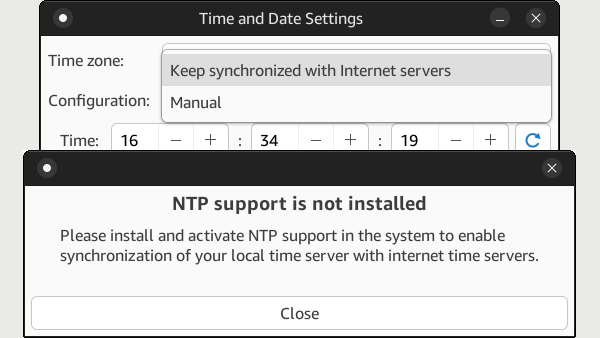
So I needed to investigate.
The four main solutions are three: systemd-timesyncd and chrony 🙂
Basically, the main choices to keep your system’s clock correct are to use a Simple Network Time Protocol (SNTP) client offered by one of the following packages:
ntpntpsecsystemd-timesyncdchrony
NTP (hence the ntp package) is deprecated, so the first option is moot.
1. The standard for systemd-based distributions: systemd-timesyncd
How to enable it:
sudo apt update
sudo apt install systemd-timesyncd
sudo systemctl enable --now systemd-timesyncd
sudo timedatectl set-ntp on
How to check the sync status:
timedatectl statusLook for these lines:
NTP service: active
System clock synchronized: yes
2. The legacy solution: ntpsec
As a successor to NTP, NTPsec should have satisfied XFCE’s “Time and Date” utility (time-admin, belonging to gnome-system-tools) need for NTP. It doesn’t.
How to install it:
sudo apt update
sudo apt install ntpsec
Note that installing ntpsec will automatically replace systemd-timesyncd if present.
If your distro is using systemd:
sudo systemctl enable --now ntpsec
sudo systemctl status ntpsec
How to check the sync status:
timedatectl statusNote that timedatectl status is a high-level command that works regardless of the time provider, whereas timedatectl timesync-status is exclusive to systemd-timesyncd.
If your distro does not use systemd, inspect the output of these commands to determine if syncing the time works:
ntpq -p
adjtimex -p
ntptime
3. The modern solution: chrony
Chrony is used by Red Hat (including Fedora) and Ubuntu.
How to install it:
sudo apt update
sudo apt install chrony
sudo systemctl enable --now chrony
sudo timedatectl set-ntp on
Note that apt will automatically handle conflicts and disable systemd-timesyncd if present.
How to check the sync status:
timedatectl statusTo view the active upstream servers and poll offsets tracked by chrony:
chronyc sources -vTo see real-time drift, stratum, and clock offset:
chronyc trackingIt uses this config file, where you can edit the servers: /etc/chrony/chrony.conf. Example:
server time.cloudflare.com iburst nts
server time.google.com iburst
If you changed the configuration, restart the service:
sudo systemctl restart chronyThe sanity check
To determine which solution is currently in use:
systemctl list-units --type=service | grep -E 'timesync|ntp|chrony'Non-systemd distros should go fuck themselves.
Let’s inspect some live distros
1. Debian KDE Live
Oh my, Debian’s Live KDE ISO is retarded!
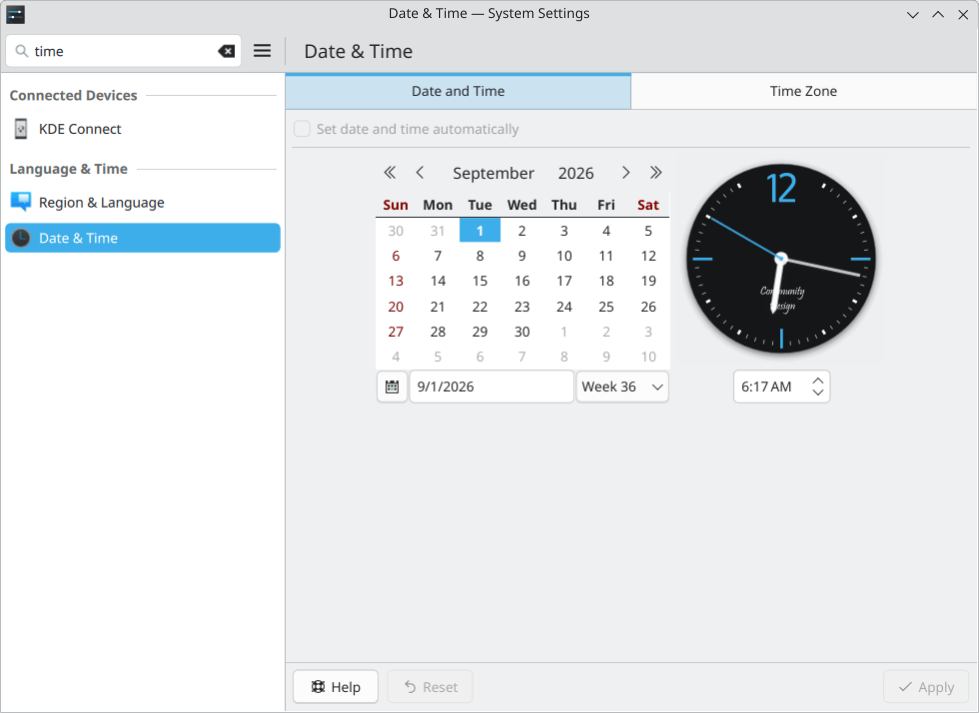
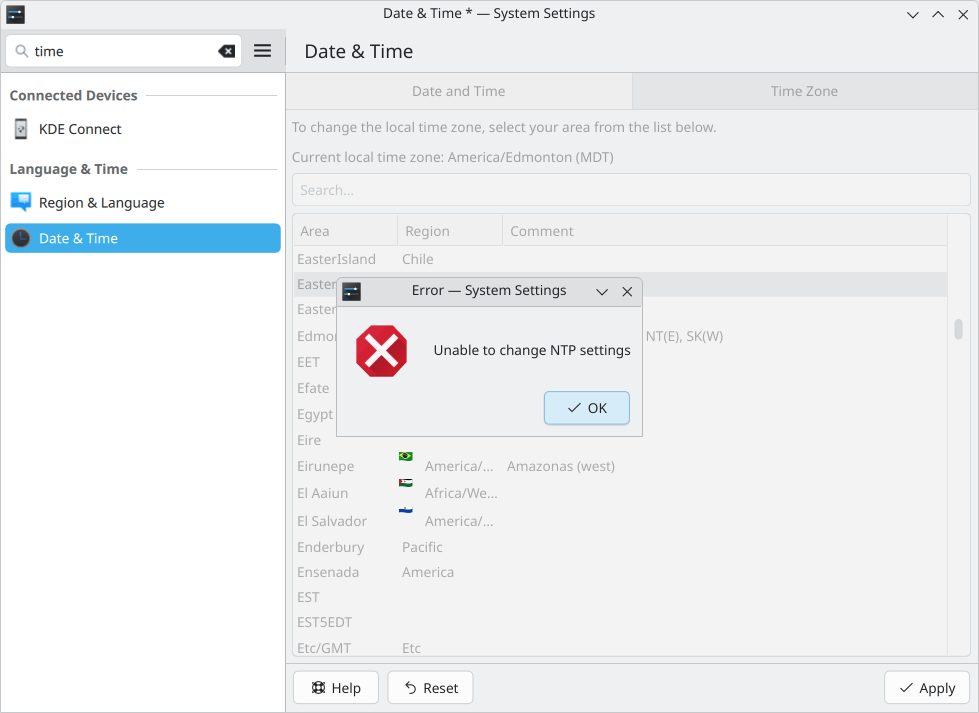
user@debian:~$ timedatectl status
               Local time: Tue 2026-09-01 12:15:43 UTC
           Universal time: Tue 2026-09-01 12:15:43 UTC
                 RTC time: Tue 2026-09-01 12:15:43
                Time zone: Etc/UTC (UTC, +0000)
System clock synchronized: no
              NTP service: n/a
          RTC in local TZ: no
Let’s install chrony and try again:
user@debian:~$ timedatectl status
               Local time: Tue 2026-09-01 08:20:09 EDT
           Universal time: Tue 2026-09-01 12:20:09 UTC
                 RTC time: Tue 2026-09-01 12:20:09
                Time zone: Canada/Eastern (EDT, -0400)
System clock synchronized: yes
              NTP service: active
          RTC in local TZ: no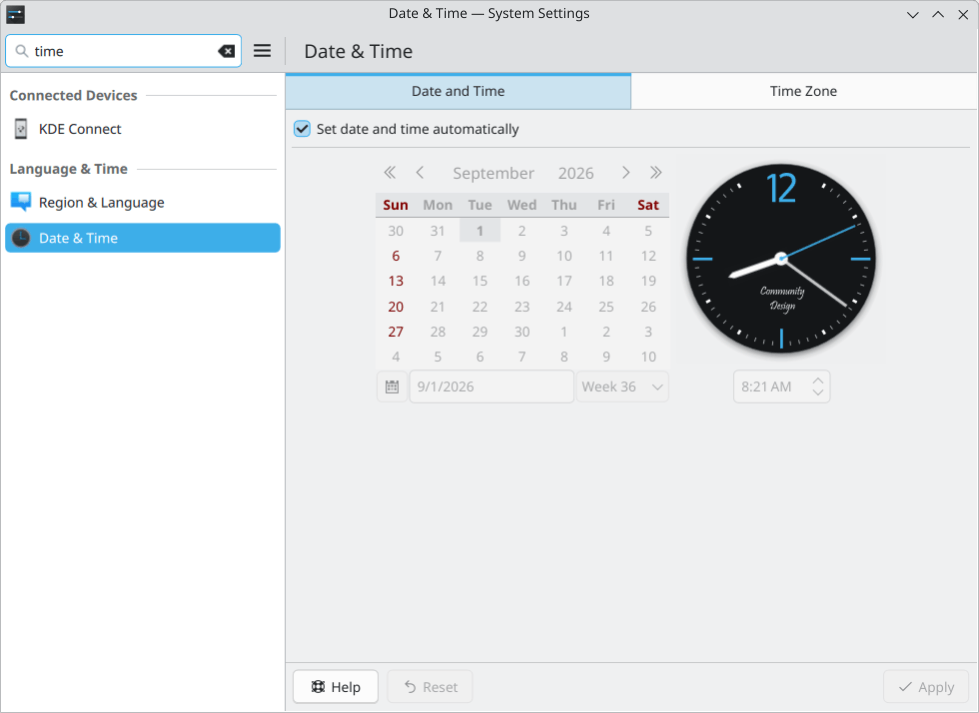
2. Debian XFCE Live
One more retarded ISO! 🤦♂️
user@debian:~$ timedatectl status
               Local time: Tue 2026-09-01 12:25:21 UTC
           Universal time: Tue 2026-09-01 12:25:21 UTC
                 RTC time: Tue 2026-09-01 12:25:21
                Time zone: Etc/UTC (UTC, +0000)
System clock synchronized: no
              NTP service: n/a
          RTC in local TZ: no
No “Date and Time” in XFCE’s settings! gnome-system-tools is not installed; hence, no /usr/bin/time-admin.
But installing gnome-system-tools doesn’t add a “Date and Time” applet to the Settings Manager! It does show in the application menu (either the dumb one or Whisker Menu), but not in the Settings Manager (xfce4-settings-manager).
To force it to appear inside xfce4-settings-manager:
mkdir -p ~/.local/share/applications
cp /usr/share/applications/time.desktop ~/.local/share/applications/
Now, in ~/.local/share/applications/time.desktop, these lines neeed to be edited or added to the [Desktop Entry] section:
Categories=GNOME;GTK;System;Settings;X-XFCE-SettingsDialog;X-XFCE-SystemSettings;
X-XFCE-Settings-Manager=true
X-XFCE-Settings-Category=System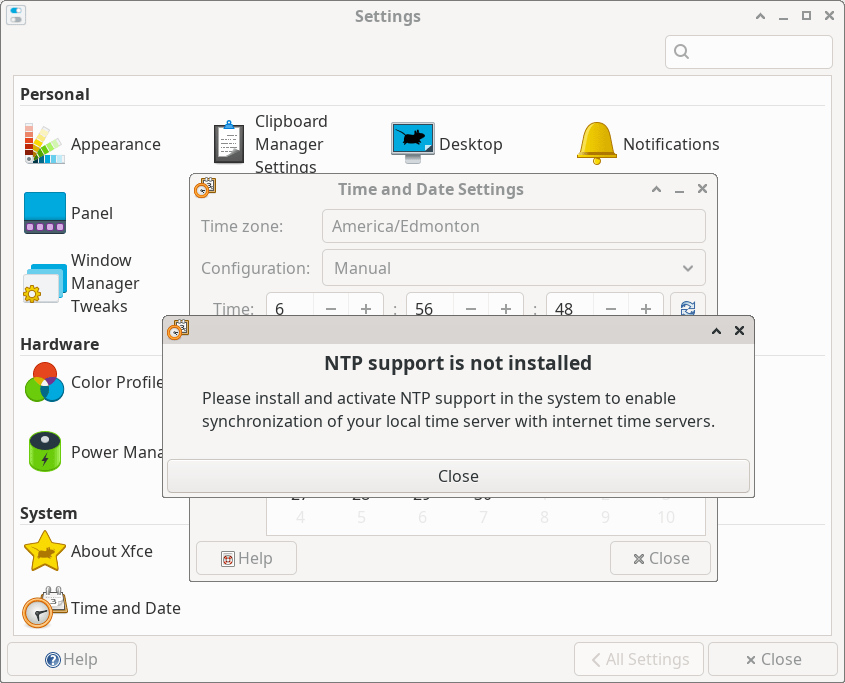
After installing and configuring ntpsec (let’s see if that bloody tool sees it!):
user@debian:~$ sudo systemctl status ntpsec
● ntpsec.service - Network Time Service
     Loaded: loaded (/usr/lib/systemd/system/ntpsec.service; enabled; preset: enabled)
     Active: active (running) since Tue 2026-09-01 06:57:21 MDT; 14s ago
 Invocation: 6be56cdd869e42dea0133a3d0dcad5f5
       Docs: man:ntpd(8)
   Main PID: 4547 (ntpd)
      Tasks: 1 (limit: 9020)
     Memory: 12M (peak: 12.6M)
        CPU: 88ms
     CGroup: /system.slice/ntpsec.service
             └─4547 /usr/sbin/ntpd -p /run/ntpd.pid -c /etc/ntpsec/ntp.conf -g -u ntpsec:ntpsec

Sep 01 06:57:25 debian ntpd[4547]: DNS: dns_take_status: 2.debian.pool.ntp.org=>good, 8
Sep 01 06:57:25 debian ntpd[4547]: DNS: dns_probe: 3.debian.pool.ntp.org, cast_flags:8, flags:101
Sep 01 06:57:25 debian ntpd[4547]: DNS: dns_check: processing 3.debian.pool.ntp.org, 8, 101
Sep 01 06:57:25 debian ntpd[4547]: DNS: Pool taking: 89.36.93.8
Sep 01 06:57:25 debian ntpd[4547]: DNS: Pool taking: 86.127.71.168
Sep 01 06:57:25 debian ntpd[4547]: DNS: Pool taking: 162.159.200.1
Sep 01 06:57:25 debian ntpd[4547]: DNS: Pool taking: 193.142.58.163
Sep 01 06:57:25 debian ntpd[4547]: DNS: dns_take_status: 3.debian.pool.ntp.org=>good, 8
Sep 01 06:57:29 debian ntpd[4547]: CLOCK: time stepped by 0.443291
Sep 01 06:57:29 debian ntpd[4547]: INIT: MRU 10922 entries, 13 hash bits, 65536 bytes
But the GUI remains dumb!
Now that we know the GUI only supports the classic ntp (not ntpsec) and can’t handle anything else, the best idea is to purge ntpsec and install chrony. The final result:
user@debian:~$ timedatectl status
               Local time: Tue 2026-09-01 13:00:24 UTC
           Universal time: Tue 2026-09-01 13:00:24 UTC
                 RTC time: Tue 2026-09-01 13:00:24
                Time zone: n/a (UTC, +0000)
System clock synchronized: yes
              NTP service: active
          RTC in local TZ: no
3. MX 25.2 KDE August 2026 snapshot using systemd
“Set date and time automatically” is not checked in KDE’s “Date & Time,” but MX also installs its own tool, which shows that the feature is actually enabled:
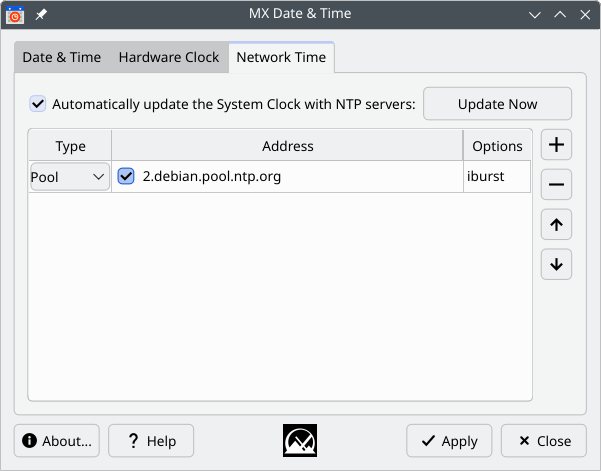
And it works:
$ timedatectl status
               Local time: Tue 2026-09-01 09:12:49 EDT
           Universal time: Tue 2026-09-01 13:12:49 UTC
                 RTC time: Tue 2026-09-01 13:12:49
                Time zone: America/New_York (EDT, -0400)
System clock synchronized: yes
              NTP service: active
          RTC in local TZ: no
$ systemctl list-units --type=service | grep -E 'timesync|ntp|chrony'
  chrony.service                loaded active running chrony, an NTP client/server
This isn’t the first MX bug related to a lack of sync between an MX tool and an official one. MX Tools couldn’t see a secondary layout configured in XFCE’s Keyboard settings applet (xfce4-keyboard-settings).
MX is a bug factory.
4. MX 25.2 KDE August 2026 snapshot using sysvinit
“MX Date & Time” from MX Tools works and shows that syncing is enabled, but KDE’s “Set date and time automatically” is disabled in the GUI and cannot be enabled because KDE needs systemd for this to work.
Let’s test at the CLI:
$ chronyd -p
pool 2.debian.pool.ntp.org iburst
sourcedir /run/chrony-dhcp
sourcedir /etc/chrony/sources.d
keyfile /etc/chrony/chrony.keys
driftfile /var/lib/chrony/chrony.drift
ntsdumpdir /var/lib/chrony
logdir /var/log/chrony
maxupdateskew 100.0
rtcsync
makestep 1 3
leapseclist /usr/share/zoneinfo/leap-seconds.list
It does!
Let’s play a bit more and replace chrony with ntpsec:
$ ntpq -p
     remote             refid      st t when poll reach   delay   offset   jitter
=======================================================================================================
 0.debian.pool.ntp.org                   .POOL.          16 p    -  256    0   0.0000   0.0000   0.0001
 1.debian.pool.ntp.org                   .POOL.          16 p    -  256    0   0.0000   0.0000   0.0001
 2.debian.pool.ntp.org                   .POOL.          16 p    -  256    0   0.0000   0.0000   0.0001
 3.debian.pool.ntp.org                   .POOL.          16 p    -  256    0   0.0000   0.0000   0.0001
#109.102.183.146                         .PPS.            1 u    7   64    1   7.4270  -0.0635   1.6526
+ntp1.chroot.ro    10.11.41.9       2 u    7   64    1   6.5024  -0.8330   1.5868
 185.86.67.2       .INIT.          16 u    -   64    0   0.0000   0.0000   0.0001
+ntp0.m247.chroot.ro                     10.11.41.9       2 u    7   64    1   6.6169  -0.3959   1.7393
#ntp7.kernfusion.at                      237.17.204.95    2 u    6   64    1  33.7532  -9.2856   2.3902
+static-86-127-71-168.rdsnet.ro          193.142.58.163   3 u    6   64    1  16.4882  -1.1678   2.1619
+ntp0.chroot.ro    10.11.41.9       2 u    6   64    1   6.4318   0.0076   2.6037
#tim1.ro.ntp.li    80.96.41.6       2 u    6   64    1 202.2631 -34.7186  37.8139
+mail.emailservauth.site                 129.134.29.123   2 u    5   64    1   6.9791   1.2558   2.6396
+time.cloudflare.com                     10.215.8.4       3 u    5   64    1  28.7619   1.7242   1.6154
+185.173.17.132    194.58.200.20    2 u    5   64    1  38.7125   0.5626   2.1815
#ntp7.kernfusion.at                      192.53.103.108   2 u    7   64    1  33.8171 -12.0898   2.0508
 2a01:4ce0:61::143a:0:2                  .INIT.          16 u    -   64    0   0.0000   0.0000   0.0001
 2a0c:9f00:2:9b50::1                     .INIT.          16 u    -   64    0   0.0000   0.0000   0.0001
 ntp0.chroot.ro    .INIT.          16 u    -   64    0   0.0000   0.0000   0.0001
 ntp7.kernfusion.at                      .INIT.          16 u    -   64    0   0.0000   0.0000   0.0001
*ntp.datapark.ro                         .GPS.            1 u    7   64    1  12.2483   1.5395   1.5061
+time.cloudflare.com                     10.165.8.4       3 u    7   64    1  28.9235  -0.1863   1.8095
+gateway.cs.upt.ro                       193.226.12.5     2 u    7   64    1  13.5029   0.5708   1.8252
+static-86-122-68-21.rdsnet.ro 80.96.41.6 2 u 7 64 1 7.4615 -1.1440 2.4209Below, code 5 (ERROR) means the time has not been synced yet:
$ ntptime
ntp_gettime() returns code 5 (ERROR)
  time ee4150fe.6c618000 2026-09-01T13:26:22.423Z, (.423363),
  maximum error 16000000 us, estimated error 16000000 us, TAI offset 37
ntp_adjtime() returns code 5 (ERROR)
  modes 0x0 (),
  offset 0.000 us, frequency 0.000 ppm, interval 1 s,
  maximum error 16000000 us, estimated error 16000000 us,
  status 0x41 (PLL,UNSYNC),
  time constant 4, precision 1.000 us, tolerance 500 ppm,

$ adjtimex -p
         mode: 0
       offset: 0
    frequency: 0
     maxerror: 16000000
     esterror: 16000000
       status: 65
time_constant: 4
    precision: 1
    tolerance: 32768000
         tick: 10000
     raw time:  1788269258s 38050us = 1788269258.038050
 return value = 5
After more than 15 or 30 minutes:
$ ntptime
ntp_gettime() returns code 0 (OK)
  time ee415569.8c41cc54 2026-09-01T13:45:13.547Z, (.547879602),
  maximum error 58321 us, estimated error 1866 us, TAI offset 37
ntp_adjtime() returns code 0 (OK)
  modes 0x0 (),
  offset -822.103 us, frequency -14.346 ppm, interval 1 s,
  maximum error 58321 us, estimated error 1866 us,
  status 0x2001 (PLL,NANO),
  time constant 6, precision 1.000 us, tolerance 500 ppm,

$ adjtimex -p
         mode: 0
       offset: -733892
    frequency: -940165
     maxerror: 72821
     esterror: 1866
       status: 8193
time_constant: 6
    precision: 1
    tolerance: 32768000
         tick: 10000
     raw time:  1788270342s 664533386ns = 1788270342.664533386
5. MX 25.2 XFCE August 2026 snapshot using systemd
MX uses the same custom tool, so there is no “Time and Date” in XFCE’s Settings Manager.
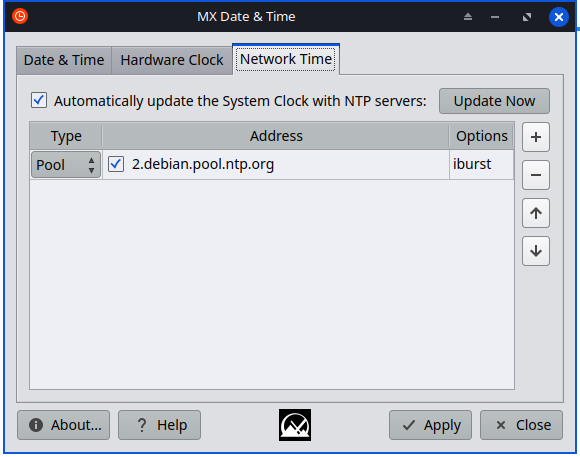
The provider is chrony:
$ systemctl list-units --type=service | grep -E 'timesync|ntp|chrony'
  chronyd-restricted.service    loaded active running NTP client (restricted)
“Restricted” means that chrony was launched with extra systemd sandboxing directives applied. Some fucktard thought it was so dangerous and potentially vulnerable that it could not be launched the way all other distros launch it. But in MX’s KDE flavor, also using systemd, chrony was launched unrestricted from KDE’s GUI!
6. MX 25.2 XFCE August 2026 snapshot using sysvinit
Same utility, sync enabled. But what provider? Chrony, because it’s installed.
$ chronyd -p
pool 2.debian.pool.ntp.org iburst
sourcedir /run/chrony-dhcp
sourcedir /etc/chrony/sources.d
keyfile /etc/chrony/chrony.keys
driftfile /var/lib/chrony/chrony.drift
ntsdumpdir /var/lib/chrony
logdir /var/log/chrony
maxupdateskew 100.0
rtcsync
makestep 1 3
leapseclist /usr/share/zoneinfo/leap-seconds.list
7. Xebian Trixie
As expected, the GUI believes it’s on “Manual,” and is useless to set it to “Keep synchronized with Internet servers”:
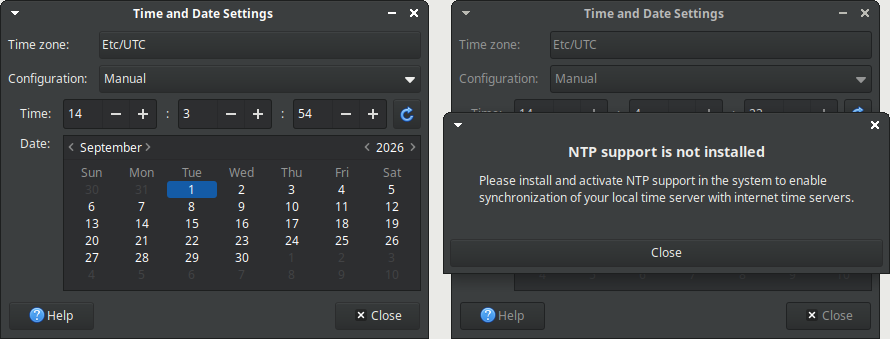
But time sync works:
xebian@xebian:~/Desktop$ timedatectl status
               Local time: Tue 2026-09-01 14:03:04 UTC
           Universal time: Tue 2026-09-01 14:03:04 UTC
                 RTC time: Tue 2026-09-01 14:03:03
                Time zone: Etc/UTC (UTC, +0000)
System clock synchronized: yes
              NTP service: active
          RTC in local TZ: no
xebian@xebian:~/Desktop$ systemctl list-units --type=service | grep -E 'timesync|ntp|chrony'
  systemd-timesyncd.service     loaded active running Network Time Synchronization
8. Xebian Sid
Same as Trixie.
9. LMDE7 (Cinnamon)
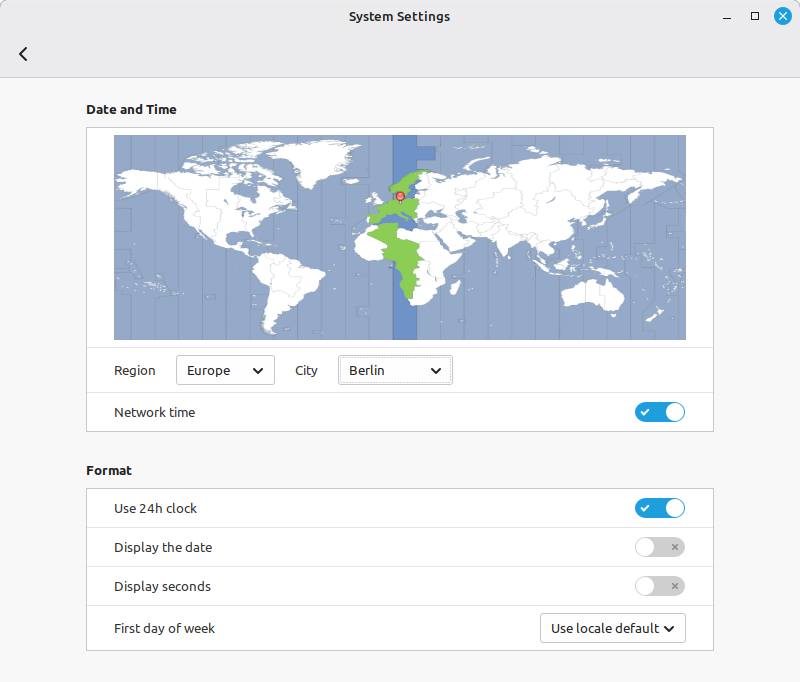
“Network time” is enabled by default.
mint@mint:~/Desktop$ timedatectl status
               Local time: Tue 2026-09-01 16:18:53 CEST
           Universal time: Tue 2026-09-01 14:18:53 UTC
                 RTC time: Tue 2026-09-01 14:18:53
                Time zone: Europe/Berlin (CEST, +0200)
System clock synchronized: yes
              NTP service: active
          RTC in local TZ: no
mint@mint:~/Desktop$ systemctl list-units --type=service | grep -E 'timesync|ntp|chrony'
  systemd-timesyncd.service     loaded active running Network Time Synchronization
10. linuxmint-22.3-xfce-64bit-hwe-7.0.iso
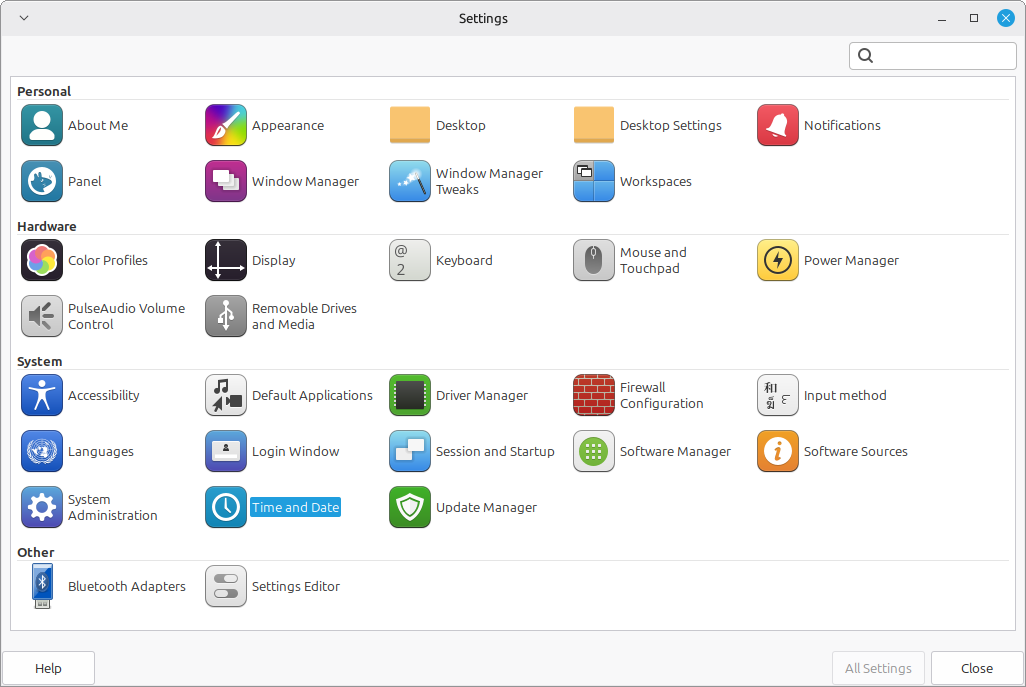
There is no “Date and Time” in XFCE’s Settings window. However, in the menu, System → Time and Date and Settings → Time and Date launch time-admin, already set to “Keep synchronized with Internet servers.”
Somehow, Mint patched XFCE to recognize systemd-timesyncd, but didn’t bother to patch a .desktop file so the applet shows up in the Settings window!
mint@mint:~/Desktop$ timedatectl status
               Local time: Tue 2026-09-01 14:22:51 UTC
           Universal time: Tue 2026-09-01 14:22:51 UTC
                 RTC time: Tue 2026-09-01 14:22:51
                Time zone: Etc/UTC (UTC, +0000)
System clock synchronized: yes
              NTP service: active
          RTC in local TZ: no
mint@mint:~/Desktop$ systemctl list-units --type=service | grep -E 'timesync|ntp|chrony'
  systemd-timesyncd.service     loaded active running Network Time Synchronization
11-12. Ubuntu and Kubuntu
Ubuntu and Kubuntu are using chrony, which is enabled by default.
Xubuntu is such a failure that I refused to give it a try.
13. DESERT_5.5.1_26.04_LTS_amd64.iso (XFCE)
Despite using XFCE, DESERT created a special tool that supports newer SNTP providers:
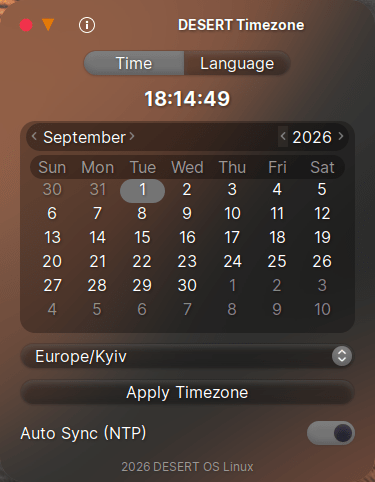
desert@desert:~$ timedatectl status
               Local time: Tue 2026-09-01 18:16:37 EEST
           Universal time: Tue 2026-09-01 15:16:37 UTC
                 RTC time: Tue 2026-09-01 15:16:38
                Time zone: Europe/Kyiv (EEST, +0300)
System clock synchronized: yes
              NTP service: active
          RTC in local TZ: no
desert@desert:~$ systemctl list-units --type=service | grep -E 'timesync|ntp|chrony'
  systemd-timesyncd.service     loaded active running Network Time Synchronization
14. Ultramarine XFCE 44
No “Date and Time” GUI anywhere, but:
liveuser@localhost-live ~/Desktop
❯ timedatectl status
               Local time: Tue 2026-09-01 18:31:50 UTC
           Universal time: Tue 2026-09-01 18:31:50 UTC
                 RTC time: Tue 2026-09-01 18:31:50
                Time zone: UTC (UTC, +0000)
System clock synchronized: yes
              NTP service: active
          RTC in local TZ: no

liveuser@localhost-live ~/Desktop
❯ systemctl list-units --type=service | grep -E 'timesync|ntp|chrony'
  chronyd.service    loaded active running NTP client/server
Conclusions
The following summary refers to the above distros tested via Ventoy as live distros:
| # | Distro | Desktop | systemd | Provider | Enabled? | GUI switch |
|---|---|---|---|---|---|---|
| 1 | Debian | KDE | yes | none | n/a | if provider is added |
| 2 | Debian | XFCE | yes | none | n/a | no GUI installed |
| 3 | MX 25.2 | KDE | yes | chrony | yes | own tool works |
| 4 | MX 25.2 | KDE | no | chrony | yes | own tool works |
| 5 | MX 25.2 | XFCE | yes | chrony | yes | own tool works |
| 6 | MX 25.2 | XFCE | no | chrony | yes | own tool works |
| 7-8 | Xebian | XFCE | yes | systemd-timesyncd | yes | fails |
| 9 | LMDE7 | Cinnamon | yes | systemd-timesyncd | yes | works |
| 10 | Mint | XFCE | yes | systemd-timesyncd | yes | works (Mint-patched) |
| 11 | Ubuntu | GNOME | yes | chrony | yes | works |
| 12 | Kubuntu | KDE | yes | chrony | yes | works |
| 13 | DESERT | XFCE | yes | systemd-timesyncd | yes | own tool works |
| 14 | Ultramarine | XFCE | yes | chrony | yes | no GUI installed |
I don’t remember how installing Debian from the netinst ISO was (maybe I was asked to enable NTP sync), but the Live KDE and XFCE ISOs are pathetic. Maybe they install better-configured systems than the live sessions, but I can’t tell without installing from them.
Either way, I was right to install Debian XFCE by actually installing Xebian from the unpublicized Trixie ISO. No headaches. No bloat and no MX bugs. Time synchronization is enabled by default, as it should be, regardless of XFCE’s anachronism that prevents it from recognizing modern SNTP clients.
Leave a Reply