
Windows and Firefox colluded to wreck my download speed!
This is an issue I investigated and fixed on August 30. Since Gemini was somewhat confused and proposed some useless changes (no, this had nothing to do with any power saving, you dumbo!), I’ll only mention the changes that needed to be made. But there are still a lot of them!
The issue at hand:
Why is Intel AX210 on Win10 IoT LTSC 21H2 19044.7663 connected on 5 GHz (the AP is on 5 GHz, so it doesn’t matter that the AX210 driver for Win10 doesn’t support 6 GHz) limited to less than 300 Mbps, when other computers on the same AP get 500 Mbps, and the same AX210, under Linux, gets more?
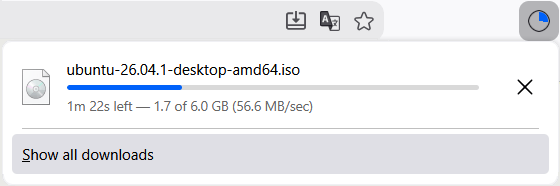
Actually, I started investigating this when I noticed that a Linux laptop on the same LAN downloaded Linux distro ISOs at 40 MB/s (when the server allowed it), whereas Windows did it at max. 2.5 MB/s! Firefox ESR on Debian 13 and Firefox 154 on Windows.
The steps needed to fix it:
Gemini:
When TCP Auto-Tuning is set to
disabled, Windows disables RFC 1323 TCP Window Scaling and locks the TCP Receive Window (RWIN) to a legacy ceiling of 64 KB (65,535 bytes). Over a single TCP connection (like a browser ISO download), maximum bandwidth is mathematically limited by the Bandwidth-Delay Product:Max Throughput = (TCP Window Size) / (Round Trip Time (RTT))
At a typical latency of 25 ms (0.025 s) to an ISO mirror: ≈2.62 MB/s.
Linux enables dynamic window scaling with megabyte-scale buffers by default (
tcp_rmem), allowing it to saturate your 40 MB/s link on the exact same network.
Fucking retards.
1. Fix the TCP Window Auto-Tuning (Admin Command Prompt / PowerShell)
netsh int tcp set global autotuninglevel=normal
netsh int tcp set heuristics disabled
netsh int tcp set global rss=enabledVerify the setting took effect (ensure Receive Window Auto-Tuning Level shows normal):
C:\WINDOWS\system32>netsh int tcp show global
Querying active state...

TCP Global Parameters
----------------------------------------------
Receive-Side Scaling State          : enabled
Receive Window Auto-Tuning Level    : normal
Add-On Congestion Control Provider  : default
ECN Capability                      : disabled
RFC 1323 Timestamps                 : disabled
Initial RTO                         : 2000
Receive Segment Coalescing State    : disabled
Non Sack Rtt Resiliency             : disabled
Max SYN Retransmissions             : 2
Fast Open                           : enabled
Fast Open Fallback                  : enabled
HyStart                             : enabled
Proportional Rate Reduction         : enabled
Pacing Profile : off2. Make sure the HTTP/3 protocol is enabled in Firefox
In Firefox, navigate to about:config:
- Search for
network.buffer.cache.sizeand verify it is at least32768. - Search for
network.http.http3.enableand ensure it is set totrue.
The latter was set to FALSE!
3. Disable Receive Segment Coalescing (RSC)
netsh int tcp set global rsc=disabledCheck the Wi-Fi interface name in Windows PowerShell (Admin):
PS C:\Windows\System32> Get-NetAdapter

Name                      InterfaceDescription                    ifIndex Status       MacAddress             LinkSpeed
----                      --------------------                    ------- ------       ----------             ---------
Wi-Fi 2                   Intel(R) Wi-Fi 6E AX210 160MHz               18 Up           98-FE-3E-00-11-3F     866.7 Mbps
Bluetooth Network Con...2 Bluetooth Device (Personal Area Ne...#2 7 Disconnected 98-FE-3E-00-11-43 3 MbpsDisable Receive Segment Coalescing at the adapter level:
Disable-NetAdapterRsc -Name "Wi-Fi 2"Verify that IPv4 and IPv6 RSC are both False:
PS C:\Windows\System32> Get-NetAdapterRsc -Name "Wi-Fi 2"

Name                           IPv4Enabled  IPv6Enabled  IPv4Operational IPv6Operational IPv4FailureReason IPv6FailureR
                                                         State           State                             eason
----                           -----------  -----------  --------------- --------------- ----------------- ------------
Wi-Fi 2                        False        False        False           False           NicPropertyDisab… NicProperty…
4. Optimize the Windows TCP Stack & Congestion Provider
Run these commands in PowerShell (Admin):
netsh int tcp set global autotuninglevel=normal
netsh int tcp set supplemental Template=Internet CongestionProvider=CUBIC
netsh int tcp set global ecncapability=disabled
netsh int tcp set global timestamps=disabled5. Disable Windows Network Throttling (Registry)
Open PowerShell (Admin) or Command Prompt (Admin).
Run this command to set NetworkThrottlingIndex to disabled (0xffffffff):
reg add "HKLM\SOFTWARE\Microsoft\Windows NT\CurrentVersion\Multimedia\SystemProfile" /v NetworkThrottlingIndex /t REG_DWORD /d 0xffffffff /fRun this command to disable system responsiveness network limits:
reg add "HKLM\SOFTWARE\Microsoft\Windows NT\CurrentVersion\Multimedia\SystemProfile" /v SystemResponsiveness /t REG_DWORD /d 0 /f6. Intel Driver Advanced Settings to Double-Check
In Device Manager > Intel AX210 > Advanced, verify these specific properties:
- Channel Width for 5GHz:
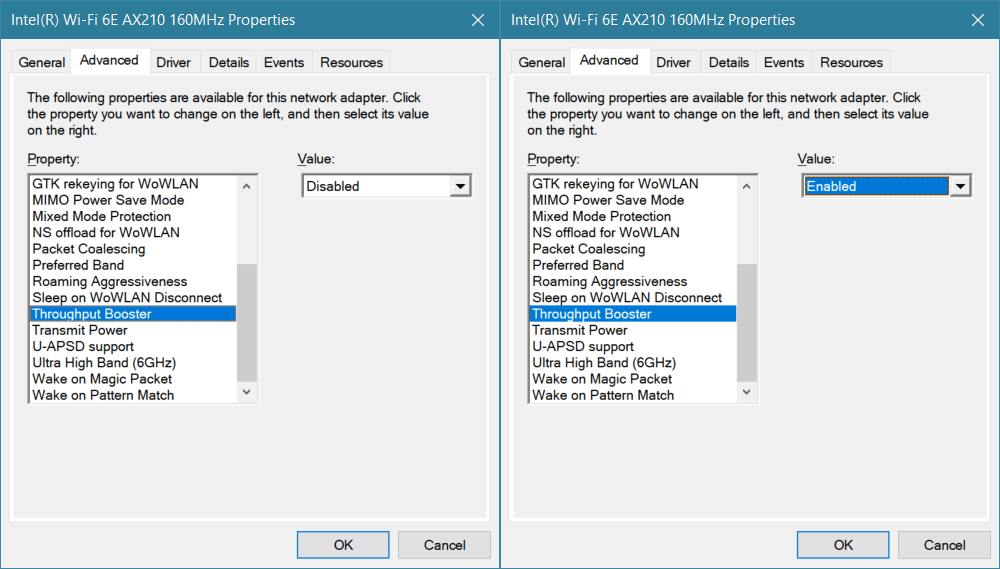
Auto(not 20MHz only) - Throughput Booster:
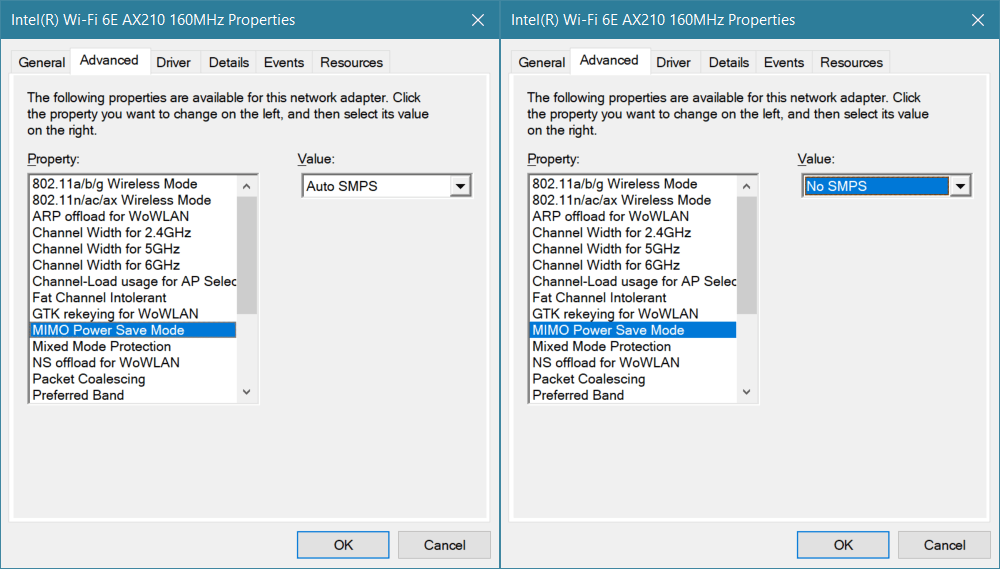
Enabled - MIMO Power Save Mode:
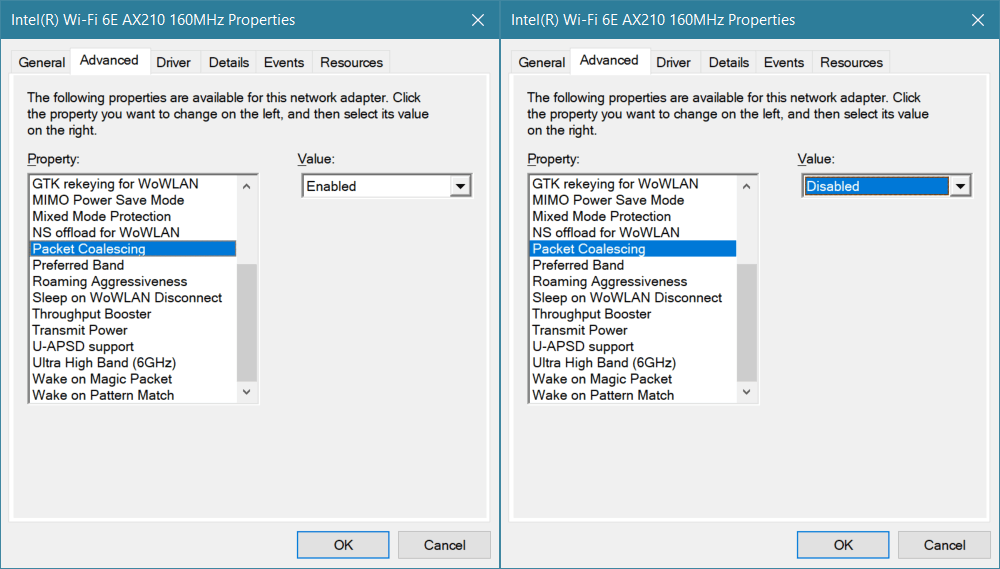
No SMPS - Packet Coalescing:
Disabled
The last 3 values needed to be adjusted!
The result:
Leave a Reply